

Bulk-generate reports in the CultureMonkey Reports Panel
How to use the Reports Panel to export survey reports in bulk - choosing anonymous or confidential batches, picking the survey and report format, and retrieving the CSV or spreadsheet output.
On this page
- What the Reports Panel is for
- Finding the Reports Panel
- Anonymous vs confidential batches
- Which surveys appear (and why some don't)
- Generating a batch of exports
- Retrieving the output: instant download vs email
- Best practices for bulk exports
- Limitations to keep in mind
- Frequently asked questions
- Where to go next
The Reports Panel is CultureMonkey's export hub. When you need the raw survey data in a spreadsheet, one survey after another, in a consistent format that you can hand to leadership, drop into your own BI tool, or archive, this is where you go. It is built for volume: pick a report format once, then pull the same export for as many surveys as you need without rebuilding anything.
This guide covers what the Reports Panel does, how it differs from the Report Builder, the difference between anonymous and confidential batches, how to choose the scope of what you export, and how to retrieve the finished files.
The Reports Panel lives in your left-hand navigation as Reports Panel. You choose a Survey Identity Type (Anonymous or Confidential), pick a survey and a report type, and download a spreadsheet. Because the panel remembers your format choice, you can run the same export across many surveys quickly. CultureMonkey emails large exports to you instead of downloading them in the browser.
What the Reports Panel is for
Most of your day-to-day analysis happens on screen: the Dashboard, individual survey Reports, and the Report Builder all give you interactive, filterable views. The Reports Panel does something different. It produces downloadable files - CSV and spreadsheet exports of the underlying response data, formatted in a fixed, predictable layout.
That makes it the right tool when you want to:
- Pull the same export for many surveys. Once you have chosen a report type, exporting survey after survey is a repeat of the same two clicks. This is the "bulk" workhorse: the panel is designed for running a batch of exports back to back rather than studying one report deeply.
- Feed another system. A clean CSV drops straight into Excel, Google Sheets, a data warehouse, or a board deck without any copy-and-paste from the on-screen views.
- Archive results. Keep a file-based record of each survey cycle outside the platform.
- Share raw data with a stakeholder who wants the numbers rather than a link to the live report.
Think of it this way: the Report Builder is where you design and read a tailored report on screen, mixing drivers, segments, and filters into a live view. The Reports Panel is where you bulk-export standardized data files. The Builder is for insight; the Panel is for output. Many admins use both - explore in the Builder, then export the standard files from the Panel.
Finding the Reports Panel
The Reports Panel appears as its own item in the left-hand navigation, labelled Reports Panel, with a download icon.
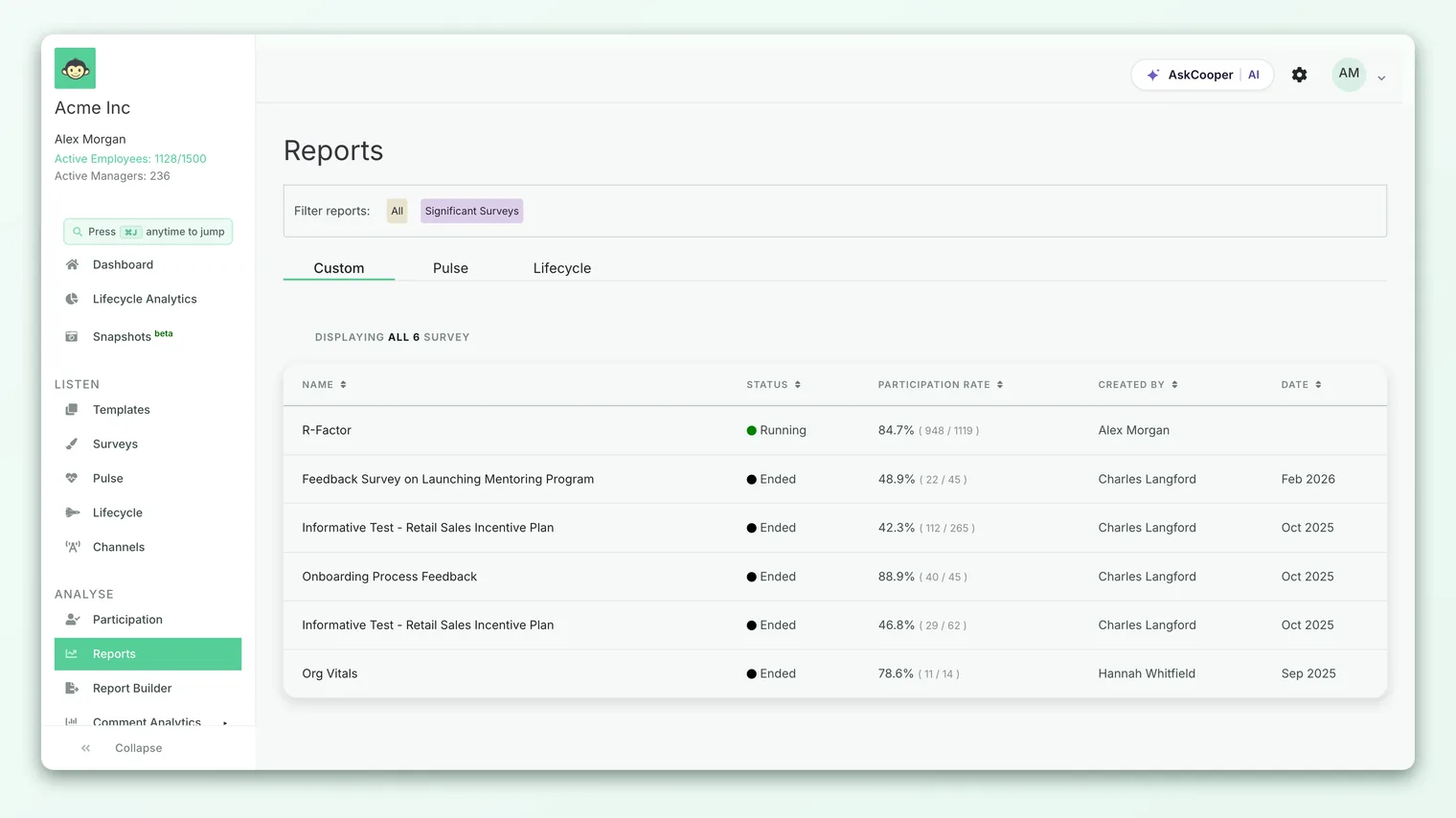
Whether the item shows up depends on your role and on how your account is configured. Access is controlled by three separate account settings, one per role:
| Role | Setting that enables the panel |
|---|---|
| Super admin | Reports Panel enabled for admins |
| Sub admin | Reports Panel enabled for sub admins |
| Manager | Reports Panel enabled for managers |
If you do not see Reports Panel in your navigation and you think you should, it usually means the flag for your role has not been switched on. Reach out to your CultureMonkey contact or support and ask for the Reports Panel to be enabled for your role.
Exports contain the underlying response data, and confidential exports can include employee identities. Gating the panel per role lets your organization decide exactly who is allowed to pull files - for example, enabling it for super admins only, or extending it to sub admins and managers for their own scope.
Anonymous vs confidential batches
The very first choice in the panel is the Survey Identity Type, and it is the most important one. It has two settings, and it changes both which surveys you can export and which formats are available.
Anonymous
Anonymous batches export aggregated, de-identified data. No individual employee is named, and results are protected by your account's anonymity threshold. Only surveys that were run anonymously and that have cleared the reporting threshold appear in the list.
When you choose Anonymous, the available report types are:
| Report type | What it contains |
|---|---|
| Standard | The standard spreadsheet export of the survey: scores, participation, and responses in the default layout. |
| Heatmap manager scores | Heatmap data (driver scores, participation rate, submission count, and eNPS) alongside each manager's details such as ID, team, location, and business unit. |
| 4 & 5 percentage scores | A percentage-based breakdown export. Available only if your account has this format enabled. |
| Location, BusinessUnit, Team | Score cuts across three demographic levels. Available only if your account has this format enabled. |
| NPS Rating Distribution - Location, Business Unit, Team | The eNPS rating distribution across the same three levels. Available only if your account has this format enabled. |
Confidential
Confidential batches export data that ties responses back to identifiable employees. These exports are the reason access is gated so carefully, and only surveys that were run in a confidential (identified) mode appear in the list.
When you choose Confidential, the available report types are:
| Report type | What it contains |
|---|---|
| Team, Designation, DoJ | Responses alongside each employee's team, designation, and date of joining. |
| Team Report | The same style of confidential export but without date-of-joining and designation columns. Shown instead of the above when your account is set to hide those fields. |
| Employee Details (with name) | The fullest export: standard employee details including ID, full name, team, and location alongside responses. Available only if your account is set to show employee names. |
A confidential export can name individual employees and their answers. Treat these files with the same care as any other personnel data: download them only when you have a legitimate need, store them securely, and never share them more widely than the survey's confidentiality promise allows.
Which surveys appear (and why some don't)
The survey list you see is not simply every survey you have run. The panel filters it in two ways.
By identity type. Switching between Anonymous and Confidential reloads the list. Anonymous shows surveys that are report-ready in anonymous mode; Confidential shows those that are report-ready in confidential mode. A single survey generally belongs to one or the other, so the same survey will not appear under both.
By your permissions. The list is scoped to what your account lets you see. A super admin typically sees all report-ready surveys; a sub admin or manager sees the surveys within their own authorized scope. This is the same authorization model used everywhere else in the platform, so the panel never exposes a survey you could not otherwise access.
By anonymity. Surveys that have not cleared the reporting threshold are deliberately left out. As the panel itself notes:
> If participation rate is below 1% or the number of responses received is lesser than the survey's anonymity threshold, then the survey won't be listed here.
This is expected behavior, not a bug. If a survey you are looking for is missing from the Anonymous list, the most common reason is that too few people have responded for results to be shown safely. For more on this, see Why can't I see results yet?.
Generating a batch of exports
Because each export is quick to run, the panel is well suited to working through a set of surveys in one sitting. Here is the flow for a single export, which you then repeat.
- 1Open the Reports Panel from the left-hand navigation.
- 2Choose the Survey Identity Type - Anonymous or Confidential. This sets which surveys and which formats you will see.
- 3Pick the survey from the Survey Name list. Each entry shows the survey title and the month it was created, so you can tell similar surveys apart.
- 4Pick the report type that matches what you need - for example, Standard for a general export or Heatmap manager scores for manager-level data.
- 5Click Download Report. The export opens in a new tab and either downloads immediately or is queued for email (see below).
- 6Repeat for the next survey. Keep the same identity type and report type, choose the next survey, and download again. This is how you work through a batch.
Decide on one report type for the whole batch before you start - for example, "Standard, anonymous, for every quarterly survey this year." Running the same format across every survey gives you files that line up column-for-column, which makes them far easier to combine or compare afterward.
Retrieving the output: instant download vs email
How you receive a file depends on how large the survey is.
Small and medium surveys download in the browser. For most surveys, clicking Download Report produces the file straight away in the new tab, as a CSV or spreadsheet ready to open.
Large surveys are emailed to you. When a survey is big enough that generating the file takes real time, the panel builds it in the background and emails it to you instead of making you wait. You will see a confirmation message rather than an immediate download:
> The report is being generated and will be emailed to you shortly. If you do not receive it in 30 minutes, please check your spam folder, or reach out to support@culturemonkey.io
A survey is treated as "large" once it passes a size threshold on either responses or questions (by default, roughly 1,500 participants or 10 or more questions), at which point the background email path kicks in automatically. You do not choose this - the panel decides based on the survey.
If you have already asked for a particular report on a particular survey and it is still being generated, the panel will not start a duplicate. Wait for the email to arrive before requesting the same export again.
Best practices for bulk exports
- Fix your format first. Choosing one report type for the whole batch keeps every file consistent and comparable.
- Batch by identity type. Do all your anonymous exports, then switch to confidential (or vice versa), rather than toggling back and forth. Each switch reloads the list, so grouping saves time.
- Mind the anonymity gap. If a survey is missing, check participation before assuming something is broken. Low-response surveys are hidden on purpose.
- Handle confidential files carefully. Store them securely, share them narrowly, and delete local copies you no longer need.
- Watch your inbox for large surveys. If you expected an instant download and got a "being generated" message, the file is on its way by email - check spam if it is slow.
- Use the Report Builder for exploration. If you find yourself exporting a file just to slice it in a spreadsheet, the Report Builder may let you do that slicing on screen instead.
Limitations to keep in mind
- Formats are fixed. The Reports Panel exports standardized layouts. It is not a place to design a custom column set - that is what the Report Builder is for.
- Availability of some formats is account-dependent. Report types such as the 4 & 5 percentage export, the Location/BU/Team cuts, and Employee Details (with name) only appear if your account has the corresponding setting enabled.
- Access is role-gated. If the panel is not enabled for your role, it will not appear in your navigation at all.
- Anonymity always applies to anonymous exports. You cannot export identifiable data from an anonymous survey, and surveys below threshold will not be listed.
- No in-panel merging. The panel gives you one file per survey per export. Combining several surveys into a single sheet is something you do afterward in your own tool.
Frequently asked questions
Can I export several surveys in a single click?
Not as one combined file. The panel produces one export per survey, but running each is fast, so you generate a batch by repeating the same format across surveys one after another. To analyze several surveys together on screen instead, use the Report Builder.
Why is a survey missing from the list?
Three common reasons: it does not match the identity type you selected (try switching between Anonymous and Confidential), it is outside your authorized scope, or it has not cleared the anonymity threshold. CultureMonkey hides low-participation surveys until enough people respond.
What is the difference between the report types?
Anonymous types (Standard, Heatmap manager scores, and any enabled percentage or demographic-cut formats) give you aggregated, de-identified data. Confidential types (Team/Designation/DoJ, Team Report, or Employee Details with name) tie responses back to individual employees and are only available for confidential surveys.
My download did not appear. Where is it?
If the survey was large, CultureMonkey emails the file rather than downloading it. Look for the confirmation message; if you saw it, check your inbox and spam folder. If nothing arrives within about 30 minutes, contact support.
Should I use the Reports Panel or the Report Builder?
Use the Reports Panel when you want standardized data files, especially across many surveys. Use the Report Builder when you want to explore, filter, and read a tailored report on screen.
Where to go next
- Build a tailored, on-screen report: Build a custom report with the Report Builder
- A survey isn't showing up? Why can't I see results yet?
- Understand the eNPS numbers in your exports: What is eNPS and how is it calculated?
Your feedback helps us improve the Help Center.