

Translate a CultureMonkey survey into multiple languages
How to run one survey in several languages - turning on multilingual mode, adding languages, auto-generating and editing translations, how each employee's language is chosen, and what happens when a translation is missing.
On this page
- Before you start: is multilingual turned on?
- How multilingual surveys are structured
- Step 1 - Add languages to your account
- Step 2 - Turn a survey multilingual
- Step 3 - Add languages and generate translations
- Step 4 - Keeping translations in sync
- How a respondent's language is chosen
- What happens when a translation is missing
- Best practices
- Frequently asked questions
- Where to go next
If your workforce spans regions, a single English survey can quietly exclude the people you most want to hear from. Someone who reads the question in a second language answers more slowly, more literally, and sometimes not at all. CultureMonkey's multilingual surveys solve this by letting one survey carry every question, option, section, and message in as many languages as you need - and by letting each employee answer in the language they're most comfortable with.
This guide covers the whole flow: turning multilingual mode on, adding languages to a survey, how translations are generated and edited, how each respondent's language is decided, and what happens when a translation is missing.
Multilingual surveys are built on one master survey. You author your questions once in the base language, add the languages you want, and CultureMonkey auto-translates everything into those languages - which you can then review and edit by hand. Each employee sees the survey in their chosen language; anyone without a language set sees the original. It's one survey, one report, many languages.
Before you start: is multilingual turned on?
Multilingual is an account-level capability. When it's active, you'll see a Question Language Settings block with a Multilingual checkbox on the survey form, and a Languages area in your settings where account admins manage the list of languages available to build with.
If you don't see these controls, the capability isn't enabled for your account yet.
Managing the account's list of languages is an account admin task, done once in settings. Turning a specific survey multilingual and generating or editing its translations is done by whoever builds the survey - typically a survey admin.
How multilingual surveys are structured
It helps to picture the moving parts before you touch a button.
- The master survey holds your questions in the language you authored them in (usually English). This is the source of truth.
- A language (for example, Spanish or Hindi) is added to your account once, then attached to any survey that needs it.
- Translations are separate records that sit alongside the master survey: one translated string for each question, each answer option, each section title, the survey title and description, and the completion message, in each language you've added.
Because translations are layered on top of one master survey, everyone is answering the same survey. Responses flow into a single set of results regardless of the language each person used, so your reporting stays whole - you never end up with a separate "Spanish survey" to reconcile later.
Step 1 - Add languages to your account
Adding a language to your account makes it available to build surveys with. Account admins do this in the Languages settings.
- 1Open Languages settings. From your settings, go to the Languages page. You'll see the languages already enabled and a list of ones you can add.
- 2Pick the languages you need. Choose from the supported list and save. CultureMonkey supports the full set of languages offered by its translation engine, so most common workplace languages are covered.
- 3Done. Each added language is now selectable when you build a multilingual survey.
English exists as the default language out of the box, so you don't need to add it. You add the other languages your people speak.
A language that's in use can't simply be deleted from the account. If a survey has questions translated into a language, CultureMonkey blocks the deletion and tells you why - this prevents you from accidentally wiping translations that a live survey depends on.
Step 2 - Turn a survey multilingual
Open the survey you're building and find the Question Language Settings block on the survey form.
- 1Tick "Multilingual." This flags the survey as multi-language and reveals a Translations tab in the survey's navigation.
- 2Decide on "Show Default Question." If your account has this option, you can also tick Show Default Question (in English). When on, each item is shown in both English and the chosen language on the form - useful for mixed-fluency teams, but it makes the survey longer. Leave it off to show only the respondent's language.
- 3Author your questions first. Write and finalize your questions, options, and sections in the base language before you generate translations, so the translator has the final text to work from.
Translations are generated from your master questions at the moment you click Generate. If you edit a question afterward, that change won't automatically flow into the existing translations - so it pays to lock the wording down first. See Add questions to your survey.
Step 3 - Add languages and generate translations
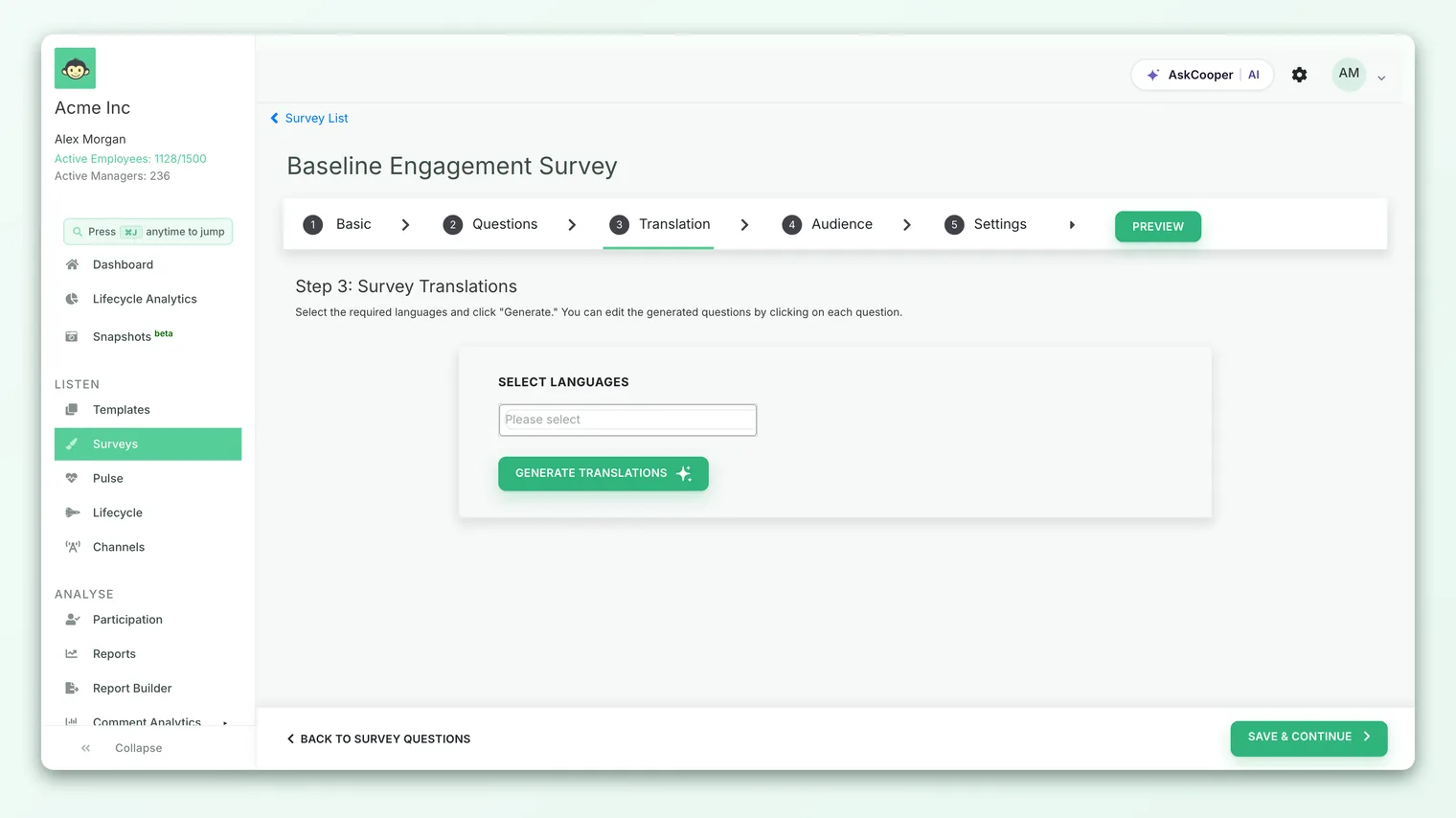
With multilingual on, open the Translations tab. On the left you'll see a Languages panel; on the right, your sections and questions for the currently selected language.
- 1Click "Add new language." A picker appears listing every account language not yet added to this survey.
- 2Select one or more languages and click Generate Translations. CultureMonkey confirms the action, then translates every section, question, answer option, question-set (grid) title, comment placeholder, and the survey's own title, description, and completion message into each language you selected.
- 3Watch the progress. Generation runs in the background and shows a progress indicator. For a large survey with several languages this takes a little time, since each language is a full pass over the survey.
- 4Review the result. Each added language appears in the left panel. Click a language to see the survey rendered in it.
Is translation manual or automatic?
Both - in that order. The first pass is automatic: CultureMonkey sends your text to a machine-translation engine (Google Cloud Translation) and fills in every field for you. You then have full manual control to refine any string that the machine got slightly wrong, off-tone, or that uses internal terminology a general translator wouldn't know.
To edit, open a language in the Translations tab and click any question, option, or section. An inline editor lets you correct the translated text and save it. This human-in-the-loop step is where machine speed meets your judgment - the automatic pass does 95% of the work, and you polish the parts that matter.
Auto-translation is excellent for scale but imperfect for nuance - company names, product terms, HR jargon, and idioms are the usual culprits. For a survey that leadership will act on, have a fluent colleague skim the translated questions before you publish. A five-minute review prevents a mistranslated question from quietly skewing your results.
Step 4 - Keeping translations in sync
Because translations are generated from a snapshot of your master questions, editing a question after translating creates a gap: the master says one thing, the old translation says another.
CultureMonkey tracks this. When your survey's questions have changed since the last translation, it flags the affected translations as needing regeneration and offers a regenerate action that re-runs the translation for the survey. Regenerating brings every language back in step with your current master questions in one go - so the workflow when you change wording is simply: edit the master, then regenerate.
Removing a language
To drop a language from a survey, use the trash icon next to it in the Languages panel. CultureMonkey warns you first, because removing a language deletes all generated translations for every question in that language for this survey. It's a clean removal, not a hide - so only do it if you genuinely no longer need that language here.
How a respondent's language is chosen
This is the part that makes the experience feel personal. A survey can carry ten languages, but each employee only ever sees one. CultureMonkey picks it in a simple order of preference:
- The employee's set language. Each employee record can carry a preferred question language. If it's set - for example, imported alongside the rest of their profile data - the survey renders in that language automatically, with no action from the respondent.
- The employee's own choice. If a respondent hasn't been assigned a language, the survey shows a language dropdown listing exactly the languages you added to that survey. When they pick one, their choice is remembered on their profile, so subsequent surveys already speak their language.
- The default. If no language is set and none is chosen, the respondent simply sees the survey in its original base language (English).
The smoothest experience is to assign each person's language upfront, so they never have to choose. The question language is one of the employee attributes you can bring in during import - set it once and every future multilingual survey greets people in their own language. See Import and manage employees.
One safety check runs quietly in the background: if an employee's saved language isn't actually one of the languages attached to the current survey, CultureMonkey clears that stale preference for this response and falls back to the dropdown or default - so a person is never stuck staring at a language the survey doesn't offer.
What happens when a translation is missing
Machine translation covers the whole survey in one pass, so wholesale gaps are rare. But translations can be incomplete - for instance, if you added a question after generating translations, or a specific string didn't translate. CultureMonkey handles this gracefully rather than showing a blank:
- No language chosen at all: the respondent sees the survey in the base language (English). Nothing is hidden.
- "Show Default Question" is on: each item is shown in English and the chosen language, so even a missing regional string still leaves the English visible and answerable.
- A specific string has no translation: internally the lookup returns a clear "translation not found" marker for that field rather than crashing the form, which is your cue to open the Translations tab and fill it in.
The practical takeaway: a missing translation degrades to something readable, never to a broken survey. Still, the fix is always the same - open the Translations tab, find the untranslated item, and either edit it directly or regenerate.
Best practices
- Author once, then translate. Finalize every question in your base language before generating translations, so you're not chasing edits across ten languages.
- Assign languages to employees upfront. Bulk-setting the question language during import removes the dropdown step entirely and makes surveys feel native.
- Have a human review the machine's work. Auto-translation is your first draft, not your final copy. A fluent reviewer catches the handful of strings that matter.
- Regenerate after wording changes. If you edit master questions, regenerate so no language drifts out of sync.
- Use "Show Default" thoughtfully. It's great for mixed-fluency teams but lengthens the form - turn it off when your audience is confidently in one language.
- Keep the question list short. Every question is multiplied across every language you review. A tight survey is faster to translate and faster to complete.
Frequently asked questions
Do I have to translate every question by hand?
No. The first pass is fully automatic - CultureMonkey translates the entire survey the moment you click Generate Translations. Manual editing is optional polish for strings you want to fine-tune.
Will multiple languages split my results?
No. Every language sits on top of one master survey, so all responses roll into a single set of results and one report, no matter which language each person answered in.
An employee saw the survey in English even though I added Spanish. Why?
Most likely they had no question language set on their profile and didn't pick one from the dropdown, so the survey fell back to the base language. Set their language on the employee record (or via import) to fix it going forward.
I edited a question after translating. What now?
The existing translations still reflect the old wording until you refresh them. CultureMonkey flags translations that are out of date and offers a regenerate action to bring every language back in line with your current questions.
Can employees switch languages mid-survey?
The language selector appears when a respondent hasn't been assigned one; once they choose, that preference is saved to their profile. If you need to change a saved preference, update it on the employee record.
Which languages are supported?
134, including English. Your account admin adds the ones you need in the Languages settings. See the full list in Languages supported in CultureMonkey.
Where to go next
- Every language, listed: Languages supported in CultureMonkey
- The whole picture: How CultureMonkey handles multiple languages
- Build the survey first: Create a survey from scratch
- Get the wording right before translating: Add questions to your survey
- Assign languages in bulk: Import and manage employees
Your feedback helps us improve the Help Center.