

Organize a survey with sections
What sections are, why they make surveys and reports easier to read, and how to add, name, edit, reorder and delete them in the CultureMonkey survey builder.
On this page
Sections are the containers you build a survey out of. Every question lives inside a section, and a good set of sections turns a long, flat list of questions into something that feels structured and easy to move through - for the people answering it and for you when you read the results.
This guide covers what sections are and why they're worth the small effort of setting up, how to add, name, edit, reorder and delete them in the CultureMonkey builder, how they relate to your engagement drivers and your reports, and when a few well-chosen sections beat one endless list of questions.
A section is a titled group of questions inside a survey. On Step 2 - Questions of the CultureMonkey survey builder you create a section, give it a title, then add questions into it. Drag sections to reorder them, rename a section with the pencil icon, and remove one with the minus-circle icon. Sections give respondents a sense of progress and give your reports a clean structure to read against.
What a section is
In CultureMonkey, a section is simply a named group of questions within a single survey. When you build a survey from scratch, the very first thing the builder asks you to do on the Questions step is create a section - because you can't add a question until there's a section to put it in.
Each section has:
- A title - the heading participants see above that group of questions (for example, "About your manager" or "Your day-to-day work"). Titles are required and can be 2 to 120 characters long.
- A set of questions - everything you add into that section, kept in the order you arrange them.
- An order - the section's position in the survey relative to the other sections.
That's the whole idea. Sections don't change what you ask; they change how the survey is organized, both for the person taking it and for you when you analyze it.
If you start from a template rather than a blank survey, the sections are already built and named for you. You can still rename, reorder, add or remove them - a template just gives you a sensible structure to start from. See Create a survey from scratch for the two ways to begin.
Why use sections
It's tempting to think of sections as cosmetic, but they do real work in three places.
They structure the survey for respondents. A survey that's grouped into "Your role," "Your manager," "Growth and development" and "The wider organization" feels purposeful. People can see the shape of what they're being asked and where they are in it. A single undifferentiated list of thirty questions, by contrast, feels endless - and endless surveys get abandoned.
They group related questions logically. Sections let you keep a theme together. All your manager-relationship questions sit in one place; all your career-growth questions in another. This makes the survey easier to write and easier to keep coherent as it grows.
They roll up in your reports. Because questions are grouped, your results are easier to read section by section rather than one flat scroll of numbers. Combined with drivers (more on those below), sections give your reporting a clean, thematic structure instead of an undifferentiated wall of questions.
The section title acts as a signpost inside the survey. Clear, human titles ("How we work together") do more for completion than clever ones - they tell the respondent what's coming and reassure them the survey has a beginning, middle and end.
Adding a section
You build sections on Step 2 - Questions of the survey builder. From the left menu, go to Listen › Surveys, open your draft survey (or click Create a survey), and move to the Questions step.
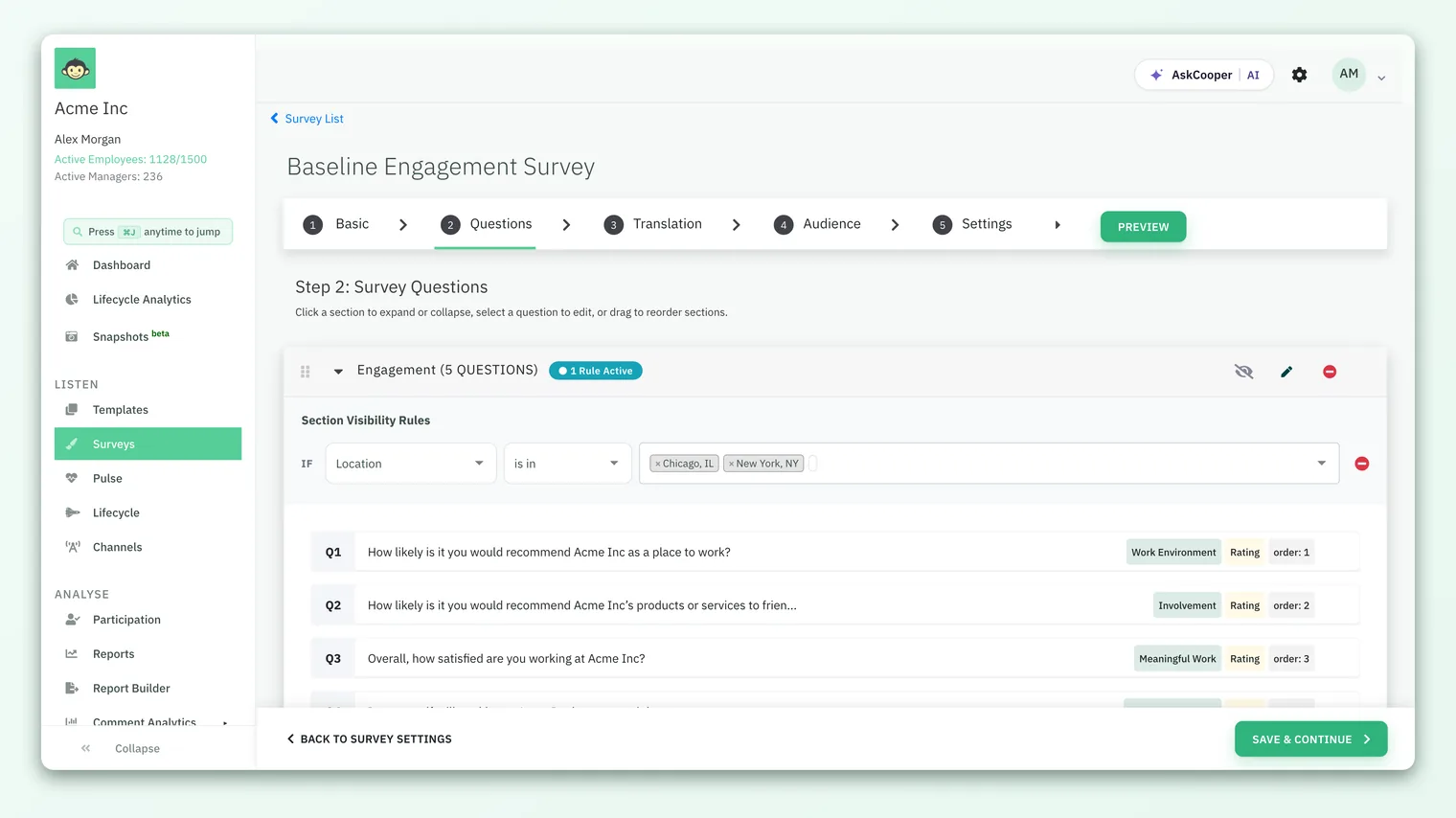
If the survey is brand new, you'll see an empty state prompting you to Create sections inside which you can ask questions. From there:
- 1Start a new section - Click Create section (on an empty survey) or Add a new section (once you already have one). A blank section title field appears.
- 2Give it a title - Type a clear, participant-facing heading, then click Save section name. Titles must be 2-120 characters.
- 3Add your questions - Inside the saved section, use Add custom question to write your own, Add question from our library to pull in a validated, driver-mapped question, or Add grid question where that's enabled. Every question you add lands inside the section you added it to.
- 4Repeat - Add as many sections as your survey needs, building each one out with its own questions.
Once a section has a title, its header collapses into a tidy accordion row showing the section name and, in brackets, how many questions it contains - so a fully built survey reads as a clean list of sections you can expand and collapse.
Naming and editing a section
A section's title is the one thing respondents actually see, so it's worth getting right - and it's easy to change.
To rename a section, click the pencil (Rename section) icon on the section's header row. The title becomes editable; type the new name and click Save section name to keep it, or Cancel to discard the change. You can rename a section at any point while the survey is still a draft.
Section titles are participant-facing, so keep them plain and warm - "Your growth and development," not "Driver cluster 3." The clearer the heading, the more oriented your respondents feel, and the easier your own reports are to scan later.
Editing the questions inside a section - their wording, type, driver mapping, comments and skip options - happens by clicking the individual question, not the section. Sections themselves only carry a title (and, optionally, visibility rules).
Ordering sections
The order of your sections is the order participants meet them, so it's worth arranging deliberately. When a survey has more than one section, a drag handle (the grip icon) appears on each section's header. Grab it and drag the section up or down to reposition it; the builder saves the new order for you.
A common, effective flow moves from the concrete and personal toward the broader and more reflective - for example, starting with a respondent's own role and immediate manager before widening out to the organization as a whole. Warming up with familiar, easy-to-answer topics tends to lift completion on the harder questions later.
Sections and the questions within them are ordered independently: reordering sections rearranges the big blocks, while reordering questions rearranges them inside a single section. For the full mechanics of both, see Reorder questions and sections.
The eNPS question isn't placed inside a section. It's toggled on at the survey level and positioned at the Top or Bottom of the whole survey, so it always bookends your sections rather than living inside one. See Create a survey from scratch for where that's set.
Deleting a section
To remove a section, click the minus-circle icon on its header row. The section is removed from the survey along with the questions it contains, so double-check you're not discarding questions you meant to keep - moving them to another section first is safer than deleting and rebuilding.
As with all structural changes, deleting sections is something you do while the survey is a draft. Once a survey is published, its questions, sections and ordering lock so that everyone answers the same survey and your data stays comparable.
You can freely add, rename, reorder and delete sections while a survey is in Draft. Once you publish it, the section structure is fixed for the life of that survey - you can't add, remove or reorder sections on a running survey. Get the structure right during preview, before you launch.
Sections, drivers and reporting
It helps to keep two related-but-different ideas straight.
- A section is an organizational grouping - it's about how questions are laid out in the survey and how they cluster on the page.
- A driver (sometimes called a factor) is an analytical grouping - each question is mapped to a driver like Manager effectiveness or Growth, and that's what your engagement scores roll up into.
The two usually line up: a "Your manager" section is naturally full of questions mapped to a manager-related driver. But they're not the same field, and they don't have to match one-to-one. A single section can contain questions mapped to several drivers, and a single driver can be represented across more than one section.
In the builder, each question row shows both its driver and its question type alongside the section it sits in, so you can see at a glance how your organizational structure and your analytical structure relate.
| Section | Driver | |
|---|---|---|
| What it is | A titled group of questions in the survey | An engagement theme a question is mapped to |
| Who sees it | Participants (as a heading) | Mainly you, in reports |
| What it shapes | Survey layout and flow | How scores roll up in Analyse › Reports |
| Set where | On the section, in the builder | On each question, in the builder |
| Relationship | One section can span several drivers | One driver can appear in several sections |
When you read results in Analyse › Reports, scores are organized by driver, while sections keep the underlying questions grouped in a way that mirrors how respondents experienced the survey. Together they make results far easier to interpret than a flat, ungrouped list would be.
Section visibility rules
By default, every section appears for everyone who receives the survey. If your account has section visibility rules enabled, you can go a step further and make a section appear only for the people it's relevant to - for example, showing an "About your team lead" section only to individual contributors, or a location-specific section only to one office.
Rules are built on employee attributes (standard ones like team or location, or your own custom attributes) using simple is in / is not in conditions, and where multiple rules per section are enabled they combine with AND logic. When a section has active rules, its header shows a small Rules Active badge so you can see at a glance which sections are conditional.
This is a big enough topic to have its own guide. For the full walkthrough - including how rules interact with anonymity thresholds and what happens when no one matches - see Add visibility rules to sections.
Section visibility rules are a gated capability, so the Add Rule controls only appear if they're enabled for your account. If you don't see them, every section simply shows to your whole audience - which is the right default for most surveys.
Sections vs one long list
Do you always need sections? Technically a survey could live in a single section - but a little structure almost always pays off. Here's how to think about it.
Reach for multiple sections when:
- The survey covers distinct themes (role, manager, growth, culture) that naturally cluster.
- It's more than a handful of questions and would otherwise feel like an endless scroll.
- You want your reports grouped in a way that mirrors how questions were asked.
- Different groups should see different content (with visibility rules).
One section is fine when:
- It's a very short survey - a quick pulse of two or three questions.
- Every question is about the same single thing and grouping would add nothing.
The general rule: use as few sections as tell a clear story, and no fewer. Three or four meaningful sections almost always read better than one giant list or a dozen tiny fragments. If a section only has one question in it, ask whether it really needs to stand alone.
Don't create sections to hit a number - create them because a group of questions genuinely belongs together. If you can give a group of questions an honest, human heading, it deserves to be its own section. If you're straining to name it, those questions probably belong somewhere else.
Frequently asked questions
Do I have to put every question in a section?
Yes. In CultureMonkey a question always lives inside a section, which is why the builder asks you to create a section before you can add your first question. Even a one-question survey has a section around it.
Can a section be empty?
You can create a section and save its title before adding any questions, but an empty section serves no purpose in the final survey. Add at least one question to each section, or remove sections you don't end up using before you launch.
What's the difference between a section and a driver?
A section organizes questions on the page for respondents; a driver is the engagement theme a question is mapped to for reporting. They often align, but a section can contain questions mapped to several different drivers, and they're set in different places in the builder.
Can I reorder sections after the survey is live?
No. Sections, questions and their order all lock once a survey leaves Draft status, so every respondent answers an identical survey. Arrange your sections while the survey is still a draft, and use Preview to check the flow before publishing.
If I delete a section, do I lose its questions?
Yes - removing a section removes the questions inside it too. If you want to keep those questions, move them into another section first rather than deleting and re-creating them.
Can different people see different sections?
Yes, if section visibility rules are enabled for your account. You can attach attribute-based rules so a section only shows to a matching audience. See Add visibility rules to sections.
Where to go next
- Make sections conditional: Add visibility rules to sections
- Fine-tune the order of everything: Reorder questions and sections
- Build a survey end to end: Create a survey from scratch
Your feedback helps us improve the Help Center.