

Section visibility rules
How to show or hide a whole survey section based on who the respondent is - the rule builder, the conditions supported, the "Rules Active" badge, and how visibility affects each person's path and your reports.
On this page
- Before you start: this feature is account-gated
- Where this fits alongside sections and branching
- Building the survey and finding the rules panel
- Configuring a rule with the rule builder
- The conditions you can use
- How a rule changes the respondent's path
- How gated sections affect your reports
- Best practices
- Frequently asked questions
- Where to go next
Section visibility rules let you show or hide an entire section of a survey based on who the respondent is. Instead of sending everyone the same questions, you can attach a rule to a section so it only appears for the people it's actually relevant to - for example, a "Return to office" block that only Bangalore employees see, or a "People management" section shown only to employees whose role type is Manager.
Related release: Dynamic Section Visibility (April 15, 2026). See every dated change on Product Updates.
This guide covers what the rules do, how to build them with the rule builder, exactly which conditions are supported, how a rule changes each person's path through the survey, and - importantly - how gated sections are handled in your reports so you don't accidentally expose small groups. It also explains an important limitation up front: this feature is account-gated, so it may not be switched on for you yet.
On the Questions step of the survey builder, each section can carry one or more visibility rules of the form IF <attribute> is in / is not in <values>. A section with no rules shows to everyone; a section with rules shows only to employees who match. CultureMonkey evaluates rules against each respondent's own attributes (team, location, role type, custom attributes, and more) when they open the survey. A blue "Rules Active" badge marks any section that's gated.
Before you start: this feature is account-gated
Section visibility rules are not self-serve on every account. The feature is enabled per account, and the rule builder simply doesn't appear if it is off. If it isn't enabled for your account, you won't see the eye icon, the "Add Rule" button, or the panel described below.
There's a second, related flag as well: multiple rules per section. On accounts where it's off, each section is limited to a single rule; on accounts where it's on, you can stack several rules on one section and they combine with AND logic.
Section visibility rules, and multiple rules per section, are enabled per account rather than from the admin settings screens, so there's no toggle for them under General › Settings. This feature isn't available on every plan - talk to your CultureMonkey contact if you'd like it.
Where this fits alongside sections and branching
It's worth being clear about how three related features differ, because they're easy to confuse:
| Feature | Decides | Based on | Covered in |
|---|---|---|---|
| Sections | How questions are grouped | Your survey structure | Organize a survey into sections |
| Section visibility rules | Whether a whole section shows | The respondent's attributes (audience) | This article |
| Conditional / branching questions | Whether a follow-up question shows | An earlier answer in the same survey | Create a survey from scratch |
The distinction that matters most: *section visibility rules key off who someone is, not how they answered. They're evaluated from the respondent's demographic and custom attributes the moment they open the survey - before they've answered anything. If you want a question to appear based on a rating or an option someone just selected, that's conditional questions* (branching logic), which is a per-question feature. Use section rules for audience-based tailoring; use conditional questions for answer-based follow-ups.
This article goes deep only on the visibility rules. Creating the sections themselves - naming, reordering, grid sections - lives in Organize a survey into sections, so head there first if you're building the structure.
Building the survey and finding the rules panel
Visibility rules are configured inside the builder, on Step 2 - Questions, right where your sections live.
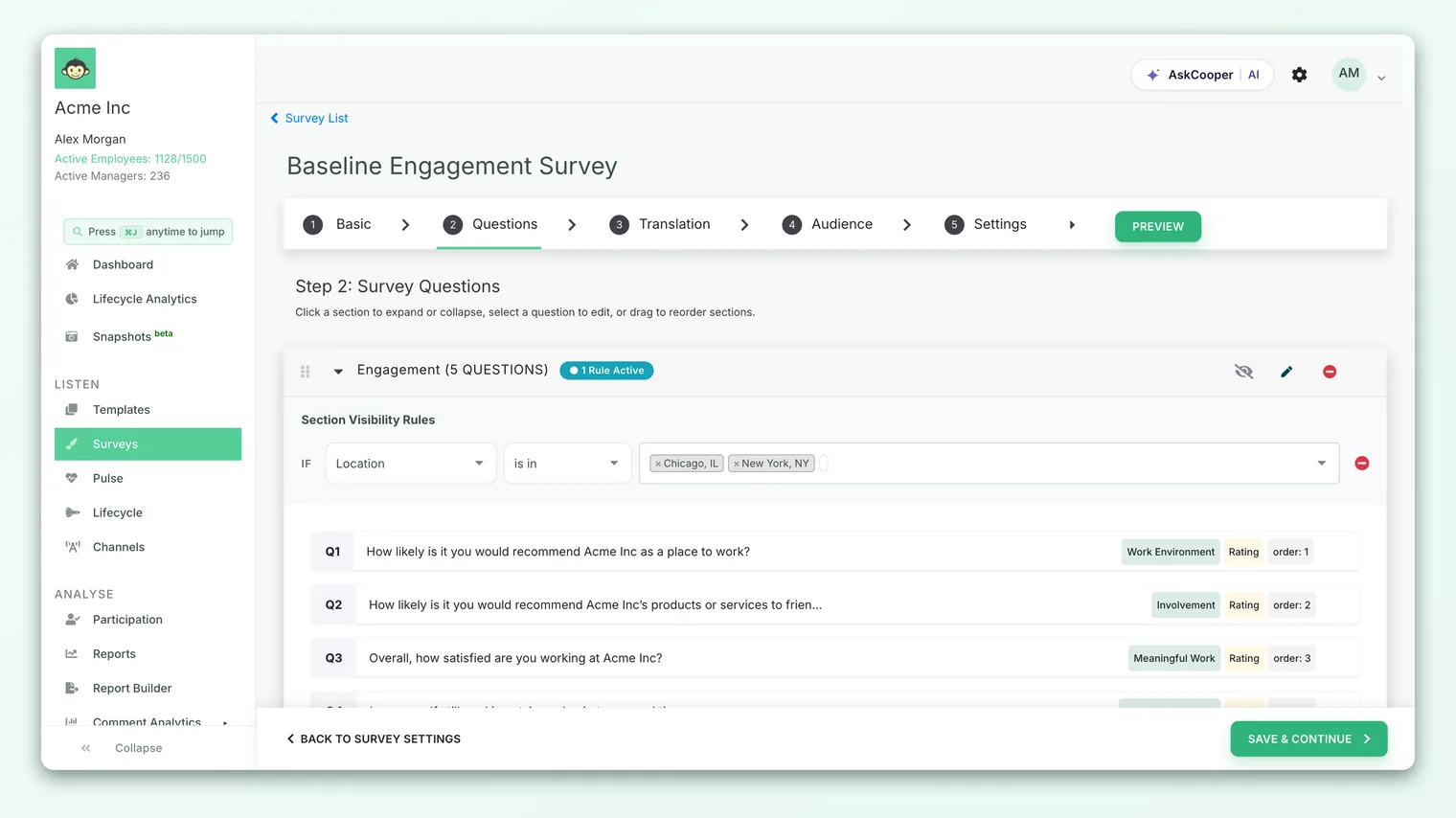
Every section with a title has an eye icon (it flips to an eye-with-a-slash once rules exist) at the right of its header. Clicking it opens the Section Visibility Rules panel for that section. Inside the panel you'll find the list of existing rules, an Add Rule button, and - if you're on the multi-rule flag - a small badge reading "AND logic · multiple rules per section" to remind you how stacked rules combine.
Configuring a rule with the rule builder
Each rule is a single sentence you assemble from three dropdowns, read left to right:
> IF <attribute> <operator> <one or more values>
- 1Open the panel - Click the eye icon on the section you want to gate, then click Add Rule. A new rule row appears, starting with an IF label.
- 2Pick the attribute - Choose from the Attribute dropdown. It's split into a Standard group (team, location, manager, business unit, sub-team, business group, tenure, gender, employee type, designation, base, role type, job status) and a Custom group listing your account's custom attributes.
- 3Pick the operator - Choose is in or is not in. "Is in" shows the section only to people whose value is one of the ones you list; "is not in" shows it to everyone except those people.
- 4Pick the values - In the multi-select, choose one or more values (e.g. specific locations, or specific role types). CultureMonkey loads the real, known values for that attribute so you're picking from live data, not typing free text.
- 5Watch the match count - As you set the values, the builder checks how many active employees would match. If the answer is zero, a warning appears (see below). Otherwise the rule saves automatically.
Rules save as you go - there's no separate save button on a rule row. Changing the values or the operator re-saves the rule immediately over the survey's API, so what you see in the panel is what's stored.
Because a rule reads as a plain sentence - "IF location is in Bangalore, Chennai" - the quickest sanity check is simply to read it aloud and ask "is that the group I mean to show this to?" The is not in operator is the one to double-check: it's an exclude rule, so it shows the section to the larger, un-listed group.
The zero-match warning
If the values you pick match no active employees, the builder shows an amber warning right in the panel:
> No employees match this rule. This section will be hidden for everyone.
This is a guardrail, not a hard block - the rule still saves - but it's telling you that, as configured, nobody will ever see this section. Nine times out of ten it means a typo'd value, an attribute that isn't populated for your people, or an is in where you meant is not in. Fix the rule until the warning clears.
The conditions you can use
Two things define what a rule can express: the attribute you test and the operator you apply.
Attributes
Rules can test any of CultureMonkey's standard employee attributes or your own custom attributes:
| Attribute group | Examples | Resolved from |
|---|---|---|
| Standard demographics | Team, location, manager, business unit, sub-team, business group | The employee's org record |
| Standard profile fields | Tenure, gender, employee type, designation, base, role type, job status | The employee's profile |
| Custom attributes | Anything your account defines (e.g. shift, cost center, work model) | The employee's custom attribute values |
The standard attributes available in the dropdown respect your account's reporting demographic settings and the viewer's role, so the list you see may be a subset of the full set above. Tenure is bucketed the usual way (< 1 year, 1-3 years, 3-5 years, > 5 years).
Operators
There are exactly two operators, and both compare the employee's value against the list you provide:
| Operator | Reads as | Section shows to… |
|---|---|---|
| is in | value is one of these | Only employees whose value matches one of the listed values |
| is not in | value is none of these | Everyone except employees whose value matches |
A single rule can list up to 500 values, so even a broad "is in these 40 locations" rule is fine.
Combining multiple rules
On accounts with the multi-rule flag on, a section can carry several rules, and they combine with AND - every rule must pass for the section to show. So a section with:
> IF location is in Bangalore > IF role type is in Manager
…shows only to people who are both in Bangalore and a Manager. There's no "OR" across rules; if you need an either/or audience, model it as a single rule with multiple values (which is itself an "is in any of these"). On single-rule accounts, the Add Rule button hides once one rule exists.
How a rule changes the respondent's path
When someone opens the survey, CultureMonkey evaluates each gated section against that person's attributes and builds their personal version of the survey:
- Sections whose rules all pass are included.
- Sections whose rules don't pass are dropped entirely - the respondent never sees them, and there's no gap or placeholder where they'd have been.
- Sections with no rules always appear for everyone.
Crucially, this also recalculates the survey's length for each person. The question count and the estimated completion time a respondent sees reflect only the sections visible to them - so someone who's routed past a whole section sees a shorter survey and a smaller time estimate, not the full-survey numbers. That keeps the "X questions, about Y minutes" promise honest for every individual.
Visibility is computed from the employee's attributes as they stand when they open the survey. If someone's team or a custom attribute changes after launch, their path reflects the value at the moment they take it. This is different from branching, which reacts to answers within the current session.
How gated sections affect your reports
This is the part that's easy to overlook. Because a rule-gated section is shown only to the intersection of "people in this slice" and "people the rule lets in," the group that actually answered those questions can be far smaller than the slice's overall participation. Left unguarded, a heatmap could expose a handful of people.
CultureMonkey handles this with a dedicated anonymity guard for rule-gated drivers. For any engagement driver whose questions live in a section with visibility rules, the reports don't just count whole-survey participants for a demographic cell - they count how many people were actually eligible for that driver, and suppress the cell if that eligible count falls below your anonymity threshold. In practice:
- A driver that only exists inside a gated section is scored only over the people who were eligible to answer it.
- Heatmap cells, drill-downs, comments and question-level views for those gated drivers are hidden when the eligible respondent count is too small - even if the broader slice looks large enough.
- Non-gated sections behave exactly as they always have.
The upshot: visibility rules can legitimately make some report cells disappear. That's the anonymity protection doing its job, not a bug. If a gated section's results look sparse, it's because too few eligible people responded in that slice to clear the threshold. For the general rules on why results hide, see Set survey anonymity.
Every rule you add shrinks the population that can answer that section - which means it needs proportionally more responses to clear the anonymity threshold and show up in reports. Gate deliberately: a section split into many tiny audiences may collect answers that never become reportable.
Best practices
- Gate for relevance, not for secrecy. The point is to spare people irrelevant questions, not to hide questions from them. If a section is sensitive, that's an anonymity and permissions decision, not a visibility-rule one.
- Prefer a small number of broad rules. One rule over a big, well-populated attribute is easier to reason about - and far safer for reporting - than many rules that slice your audience into tiny fragments.
- Use custom attributes when the standard ones don't fit. If your real audience boundary is "night shift" or "warehouse," define it as a custom attribute and gate on that, rather than approximating with team or location.
- Preview as a real respondent. The only way to be sure a rule routes the way you intend is to take the survey. Preview it, and where possible check it as someone who should see the section and someone who shouldn't.
- Mind the reporting math. Before you gate, ask: will enough eligible people respond in each slice I care about to clear the anonymity threshold? If not, reconsider the split.
- Get the rules right before launch. Like the rest of a survey's content and structure, sections and their rules are part of what locks once the survey goes live. Sort your visibility logic during the draft.
Frequently asked questions
I don't see the eye icon or "Add Rule" anywhere. Why?
Because section visibility rules are account-gated and the feature isn't switched on for your account. There's no self-serve toggle for it in settings - reach out to your Customer Success manager or CultureMonkey support to have it enabled.
Can I show a section based on how someone answered an earlier question?
Not with section visibility rules - those key off who the respondent is (their attributes), not their answers. For answer-based follow-ups, use conditional / branching questions, which reveal a question when an earlier one is rated a certain way or a particular option is chosen. See Create a survey from scratch.
What's the difference between "is in" and "is not in"?
Is in shows the section only to people whose value matches one of the ones you listed. Is not in shows it to everyone except those people. "Is not in" is an exclude rule, so it targets the larger, unlisted group - double-check that's what you mean.
Can one section have more than one rule?
On accounts with the multi-rule option enabled, yes - and multiple rules combine with AND, so all of them must pass. On accounts without it, each section is limited to a single rule. For an either/or audience, put several values inside one "is in" rule instead.
Why did a section's results vanish from my heatmap?
Because gated sections are only answered by the people a rule lets in, CultureMonkey applies a stricter, eligibility-aware anonymity check to their drivers. If too few eligible people in a given slice responded, those cells are suppressed to protect individuals. It's expected behavior - see Set survey anonymity.
Does the "Rules Active" badge mean something is wrong?
No. It's simply a marker that a section is gated by one or more visibility rules, so you can spot at a glance which sections aren't shown to everyone. It counts the rules on that section (e.g. "2 Rules Active").
Where to go next
- Build the sections first: Organize a survey into sections
- See the whole builder flow: Create a survey from scratch
- Understand why results hide: Set survey anonymity
Your feedback helps us improve the Help Center.