

Translate CultureMonkey survey email templates
How to send survey invitation and reminder emails in each employee's own language - turning on multilingual email templates, adding translations, how a recipient's language is chosen, what happens when a translation is missing, and how it all fits with multilingual surveys.
On this page
- What multilingual email templates do
- Turning on multilingual email templates
- Where email templates live
- Adding translations to a template
- How a recipient's language is chosen
- What happens when a translation is missing
- How this fits with multilingual surveys
- Best practices
- Frequently asked questions
- Where to go next
If your people speak more than one language, the emails that invite them to a survey should speak their language too. A worker in Munich who opens an invitation written in German - subject line, body, and call to action all in their own tongue - is far more likely to trust it, read it, and respond than one who has to translate it in their head first. CultureMonkey lets you translate every survey email template into each language you send in.
Related release: Survey Email Notifications in Local Language (January 28, 2026). See every dated change on Product Updates.
CultureMonkey lets you do exactly that. Once multilingual email templates are turned on, you can add translations for your invitation and reminder emails, and the platform automatically picks the right language for each recipient when a survey goes out. This guide covers how to enable the feature, how to add and manage translations, how the recipient's language is decided, what happens when a translation is missing, and how email translations relate to the multilingual surveys you may already be running.
Turn on multilingual email templates for your CultureMonkey account, then add translations to each email template for the languages your workforce uses. When a survey sends, each employee receives the invitation and reminder in their own language - based on the language set on their employee profile. If a translation is missing for someone's language, they fall back to the template's original (default) version, so no one is ever left without an email.
What multilingual email templates do
An email template in CultureMonkey defines the invitation and reminder emails your employees receive - the subject line, the body copy, the sender name, and the placeholders that get filled in with real values like {{employee_name}} and {{survey_response_url}}. You can read more about building and customizing these in Customize survey invitation & reminder emails.
By default, a template has a single version, written in one language. Multilingual email templates add a translations layer on top: for any template, you can store a translated copy of the subject and body for each language you support. When the survey mailer prepares an email for a specific employee, it looks up the translation that matches that employee's language and sends that version instead of the original.
The important thing to understand is that this is about the email wrapper, not the survey questions themselves. Translating your email templates makes sure the invitation and reminder land in the right language; translating your survey makes sure the questions inside do too. The two work together, and we'll come back to that relationship near the end.
Turning on multilingual email templates
Multilingual email templates are off by default and enabled per account. This is a deliberate choice - most accounts start with a single language, and the translations tab only appears once the feature is switched on.
Because this setting is controlled at the account level, you may need to ask your CultureMonkey contact to enable it if you don't see the translations option yet. Once it's on, a translations tab appears on the email templates page; until then, templates are not translated.
Translations are only useful if CultureMonkey knows which language each person prefers. Before you invest time translating templates, make sure your employees have the correct language set on their profiles (see How a recipient's language is chosen below). Otherwise everyone will simply receive the default version.
Once the feature is on, you'll find a Languages area on the email template editor that wasn't there before, and creating a new template will take you straight to its translations tab.
Where email templates live
Email templates are managed from the Email Templates page. From there you can see every template, filter them, preview them, and open one to edit.
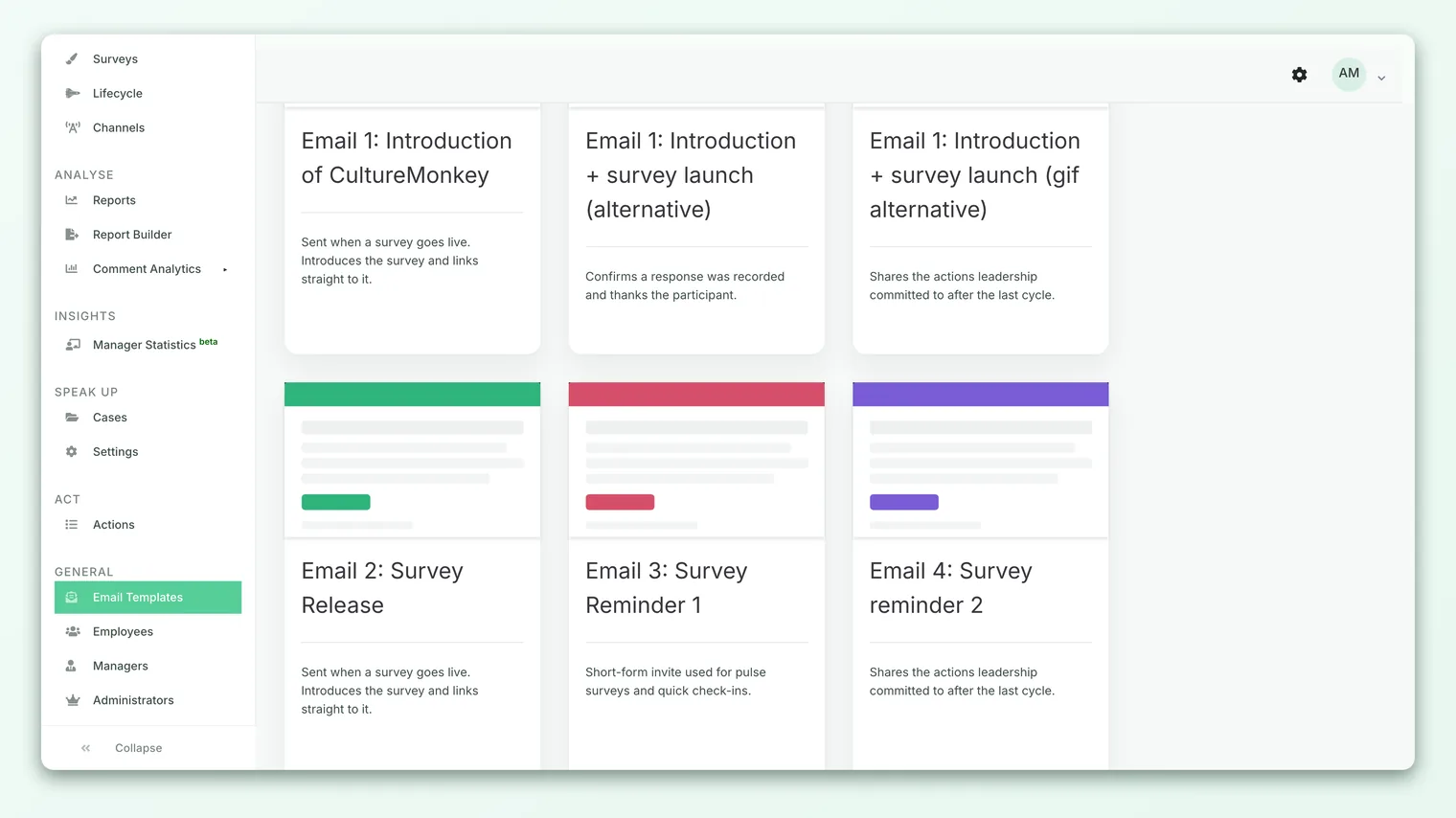
On this page you'll find:
- A Create New Email Template button to start a new one.
- A filter to narrow the list - All, Default, or Custom.
- Preview Email Body to see how a template renders.
- Edit Template to open a template and manage its content and translations.
Adding translations to a template
Once multilingual email templates are enabled, each template gains a translations workflow. The idea is simple: you write your template once in its original language, then generate translated versions for every other language you need, and edit those as required.
- 1Open the template - from the Email Templates page, click Edit Template on the invitation or reminder template you want to translate.
- 2Go to the translations tab - open the Languages area of the editor. This is where you manage every translated version of the template.
- 3Add the languages you need - click Add new language, then use the Select Languages dropdown to choose one or more languages your workforce uses.
- 4Generate the translations - click Generate Translations. CultureMonkey creates a translated copy of the subject and body for each language you selected, leaving placeholders like
{{employee_name}}untouched so they still fill in correctly. - 5Review and refine - click into any language to open its translation. You can edit the Subject and Body by hand, then click Save Translation. Machine translation is a strong starting point, but a quick human review catches tone and nuance.
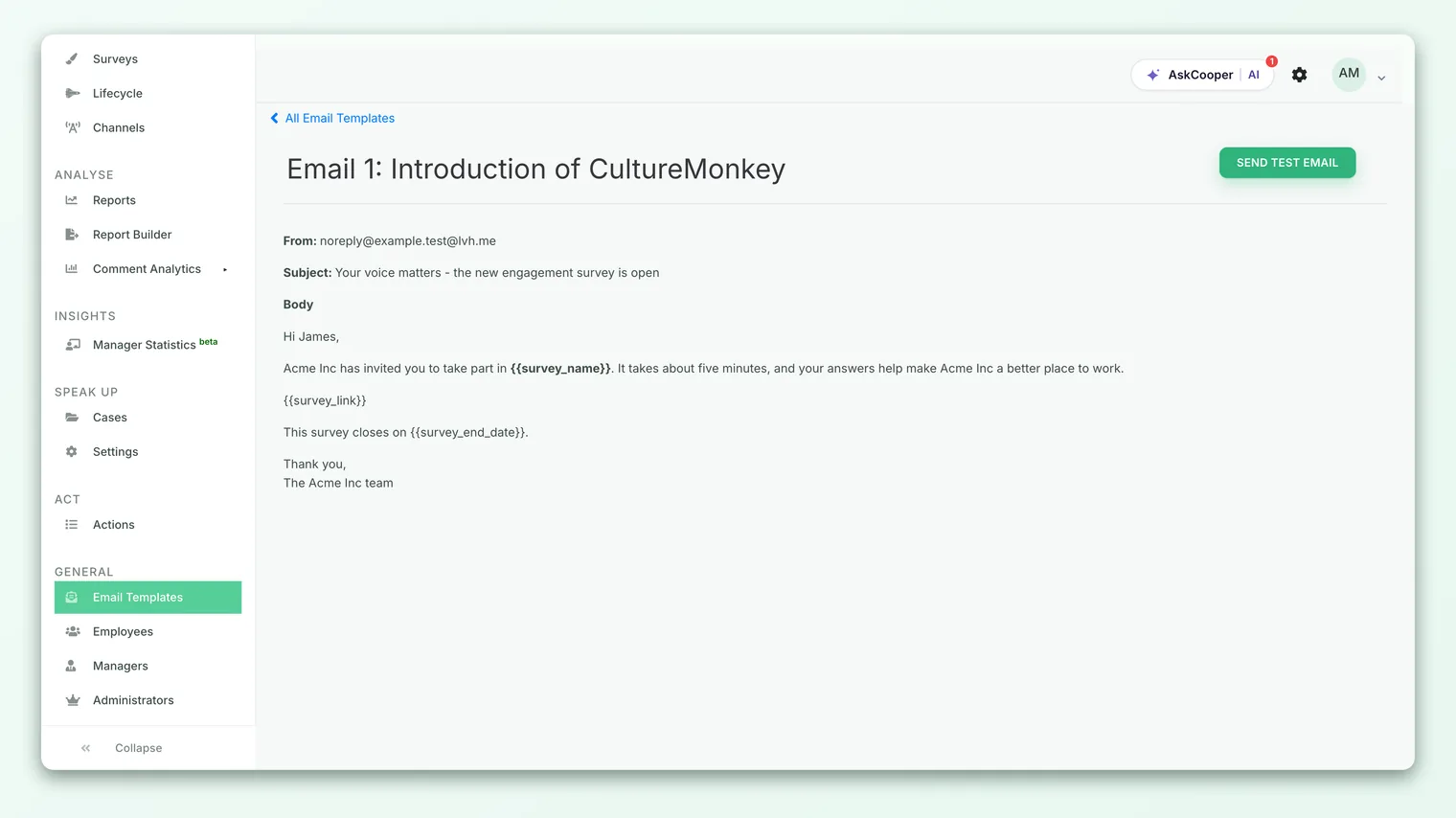
The on-screen guidance mirrors this flow: "Select the required languages and click 'Generate.' You can edit the generated translations by clicking on each language." Each translation preserves the same set of placeholders as the original, so {{account_name}}, {{survey_title}}, {{survey_ends_on}}, {{survey_response_url}} and the rest all continue to work in every language.
If you change the original template's subject or body after you've created translations, CultureMonkey will notice and show a banner: "Changes have been detected in the email template. Please click here to regenerate the translations to reflect the updated content." Regenerating pulls fresh machine translations for every language - and, as the confirmation warns, "any manual edits will be lost." If you've hand-tuned a translation, note your changes before regenerating so you can reapply them.
Testing a translated template
Before a real survey goes out, send yourself a test. On a template you can use the Send test email option; when multilingual templates are on, the test form adds a Language field so you can preview a specific translation. The helper text explains it directly: "Select a language to test the translated version of this email template." Leave it on Default (Original Language) to see the base version, or pick a language to confirm the translation reads well and the placeholders resolve.
How a recipient's language is chosen
This is the part that makes the whole thing automatic. When a survey sends an invitation or reminder, CultureMonkey decides which language to use for each person individually, based on the language set on that employee's profile.
Concretely, each employee record carries a preferred question language, and the survey mailer reads it when preparing their email. If that employee has, say, French set as their language, the mailer looks for a French translation of the template and uses it. There's no per-send language picker for real survey emails - the choice is driven entirely by employee data, which is what lets one survey reach a mixed-language workforce correctly with no extra effort at send time.
| If the employee's language is… | And a translation exists… | They receive… |
|---|---|---|
| Set to a specific language (e.g. German) | Yes, for that language | The German version of the email |
| Set to a specific language | No matching translation | The default (original) template |
| Not set / left blank | - | The default (original) template |
Because the language comes from the employee profile, keeping that data accurate is the single most important step. If most of your people are receiving the default version when you expected translations, the usual cause is missing or incorrect language values on employee records rather than a problem with the template.
If you're onboarding a multilingual workforce, set each person's language as part of your employee import rather than one profile at a time. See Set up your account for where account-wide language options live, and your employee import guide for mapping a language column.
What happens when a translation is missing
You never have to translate every template into every language before you can send. The fallback is built in and safe: if there's no translation for a recipient's language, they get the template's original version.
When the mailer prepares an email, it looks for a translation matching the employee's language. If it finds one, it uses the translated subject and body. If it doesn't - because you haven't added that language, or that particular template hasn't been translated yet - it simply uses the base template's own subject, body, and sender name. Nobody is skipped, and no email goes out blank.
This has a few practical consequences worth planning around:
- You can roll out gradually. Start by translating your most-used templates into your biggest languages, and let everyone else fall back to the default. Add more languages over time.
- Your default language matters. Because it's the safety net for everyone without a translation, write your original template in the language the largest share of your workforce understands.
- A missing translation is silent. There's no error when someone falls back - they just receive the default. If you want everyone to get a translated email, make sure every language your employees use has a translation on every template you send.
The fallback is evaluated for each recipient against each specific template. So an employee might receive a translated invitation but a default-language reminder if you translated one template and not the other. Keep invitation and reminder templates in sync across the same set of languages for a consistent experience.
How this fits with multilingual surveys
Email translations and survey translations are two separate layers that together deliver a fully localized experience:
| Layer | What it translates | Where you manage it |
|---|---|---|
| Email templates | The invitation and reminder emails - subject and body | Email Templates page → Languages tab |
| Survey languages | The questions, sections, and options inside the survey | Survey builder → languages / translations |
Both layers draw on the same underlying set of languages, so the German you enable for a survey is the same German you translate an email template into. But they're configured independently: adding a language to a survey does not automatically translate your email templates, and vice versa. For a truly end-to-end multilingual survey, you'll want to translate both - the email that invites someone in, and the survey they land on. See Add survey languages & translations for the survey side.
The recipient's language ties it all together. The same language set on an employee's profile decides which email translation they receive and which language their survey opens in - so once you've set that field accurately, both layers line up for each person automatically.
Best practices
- Translate invitation and reminder templates together. Employees who get a localized invite expect a localized reminder. Cover the same languages on both.
- Write the default in your dominant language. It's the fallback for everyone without a translation, so make it the one the most people understand.
- Review machine translations for tone. Generated translations are a fast, accurate baseline - but a native speaker's quick pass catches formality and idiom that matter in a workplace email.
- Re-check after editing the original. Any change to the base subject or body prompts a regenerate, which overwrites manual edits. Keep a note of hand-tuned wording.
- Keep employee language data clean. The whole feature hinges on the language field on each profile. Audit it before a major survey launch.
Frequently asked questions
Why don't I see a translations or Languages tab on my email templates?
Multilingual email templates are off by default and enabled at the account level. If the Languages area isn't showing, the feature likely isn't turned on for your account yet - reach out to your CultureMonkey contact to enable it.
How is each employee's email language decided?
It comes from the language set on that employee's profile, not from the survey or from any per-send setting. When the survey emails go out, each person automatically gets the translated version matching their profile language, or the default version if no translation exists for it.
What if I've only translated some templates or some languages?
That's fine. Any recipient whose language has no translation for a given template simply receives that template's original version. You can add more languages and translate more templates over time without breaking anything.
Do I have to translate the survey separately from the emails?
Yes. Email template translations cover the invitation and reminder emails; survey translations cover the questions and options inside. They use the same languages but are managed independently - translate both for a fully localized experience. See Add survey languages & translations.
If I edit the original template, do my translations update?
Not automatically, and editing the original prompts you to regenerate. Regenerating replaces every language's translation with a fresh machine translation and, as the confirmation warns, discards any manual edits. Save your hand-tuned wording before regenerating.
Are placeholders like {{employee_name}} translated too?
No - placeholders are protected during translation and stay intact in every language, so they continue to fill in with the correct real values (name, survey title, response link, and so on).
Where to go next
- The whole picture: How CultureMonkey handles multiple languages
- Build the emails themselves: Customize survey invitation & reminder emails
- Translate the survey too: Add survey languages & translations
- Get your account basics right: Set up your account
Your feedback helps us improve the Help Center.