

Set up "View as" in CultureMonkey to see reports as a manager
The admin-side configuration behind CultureMonkey's "View as" - the two account settings that let admins and sub-admins step into a manager's or sub-admin's view, why you'd enable it for support and QA, and the permissions and cautions that keep it safe.
On this page
Sooner or later, someone on your team will need to see CultureMonkey the way one of your managers sees it. A manager writes in saying their dashboard "looks empty," and you want to reproduce exactly what they see. You're about to roll out the manager experience and want to sanity-check it first. Or you're coaching a new people-leader and want to walk their view with them, live. In all of these cases, you don't want to log in as them - you want to step into their view from your own account.
Related release: View as Manager (March 4, 2026). See every dated change on Product Updates.
That's what View as is for. But before anyone can use it, an Account Admin has to turn the right settings on. This guide is about that admin-side configuration: the two account settings that unlock View as, what each one does, who can then use it, and the cautions that keep it clean. It's the setup companion to Switching between views, which covers the day-to-day act of switching once these settings are live.
CultureMonkey has two impersonation features. View as Manager lets an admin (and, when you enable it, a sub-admin) see reports and dashboards exactly as a specific manager sees them. View as Sub Admin lets a Super Admin see the platform as one of their sub-admins. Both are controlled by account settings that are off by default, and both end with a single Revert to Admin click. This article is about enabling and governing them - not the day-to-day switching itself.
What "View as" actually does
View as is a temporary, non-destructive impersonation. When you use it, CultureMonkey re-scopes the whole app to a specific person's perspective - their menu, their dashboard, their reports, their limits - from inside your own logged-in session. You never touch their password, their data, or their permissions. You're changing the lens, not the account.
It helps to be precise, because there are two separate features that people lump together:
| View as Manager | View as Sub Admin | |
|---|---|---|
| You see the view of | A specific manager | A specific sub-admin |
| Who can use it | Super Admins; sub-admins too, if enabled | Super Admins only |
| Started from | The Managers list | The Sub Admins tab of the Administrators list |
| Data you see | That manager's reporting line | That sub-admin's assigned scope |
| Ended with | Revert to Admin | Revert to Admin |
| Gated by | Role, plus a setting for sub-admins | An account setting, plus Super Admin role |
Both features drop a Revert to Admin control into your view for as long as the impersonation is active, so there's always an obvious exit. Under the hood, CultureMonkey tracks who you really are for the entire session, so reverting always lands you back in your own Super Admin view.
How this differs from a manager switching their own view
There's a related-but-different action worth separating out, because the names are similar.
View as - the subject of this article - is an admin stepping into someone else's perspective: you pick a specific manager or sub-admin and see the app as them. That's an admin-side capability, gated by the settings below.
Switching your own view is different. A person who is both a sub-admin and a manager of a team can flip their own session between Sub Admin View and Manager View from the profile menu - no impersonation, no target, just toggling between their two hats. That's an end-user action that needs no account setting; it appears automatically whenever someone has both roles. It's covered in Switching between views.
"View as" means seeing someone else's view (an admin capability you configure here). "Switch to Manager View" means a person toggling their own two hats. If you're looking for the profile-menu toggle instead, see the switching-views article.
Why you'd enable it
Turning View as on is worthwhile for three concrete reasons.
- Support. When a manager reports a problem - "I can't find my eNPS," "my team's results look wrong" - you can reproduce their exact view in seconds and see precisely what they see. No screenshots ping-ponging back and forth; what's on your screen is their experience.
- QA before a rollout. After you change scopes, org hierarchy, demographics, or visibility settings, View as lets you confirm the change lands correctly for the roles it affects. Preview a manager's dashboard before you invite managers to it, and catch "that doesn't look right" before your users do.
- Coaching managers. Walking a new people-leader through their own dashboard is far easier when you can stand in their view with them, pointing at the same cards they'll see rather than describing an experience you can't see yourself.
Treat View as as a preview tool. It's built so you can understand and verify another role's experience - not to do work on their behalf. When you need to make a real change, revert to your own view first and act as yourself, so the audit trail stays clean.
The two settings that turn it on
Both features are controlled by account settings that are off by default. Until an Account Admin enables them, the View as options simply don't appear. You'll find them in your account settings, alongside the other admin and manager controls.
Enable View as Sub Admin
This setting lets Super Admins impersonate a sub-admin and see the platform as that sub-admin. In the product, the setting's description reads:
> "Enable this to allow super admins to impersonate a sub-admin and view the platform as that sub-admin."
With it on, a View as Sub Admin link appears next to eligible admins on the Sub Admins tab of the Administrators page. It's the fastest way to confirm that a scoped sub-admin sees exactly - and only - the slice of the org you assigned them.
Enable View as Manager for sub-admins
By default, Super Admins can already View as Manager - that capability doesn't need a setting. This toggle is specifically about extending View as Manager to your sub-admins. In the product, its description reads:
> "Enable this to allow sub-admins to access the managers list and use the 'View as Manager' feature."
Note what this one does: it grants sub-admins access to the Managers list and the View as Manager button in one move. A sub-admin can then step into the view of any manager within their own scope - they can't reach managers outside the segments they've been assigned.
- 1Open your account settings - as a Super Admin, go to your account-level settings where admin and manager controls live.
- 2Turn on the setting you need - enable View as Sub Admin to let Super Admins step into a sub-admin's view, and/or View as Manager for sub-admins to extend manager impersonation to your sub-admins.
- 3Save - the change takes effect for the account. The relevant View as links now appear for eligible admins.
- 4Confirm it appears - open the Managers list (or the Sub Admins tab of Administrators) and check that the View As column and link now show.
Using View as once it's enabled
Once the settings are on, the entry points live in the lists where the people are.
- View as Manager appears as a View As column on the Managers list. Click View As Manager next to a manager to enter their view.
- View as Sub Admin appears as a View As column on the Sub Admins tab of the Administrators page. Click View as Sub Admin next to an admin to enter theirs.
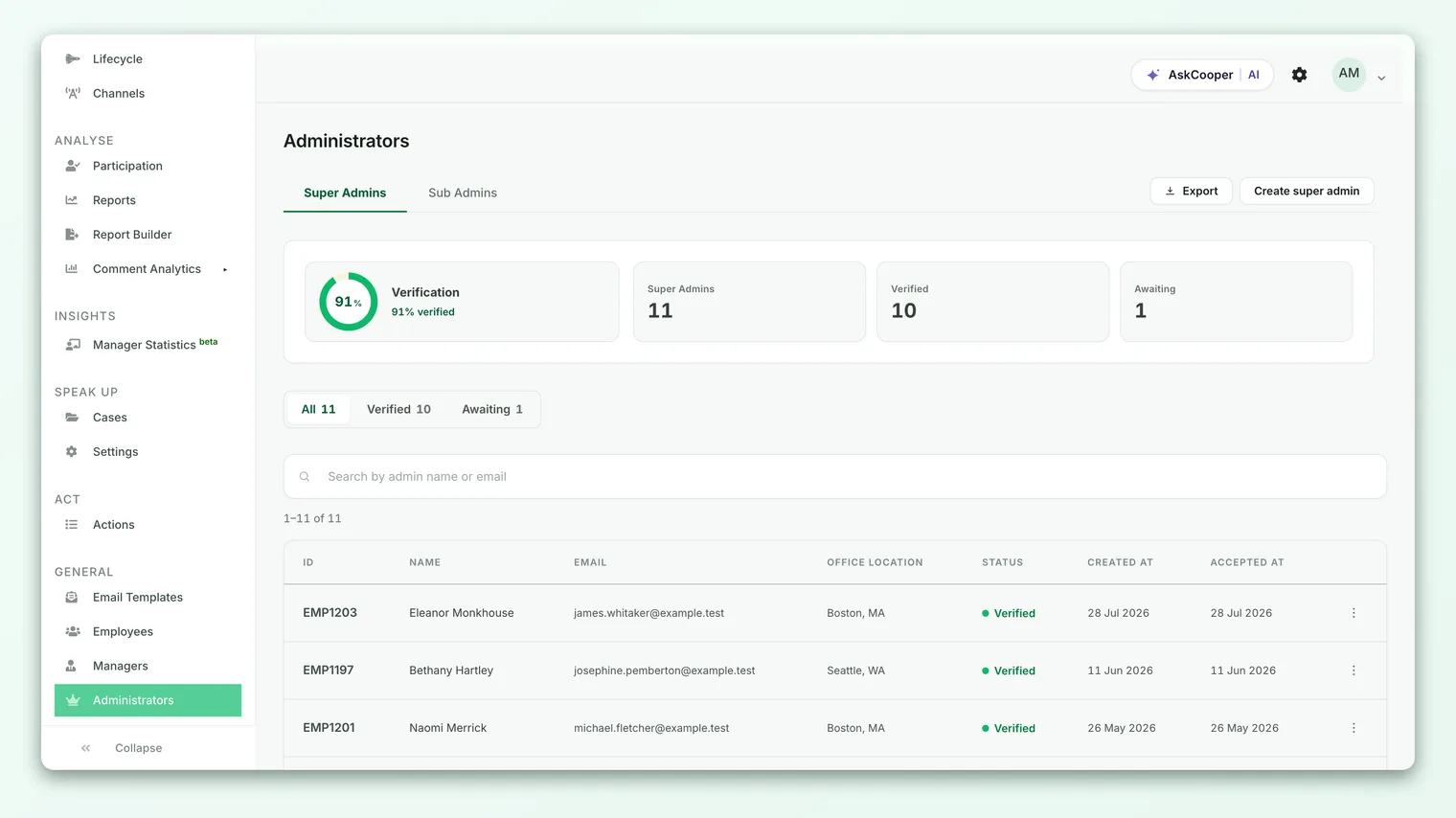
Both put a Revert to Admin control into your view for the duration. Clicking it ends the impersonation and returns you to your own Super Admin session, right where you'd expect to land. If a screen ever looks unexpectedly narrow, glance at the top of the app - if Revert to Admin is showing, you're still inside a switched view, and clicking it puts things right. The full click-by-click walkthrough lives in Switching between views.
Because View as puts you inside someone else's perspective, revert before you move on - especially on a shared machine. Leaving a session in a switched view is the single most common gotcha with this feature.
Permissions: who can do what
View as is permission-gated on top of the account settings. The controls never appear for people who aren't eligible.
- Super Admins can View as Manager at any time (no setting required) and can View as Sub Admin when Enable View as Sub Admin is on. - Sub Admins can View as Manager only when Enable View as Manager for sub-admins is on - and only for managers within their own assigned scope. Sub-admins can never View as another sub-admin. - Managers are the targets of View as Manager, not users of it. They don't get View as controls themselves.
A couple of guardrails are worth knowing so you can explain them to your team:
- One level at a time. Impersonation doesn't nest. You can't View as a manager and then, from inside that view, View as another manager. To switch targets, revert to your own view first and pick the next person from your own list.
- You can't view as a Super Admin. View as steps down into a scoped perspective (manager or sub-admin), never up into another Super Admin's account.
- Scope is respected. A sub-admin using View as Manager only sees managers they already have access to - the feature never widens their reach.
For the fuller picture of what each role can see in the first place, see Understanding roles.
Cautions and good practice
View as is safe by design - it changes only your view, never anyone's data or permissions - but a few habits keep it clean:
- It's a preview, not a role change. Impersonating a manager doesn't grant or remove any permissions permanently. To actually change what someone can do, edit their role, not their view.
- Enable deliberately. Both settings are off by default for a reason: they expand who can see whose results. Turn on View as Manager for sub-admins only if you're comfortable with your sub-admins previewing managers within their scope, and keep the number of Super Admins who can impersonate small.
- Mind the audit trail. Impersonation is recorded, but the cleanest record comes from reverting before you act. Do real work as yourself.
- Missing links usually mean a setting is off. If a sub-admin can't find the Managers list or the View As column, the View as Manager for sub-admins setting is almost certainly off - that's the switch that reveals both.
- Scope changes take a moment. Because View as re-scopes the app to another person's access, edits to org hierarchy or a sub-admin's segments may take a few minutes to reflect in what you see while impersonating them.
Frequently asked questions
Do I need to enable a setting for Super Admins to View as a manager?
No. Super Admins can View as Manager without any setting. The Enable View as Manager for sub-admins toggle only affects whether your sub-admins get that ability. The View as Sub Admin feature, by contrast, does require its own setting to be on even for Super Admins.
What's the difference between "View as" and "Switch to Manager View"?
View as is an admin stepping into another specific person's perspective - you pick a manager or sub-admin and see CultureMonkey as them, then click Revert to Admin. Switch to Manager View is a person who is both a sub-admin and a manager toggling their own two hats from the profile menu. Different mechanism, and the toggle needs no account setting. See Switching between views.
Can a sub-admin view as any manager?
No. Even with View as Manager for sub-admins enabled, a sub-admin can only step into the view of managers within their assigned scope - the same segments they can otherwise see. The feature never extends their reach beyond what their role already allows.
Can I view as a manager and then view as a different manager from inside that view?
No. Impersonation is limited to one level. To switch to a different manager, click Revert to Admin to return to your own view, then choose the next manager from your Managers list.
Does using View as change anything for the person I'm impersonating?
No. View as is entirely local to your own CultureMonkey session. It doesn't send notifications, alter their dashboard, change their permissions, or touch any results. It's purely a way for you to see what they see.
Where to go next
- Do the actual switching: Switching between views
- Understand who can see what: Understanding roles
- Get the reporting structure right first: Set up manager-employee relationships
Your feedback helps us improve the Help Center.