

View a word cloud of responses in CultureMonkey
How the word cloud in a CultureMonkey report works - what it shows, how keywords are extracted from open feedback and free-text answers, how the size of each word is decided, how to filter it, and where it helps versus where it can mislead.
On this page
When a survey collects written answers, you can end up with hundreds or thousands of comments. Reading every one is the gold standard, but it is slow, and it is hard to see the shape of the whole. The word cloud gives you that shape at a glance: it pulls the most-used keywords out of your written responses and displays them at a size that reflects how often they came up.
Think of it as a table of contents for your open feedback. It will not tell you what people said in full, but it points you straight at the themes worth reading. This guide covers what the word cloud is built from, how keywords are extracted and sized, how to filter it, and where it is genuinely useful versus where it can quietly mislead you.
The word cloud lives inside a CultureMonkey survey report, on its own Word Cloud tab. It draws keywords from two sources: your open feedback and the free-text answers and comments on questions. Each keyword's size reflects how often it appears across responses. Bigger word, more mentions. It is a fast way to spot themes, not a substitute for reading the actual free-text responses.
Where to find it
The word cloud is part of an individual survey's report, not the main Dashboard.
- 1Open a report - go to Analyse > Reports and open the survey you want to look at.
- 2Open the Word Cloud tab - in the report's tab bar (alongside Questions and Text Responses), select Word Cloud.
- 3Read the cloud - the keywords render as a cloud, with the most frequent words shown largest.
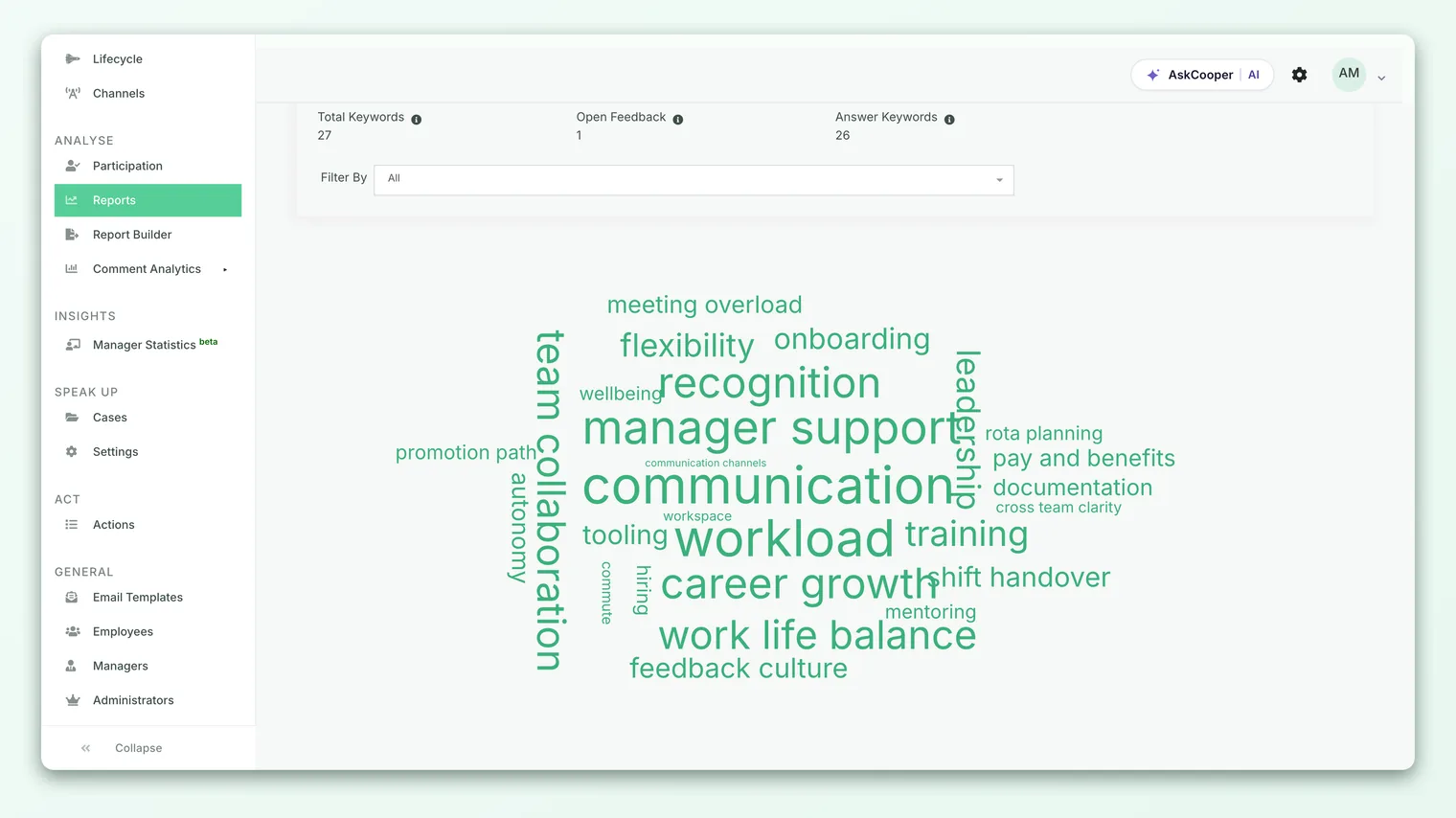
Because it belongs to a specific survey, the cloud only reflects the written responses collected in that survey (within the date range you have applied). If you filter the report to a shorter window, the cloud recalculates for that window.
What the word cloud is built from
The cloud combines keywords from two distinct sources, and the report shows you the split so you know what you are looking at. Three counters sit above the cloud:
| Counter | What it counts |
|---|---|
| Total Keywords | Every keyword feeding the cloud, from both sources combined |
| Open Feedback | Keywords drawn from the survey's open feedback (the free comment channel, shown under your account's feedback label) |
| Answer Keywords | Keywords drawn from free-text answers and from comments people left on rating or choice questions |
So "Answer Keywords" is not just your open-ended questions. If someone rates a question 3 out of 5 and adds a comment explaining why, that comment is mined for keywords too. Both the standalone open-feedback channel and the comment-and-answer text flow into the same cloud, which is why one keyword can represent mentions from several places at once.
If a survey has no written responses yet, the tab shows Insufficient data! instead of a cloud. That is expected, not an error. Keywords only exist once people have typed something and that text has been processed.
How keywords are extracted
You do not tag keywords by hand. CultureMonkey extracts them automatically from the raw text as responses come in, using natural-language processing on the server. In practice this means:
- Each piece of written feedback is analyzed for its most salient terms - the nouns and noun phrases that carry the meaning of the comment, rather than filler words like "the," "and," or "very."
- Only the top few keywords per response are kept, so one long comment does not flood the cloud. A comment about "my manager never gives feedback on my workload" contributes its strongest terms (things like manager, feedback, workload), not every word in the sentence.
- Keywords are stored against the response, then aggregated across the whole survey to build the cloud.
Because extraction happens automatically, a brand-new response will not appear in the cloud the instant it is submitted. There is a short processing step between a comment being written and its keywords showing up. If you have just closed a survey, give the cloud a little time to catch up with the final responses.
When the cloud is built, keywords are normalized to lower case and trimmed, so Manager, manager, and manager (with a stray space) all count as the same word. This keeps a single theme from being split across three near-identical entries.
How the size of each word is decided
The size of a word is driven by one thing: frequency. The more responses a keyword appears in, the larger it renders. A word mentioned 80 times dominates the cloud; a word mentioned twice is tiny.
A few details worth knowing:
- Size means count, not sentiment. A large word is a common topic, not necessarily a happy or an unhappy one. Workload being large tells you people are talking about workload a lot. It does not tell you whether they love it or resent it. For that, you read the comments or look at eNPS and driver scores.
- Color is not a signal here. In the report word cloud, the words share a single color scheme, and color does not encode good or bad. Only size carries meaning. Do not read anything into a word being one shade versus another.
- The cloud is capped. To stay readable, the cloud shows up to the top 150 keywords by frequency. On a large survey, the long tail of rare, one-off words is left out. That is deliberate, since a cloud of ten thousand words would be noise.
- Hover for the exact number. Pointing at any word shows a tooltip with the keyword and its exact count, so you are not left guessing how much bigger "big" really is.
Filtering the cloud
Above the cloud is a Filter By control that lets you narrow what you are looking at:
- All (the default) shows every keyword from both open feedback and answer text combined.
- Open Feedback shows only keywords from the open-feedback channel.
- A specific question shows only the keywords drawn from the free-text answers and comments on that one question.
Filtering to a single question is the most useful move here. A company-wide cloud blends every topic together, but a per-question cloud tells you what people wrote in response to that prompt, which is far easier to act on. If you asked "What one thing would improve your day-to-day work?", the cloud for that question is a ranked list of what people actually want.
Use the All view to spot which themes are loudest across the whole survey, then switch to the relevant question or to Open Feedback to see where that theme is really coming from. The combined view finds the signal; the filtered view locates it.
Translating responses (if enabled)
If your organization runs surveys in more than one language, keywords can arrive in several languages, which fragments the cloud (the same idea appears once in each language and never grows large). On accounts where the feature is turned on, a Translate to English toggle appears above the cloud. Switching it on translates the underlying text so keywords consolidate into their English equivalents, giving you one coherent cloud instead of several partial ones.
This option is plan-dependent and will not appear on every account. If you do not see it, your account does not have it enabled.
Reading a word cloud well
The cloud is a starting point, not a conclusion. A reliable way to use it:
- 1Scan for the big words. The largest keywords are your loudest themes. Note the top handful.
- 2Filter to find the source. Switch to the relevant question or to Open Feedback to see which prompt a theme is coming from.
- 3Read the actual comments. A keyword tells you what people mentioned, never why. Open the free-text responses and read the comments behind the theme before you draw any conclusion.
- 4Pair it with scores. Cross-check the theme against your driver scores and eNPS. A big word plus a low driver score is a clear place to act.
It is tempting to present a colorful cloud as "here is what employees said." Resist that. The cloud strips away tone, context, and nuance. Manager being large could mean gratitude or frustration in equal measure. Always ground any claim in the comments themselves.
Finding the comments behind a word
The natural next question when a word stands out is "who said this, and what exactly did they say?" To read the responses behind a keyword, move to the Text Responses tab of the same report, where you can browse and search the individual comments. Searching for the keyword there surfaces the responses that mention it, so you can read them in full and in context. See Read free-text responses for how that view works.
The limits of the word cloud
The word cloud is fast and intuitive, and those same qualities are its weaknesses. Keep these in mind:
- It counts, it does not judge. Frequency is not importance and it is not sentiment. A rare comment can be the most important thing anyone said.
- It loses phrases. Extraction pulls out individual keywords, so "not enough recognition" and "too much recognition" can both contribute the word recognition. The cloud cannot show you the negation or the nuance.
- It favors common nouns. Concrete topics (manager, pay, workload) surface easily; subtle or abstract feelings are harder to capture as a single keyword.
- Small surveys make thin clouds. With few responses, one or two comments can dominate the cloud and make a niche topic look like a company-wide theme.
- It is capped at the top keywords. Rare, one-off terms in the long tail are not shown, so the cloud is a view of the common themes, not an exhaustive list.
None of this makes the cloud less useful. It just means the cloud is the question, and the comments are the answer.
Frequently asked questions
Why is a word big even though only a few people mentioned it?
On a small survey, "a few" can be a large share of the total. Size reflects frequency relative to everything collected, so with limited responses a handful of mentions can look prominent. Always check the count in the tooltip and read the comments before concluding it is a widespread theme.
Does the color of a word mean anything?
No. In the CultureMonkey report word cloud, color does not encode sentiment or good-versus-bad. Only the size of a word carries meaning, and size means how often the word appeared.
I just closed my survey but the cloud looks incomplete. Why?
CultureMonkey extracts keywords from responses in a background process, so there is a short delay between a comment being submitted and its keywords appearing. Give it a little time after the final responses land and refresh the tab.
Can I see the exact number of mentions for a word?
Yes. Hover over any word and a tooltip shows the keyword and its exact count. The three counters above the cloud (Total Keywords, Open Feedback, Answer Keywords) also tell you how many keywords each source contributed.
Why do some keywords not show up at all?
The cloud displays the most frequent keywords up to a cap (the top 150), so genuinely rare, one-off words in the long tail are left out to keep the cloud readable. Very short filler words are also filtered out during extraction. To find a specific rare comment, search the Text Responses tab.
Does the word cloud respect anonymity?
The cloud only ever shows aggregated keywords, never who wrote them. Note that some viewers (for example certain sub-admins or managers) may have free-text answer keywords hidden from their view depending on your account's settings, so their cloud can differ from an admin's.
Where to go next
- The whole picture: How CultureMonkey handles multiple languages
- Read the comments behind the themes: Read free-text responses
- Understand how open questions work: Open-ended (free-text) questions
- Connect themes to your headline number: What is eNPS and how is it calculated?
Your feedback helps us improve the Help Center.