

Candidate survey channels and languages in CultureMonkey
Which channels CultureMonkey can use to deliver candidate surveys and reminders, how the launch channel is set, and how multilingual candidate surveys work.
On this page
CultureMonkey sends candidate surveys by email by default. SMS and WhatsApp delivery exist for candidate surveys, but only when CultureMonkey turns them on for your account, and multilingual candidate surveys, machine-translated and editable, are available on the same basis. Each survey launches on one channel, and reminders can use any channel that is active.
This article covers which channels there are and how to check yours, how the launch channel and reminder channels are chosen, what phone numbers need to look like, sharing a survey by link or QR code, and how multilingual surveys and a candidate's language work.
In CultureMonkey, the Channels page shows which channels are Active for your account; the rest show Contact Us. Email is always available. SMS and WhatsApp are turned on by CultureMonkey, need a phone number with the country code on each candidate, and are set as a survey's launch channel by CultureMonkey on request. Reminders can go by any active channel. Multilingual surveys, once turned on, let you tick Multilingual, generate translations for the languages you pick, and edit them. Emails are not translated.
Which channels are there?
| Channel | Available | Needs on the candidate record |
|---|---|---|
| Always | Email address | |
| SMS | When turned on for your account by CultureMonkey | Phone number with country code |
| When turned on for your account by CultureMonkey | Phone number with country code | |
| Slack and Microsoft Teams | When connected for your account | A matching workspace user |
| Link or QR code | When one-time-passcode access is turned on for your account | Nothing; the candidate opens a shared link |
To see which channels your account has, open Channels in the candidate sidebar. Each channel shows Active or a disabled Contact Us button.
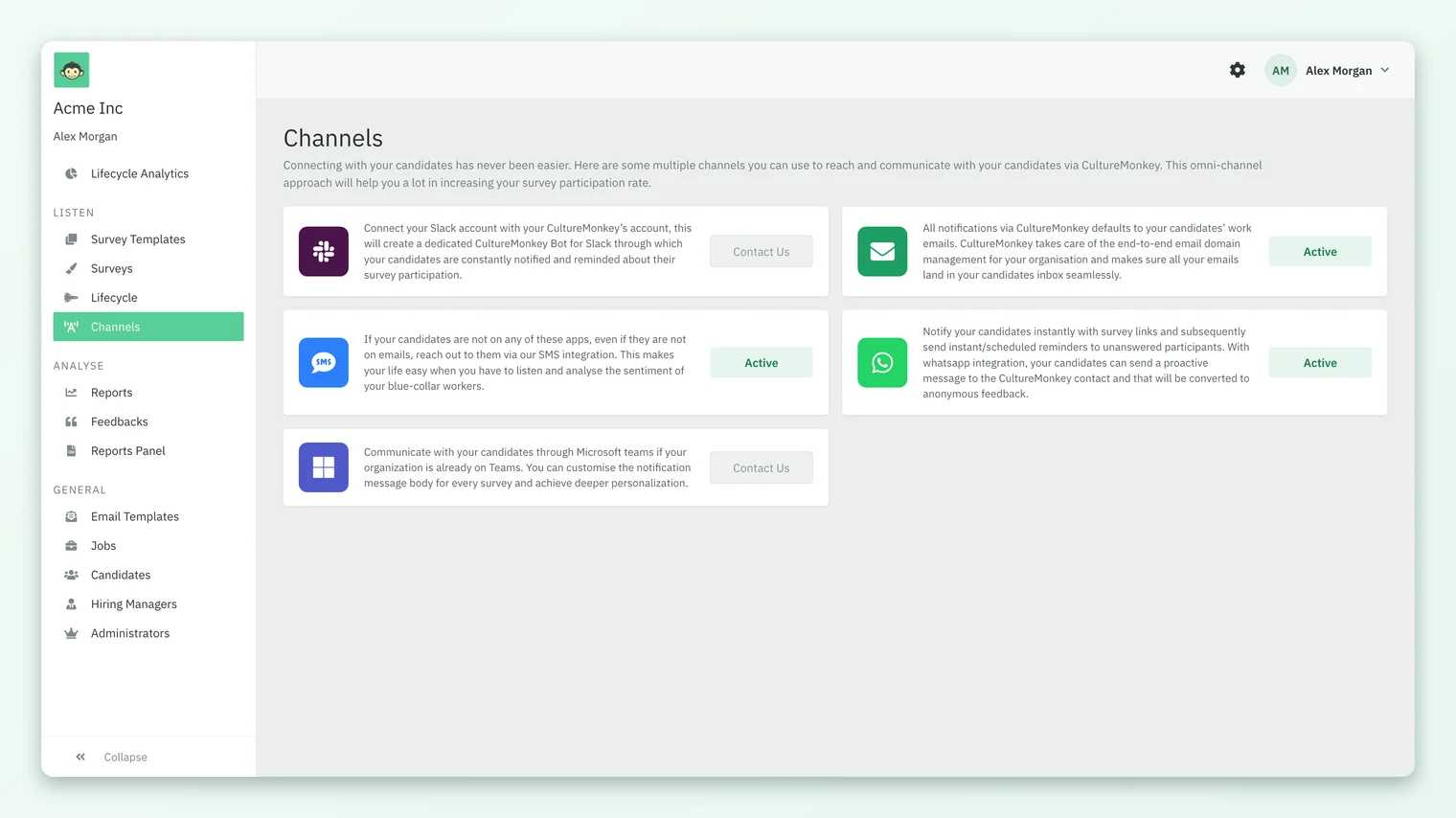
To turn on a channel that shows Contact Us, ask your CultureMonkey Success Manager. SMS and WhatsApp are arranged on request.
How is the launch channel chosen?
Each candidate survey launches on one channel. Email is the default for every survey. When SMS or WhatsApp is active on your account, CultureMonkey sets the Launch Channel on the survey's Settings step for you, so tell your Success Manager which survey or lifecycle stage should launch by SMS or WhatsApp. If no other channel is selected, the survey goes by email.
The launch channel reaches everyone in the survey the same way, so pick the channel most of your candidates can receive. A candidate without a phone number cannot receive an SMS or WhatsApp launch.
CultureMonkey recommends that all participants have valid phone numbers with the correct country code for SMS and WhatsApp delivery, for example +1 512 555 0142 rather than 512 555 0142.
Phone numbers come in on the candidate record: the phone_number API field, the Phone Number column in a CSV import, or the candidate form. See How candidate data gets into CultureMonkey.
Which channels can reminders use?
Reminders are set per survey, and each reminder picks its own channel from those active on your account. So a survey launched by email can remind non-responders by WhatsApp, and the reverse.
- On the survey's Settings step, click ADD REMINDER, then choose a date, a time and a channel from Select channel.
- After launch, the survey's Notifications tab holds one-time reminders and recurring reminders, each with its own channel.
Reminders only go to candidates who were sent the survey and have not answered. Scheduled reminders go at most once per channel per day, and WhatsApp reminders skip candidates without a phone number. For how recurring reminders behave, see Set up recurring reminders.
Share a survey by link or QR code
When one-time-passcode (OTP) access is turned on for your account by CultureMonkey, a survey gets a Share tab with a link and QR code. Where it is also turned on for lifecycle stages, the Lifecycle page gets its own Share tab with one generic link and QR code for stage surveys. This suits candidates you meet in person, such as at a hiring event or an on-site interview.
Multilingual candidate surveys
Multilingual candidate surveys are available for accounts where CultureMonkey has turned them on. Questions are machine-translated, then you review and edit them. CultureMonkey supports over 130 languages; see Languages supported in CultureMonkey.
- 1On the survey's Basic step, under Question Language Settings, tick Multilingual. A Translation step appears after Questions.
- 2Add your questions on the Questions step first; translation needs at least one question.
- 3On the Translation step, pick languages in Select Languages and click Generate Translations. Generation runs in the background; refresh the page to see it finish.
- 4Choose a language in the Languages list and click a question to edit its translation. Use Add new language to add more later, or the bin icon to remove one.
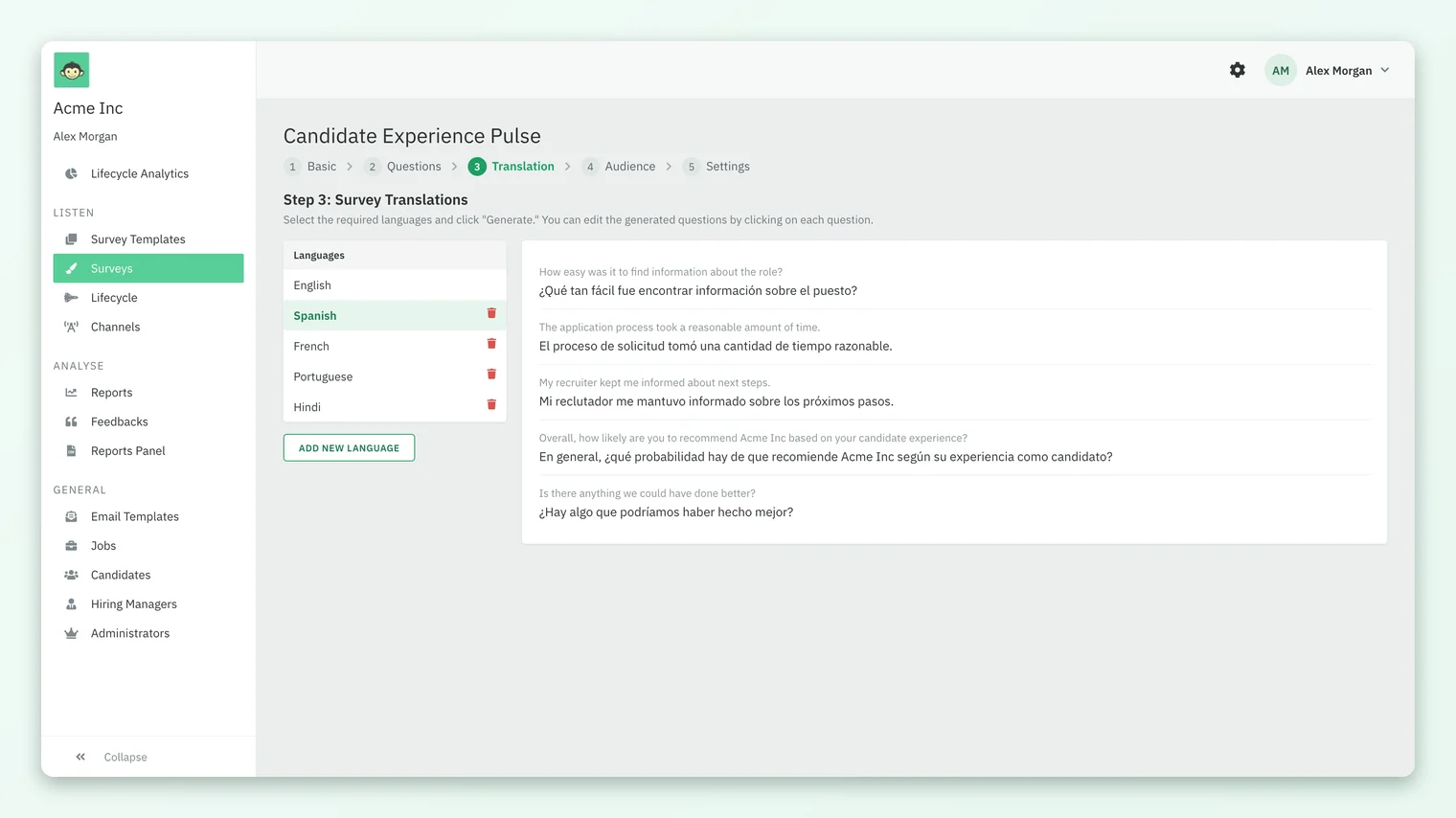
If you change questions after generating translations, CultureMonkey offers to regenerate them. Regenerating replaces the translations for every language, and any manual edits are lost, so finish editing questions before you polish translations.
Some accounts also see Show Default Question (in English), which shows each question in English alongside the chosen language. It makes the survey longer, so use it only when candidates need both.
How is a candidate's language chosen?
A candidate's survey language can be set in two ways:
- On the candidate record through the API, with the
question_language_idfield. The CSV import and the candidate form do not include a language field. - By the candidate, from a language menu on the survey's start page, where CultureMonkey has turned that menu on for your account. Their choice is saved to their record.
| Part of the journey | Language |
|---|---|
| Survey questions and answer options | The candidate's language, when the survey is multilingual and has that translation |
| Launch and reminder emails | Exactly as written in the template. Not translated per candidate |
| Comments in reports | As the candidate wrote them |
See Candidate survey emails, placeholders and sender settings for writing emails for a multilingual audience.
Frequently asked questions
Can we send candidate surveys by WhatsApp?
Yes, once CultureMonkey turns WhatsApp on for your account. The Channels page shows it as Active, and CultureMonkey can set it as the launch channel for the surveys you choose.
Can one survey launch on email and SMS at the same time?
No. A candidate survey launches on one channel. You can use other active channels for its reminders.
Why don't I see SMS in the reminder channel list?
SMS is not turned on for your account. Only active channels appear in Select channel. Ask your CultureMonkey Success Manager to enable it.
Are candidate emails translated into each candidate's language?
No. Emails go out exactly as the template is written, even for multilingual surveys. Only the survey itself is translated.
Can we edit machine translations?
Yes. On the Translation step, pick a language and click any question to edit it. Regenerating translations later replaces those edits.
How many languages can a candidate survey use?
You can add any number of the languages CultureMonkey supports, which is over 130, to a multilingual survey.
Where to go next
- Design the emails: Candidate survey emails, placeholders and sender settings
- Get phone numbers in: How candidate data gets into CultureMonkey
- Language list: Languages supported in CultureMonkey
- The whole module: What is Candidate Experience in CultureMonkey?
- On the website: Multilingual candidate surveys
Your feedback helps us improve the Help Center.