

What is Candidate Experience in CultureMonkey?
An overview of CultureMonkey Candidate Experience: how candidate data gets in, how lifecycle stages and surveys work, how candidates receive them, what the reports show and who can see them.
On this page
- What does Candidate Experience do?
- How is the module turned on?
- How does candidate data get in?
- How do lifecycle stages and surveys work?
- Can hiring managers be surveyed too?
- How do candidates receive surveys?
- What reports do you get?
- Who can see what?
- A typical rollout
- Frequently asked questions
- Where to go next
Candidate Experience is the CultureMonkey module for hearing from job candidates, and from the hiring managers who take them on. It takes candidate records from your hiring process, sends each candidate a short survey at each stage of the journey, and turns the answers into reports you can read by job, recruiter, hiring manager and location. It runs in its own workspace, next to your employee surveys but separate from them.
Related releases: Candidate Experience: configurable heatmaps and a new Sub Admin role (July 29, 2026), Candidate Reports: how candidates experience your hiring journey (April 1, 2026), Candidate Experience: bulk job imports and dedicated recruiting email (February 25, 2026). See every dated change on Product Updates.
This page is the overview of the whole module: what it does, how candidate data gets in, how lifecycle stages and surveys work, how candidates receive them, what the reports show and who can see them. Each section links to the detailed article for that part.
CultureMonkey Candidate Experience listens to candidates through the hiring journey. Candidate records arrive by API, CSV import or a manual form, and nothing is written back to your ATS. CultureMonkey sets up your lifecycle stages and the conditions behind them; once a stage is enabled, a daily run enrolls matching candidates and sends each stage survey once per candidate. Surveys go by email by default, with SMS, WhatsApp and multilingual surveys available when turned on for your account. Results appear in Reports and Lifecycle Analytics, for Super Admins and scoped Sub Admins.
What does Candidate Experience do?
The module follows the same Listen and Analyse loop as the rest of CultureMonkey, applied to people who are not yet employees:
- Listen. Candidates receive short surveys at the points of the hiring journey you care about, such as after applying, after an interview or after an offer. Hiring managers can also be surveyed on the day a new hire joins.
- Analyse. Answers roll up into driver scores, a candidate NPS, comments and a heatmap, which you can slice by job, recruiter, hiring manager and other candidate attributes.
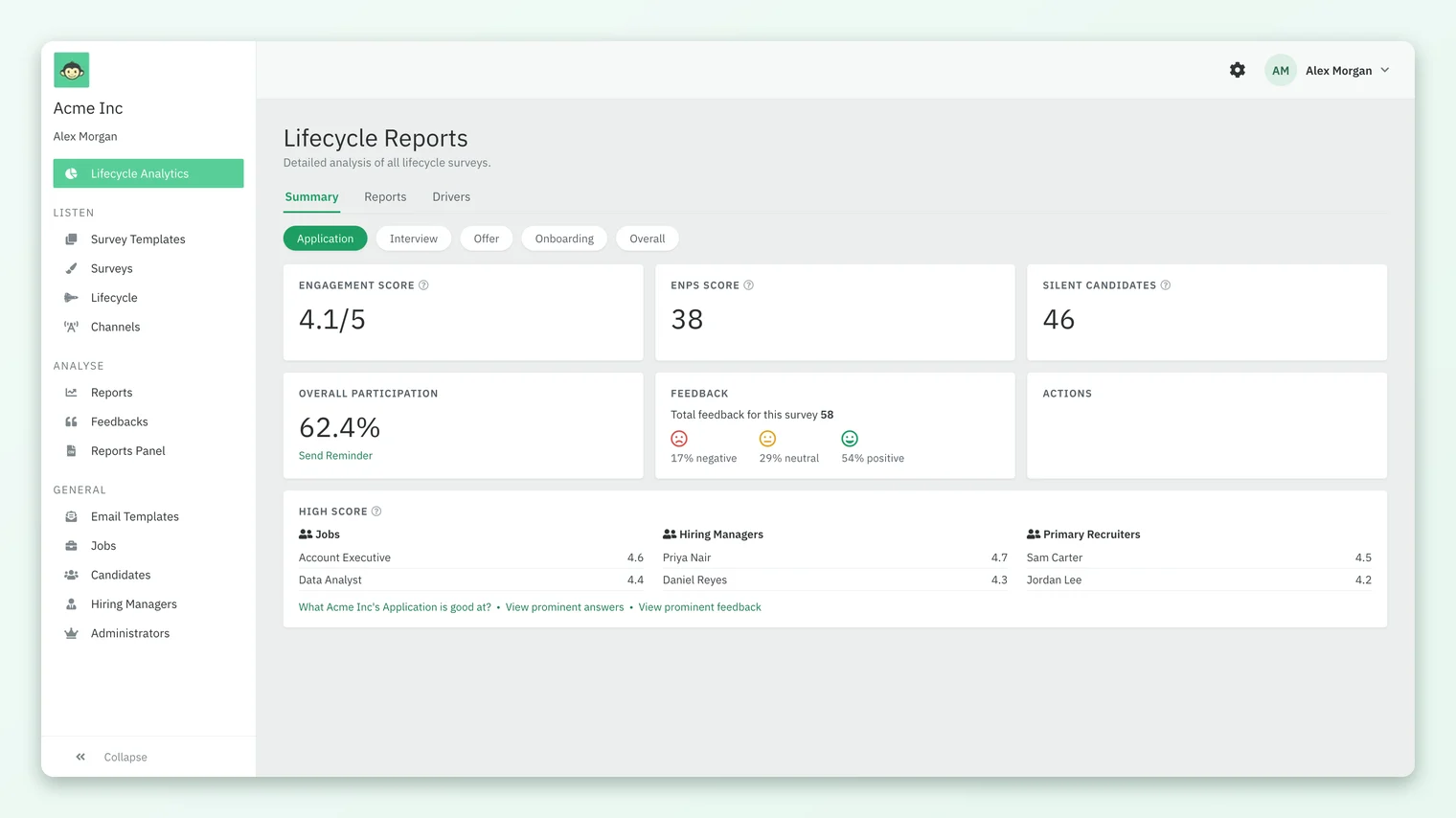
The candidate workspace has its own sidebar. This is where each part of the module lives:
| Sidebar item | What it is for |
|---|---|
| Lifecycle Analytics | A dashboard across all your lifecycle stages: engagement score, NPS, silent candidates, participation and feedback |
| Survey Templates and Surveys | The survey builder, the same one used for employee surveys, with candidate templates |
| Lifecycle | Your lifecycle stages, their status, participation and the survey each one sends |
| Channels | Which delivery channels are active for your account |
| Reports, Feedbacks, Reports Panel | Survey reports, every written comment, and downloadable exports |
| Email Templates | The emails candidates and hiring managers receive |
| Jobs, Candidates, Hiring Managers | The records the surveys are built on |
| Administrators | Who can use the candidate workspace, and with what scope |
How is the module turned on?
Candidate Experience is turned on for your account by CultureMonkey; there is no self-serve switch. Once it is on, admins who have been given access see Switch to Candidate in their profile menu in the employee product, which takes them into the candidate workspace. New candidate admins are invited from Administrators and receive an invitation email to set a password.
Several parts of the module are also configured by CultureMonkey rather than on a settings screen: your lifecycle stages and their conditions, hiring-manager surveys, SMS and WhatsApp delivery, multilingual surveys and Sub Admin scoping. Your CultureMonkey Success Manager is the person to ask for any of these.
How does candidate data get in?
Surveys are only as good as the candidate records behind them. There are three ways to add candidates, and all three are one-way into CultureMonkey:
| Method | Best for | Details |
|---|---|---|
| API | Keeping CultureMonkey in step with your ATS or HR system as candidates move | A JSON API at /api/v1/custom/candidates, including a bulk endpoint of up to 100 candidates per call. See Send candidates to CultureMonkey with the API. |
| CSV import | A first load, or periodic batches | Up to 10,000 rows and 5 MB per file, with field mapping and a preview. See Import candidates from a CSV in CultureMonkey. |
| Manual form | One-off additions and corrections | Create Candidate on the Candidates page. |
Nothing is written back to your ATS, and there are no named ATS connectors: your system sends data to CultureMonkey, and CultureMonkey sends surveys to candidates. Each candidate is linked to a job, and to a hiring manager and primary recruiter who must already exist as employees in CultureMonkey. Those links are what let you read results by job, recruiter and hiring manager later. For the full picture see How candidate data gets into CultureMonkey, Add jobs and import them from a CSV and Add custom attributes to CultureMonkey candidate records.
How do lifecycle stages and surveys work?
A lifecycle stage is a point in the hiring journey with one survey attached. Each stage has conditions on candidate fields, for example a current status of Rejected, or a particular job category. CultureMonkey sets up the stages and their conditions with you; you then enable each stage from the Lifecycle page.
Once a stage is enabled, a run each day adds every newly matching, active candidate to that stage's survey and sends it to anyone who has not had it yet. A candidate receives each stage survey at most once, so moving to a new stage means a new survey, never a repeat of the old one. Because the run re-checks conditions every day, keeping candidate status and dates current in CultureMonkey is what moves candidates through the stages. See How candidate lifecycle stages and surveys work in CultureMonkey.
You can also run one-off candidate surveys from Surveys, using the same builder as employee surveys: Basic, Questions, Audience, Settings and Preview, plus a Translation step for multilingual surveys. Candidate surveys can include an NPS question scored with the standard eNPS maths; see How candidate NPS is calculated in CultureMonkey.
Can hiring managers be surveyed too?
Yes. When turned on for your account, CultureMonkey sends a survey to a candidate's hiring manager on the candidate's date of joining, one invitation per joiner. It is a survey the hiring manager answers, not a results view: hiring managers do not log in to see candidate results. See Survey hiring managers when a new hire joins.
How do candidates receive surveys?
Email is the default channel. You can design the launch and reminder emails with Email Templates, using placeholders such as {{candidate_name}} and {{job_requisition_title}}, and choose the address candidate emails come from under the Mail settings. See Candidate survey emails, placeholders and sender settings.
SMS and WhatsApp delivery exist for candidate surveys, but only when CultureMonkey turns them on for your account, and they need a phone number on the candidate record. Multilingual surveys, machine-translated into the languages you pick and editable before launch, are also available once turned on. See Candidate survey channels and languages in CultureMonkey.
What reports do you get?
| Where | What it shows | Read more |
|---|---|---|
| Reports | A report per survey, under Custom and Lifecycle tabs, with Summary, Report, Questions and Feedback views | Read candidate survey reports |
| Heatmap | Driver scores by job, recruiter, hiring manager, gender and other attributes, with filters | Use the candidate heatmap |
| Lifecycle Analytics | Stage-by-stage and overall scores, NPS, participation, feedback sentiment and silent candidates | Candidate Lifecycle Analytics and silent candidates |
| NPS | Promoters (9 to 10) minus detractors (0 to 6), labeled eNPS, cNPS or e-NPS on different screens | How candidate NPS is calculated |
A survey report only appears once it has enough responses to meet the survey's response threshold, and heatmap groups below the threshold are hidden. Candidate reports identify weak drivers and low-scoring groups; they do not suggest actions for you.
Who can see what?
The candidate workspace has two roles. A Super Admin can use everything. A Sub Admin can work with surveys and reports, and view jobs, limited to the candidates that match the attribute values they are given, for example one hiring manager or one job family. Sub Admin scoping is turned on by CultureMonkey. There is no separate hiring-manager or recruiter role. See Candidate Super Admins, Sub Admins and access and Are candidate survey answers anonymous in CultureMonkey?.
A typical rollout
- 1Agree your stages with CultureMonkey. Decide which points of the journey you want to hear about and which candidate fields mark each one, such as current status or job.
- 2Load your jobs and candidates. Add jobs, make sure hiring managers and recruiters exist as employees, then import candidates or connect the API.
- 3Prepare the surveys and emails. Review each stage's survey, and create email templates for launch and reminders.
- 4Enable the stages. On the Lifecycle page, open each stage with CONFIGURE and enable it.
- 5Keep data flowing. Update candidate status and dates as they change, so the daily run finds the right people.
- 6Read the results. Start with Lifecycle Analytics, then drill into individual reports and the heatmap.
Most setup problems trace back to candidate data. If a stage is sending to nobody, check that candidates are active and that the field values match the stage conditions exactly as agreed.
Frequently asked questions
Does Candidate Experience connect directly to our ATS?
There are no named ATS connectors. Your ATS or integration layer sends candidates to CultureMonkey through the candidate API, or you import CSV exports. The flow is one-way: CultureMonkey never writes back to the ATS.
Do hiring managers get a login to see results?
No. Hiring managers receive the hiring-manager survey, but there is no hiring-manager role. If a hiring manager needs to see results, a Super Admin can create a Sub Admin for them scoped to that hiring manager, once CultureMonkey has turned Sub Admin scoping on.
Can we change the lifecycle stage conditions ourselves?
Not on a settings screen. Stage conditions are set up by CultureMonkey, so ask your CultureMonkey Success Manager when you want a stage added or its conditions changed. You can enable and disable stages yourself on the Lifecycle page.
Will a candidate get the same survey twice?
Not from the same stage. Each stage sends its survey to a candidate at most once. A candidate who reaches several stages receives one survey per stage.
Can candidates answer by text message or WhatsApp?
Yes, when CultureMonkey turns SMS or WhatsApp on for your account. Each survey launches on one channel, and candidates need a valid phone number with the country code.
Are candidate surveys available in other languages?
Yes, for accounts where CultureMonkey has turned multilingual surveys on. Questions are machine-translated into the languages you choose and you can edit each translation. Emails are sent as you write them and are not translated per candidate.
Does Candidate Experience recommend actions for weak scores?
No. Reports show where scores are low, such as the lowest-scoring groups and the questions a stage should improve on, but deciding what to do about them is up to your team.
Where to go next
- Get data in: How candidate data gets into CultureMonkey
- Understand the stages: How candidate lifecycle stages and surveys work in CultureMonkey
- Set up the emails: Candidate survey emails, placeholders and sender settings
- Read the results: Read candidate survey reports in CultureMonkey
- Give people access: Candidate Super Admins, Sub Admins and access
- On the website: Candidate experience platform
Your feedback helps us improve the Help Center.