

How candidate data gets into CultureMonkey
The three ways candidates reach CultureMonkey (API, CSV import and manual form), what a candidate record holds, and what must exist first.
On this page
Candidate data gets into CultureMonkey in three ways: your applicant tracking system (ATS) or HR tooling sends it over the candidate API, an admin uploads a CSV file of up to 10,000 candidates, or an admin adds a single candidate by hand with the Add a Candidate form. All three create the same candidate record, and that record is what CultureMonkey uses to decide who receives which candidate survey and how results are sliced in reports.
This article explains what a candidate record holds, how the three routes compare, what has to exist in CultureMonkey before candidates arrive, which fields drive surveys and reports, and why the flow only runs one way. Each route has its own step-by-step guide, linked below.
CultureMonkey receives candidate data over a JSON API, a CSV import or a manual form, and never writes anything back to your ATS. Every candidate needs a first name, an email address and a job. Hiring managers and recruiters are matched to existing employee records by email, so those people must already be in CultureMonkey. Current status, date of joining, phone number and custom attributes are the fields that decide who gets surveyed and how reports are grouped.
What is in a candidate record?
A candidate record is a person in your hiring pipeline plus the context around their hire. The fields fall into four groups:
| Group | Fields | Notes |
|---|---|---|
| Identity | First Name, Last Name, Email Address, Phone Number, Gender, Candidate ID, External ID | First name and email are always required. External ID is the identifier from your ATS and is how the API finds a record. |
| Hiring context | Job, Location, Hiring Manager, Primary Recruiter, Primary Recruiter Manager, Employee Type, Current Status | Every candidate is linked to one job. Hiring manager and recruiters are employees in CultureMonkey, matched by email. |
| Dates | Date of Hire, Date of Joining | Dates use the yyyy-mm-dd format everywhere. |
| State and extras | Active or inactive, plus any custom attributes you define | Inactive candidates are excluded from all future surveys. Custom attributes hold anything the standard fields do not. |
Current Status is a free-text field. The API documents the usual values as Applied, Interviewing, Offered, Hired and Rejected, but it does not reject other words, so agree on one spelling for each status before you connect a system. Current Status is set by the API or a CSV import; the Add a Candidate form does not show it.
Three ways to bring candidates in
Pick the route that matches how often your data changes and who will maintain it:
| API | CSV import | Manual form | |
|---|---|---|---|
| Best for | Ongoing, automatic sync from your ATS or an integration tool | A first load, or periodic bulk updates from a spreadsheet export | A handful of candidates, or correcting one record |
| Volume | One per call, or up to 100 per bulk call | Up to 10,000 rows and 5 MB per file | One at a time |
| Updates existing records? | Yes: update by External ID, or bulk upsert | Yes: rows are matched on the anchor field you choose (Email Address or External ID) | Yes: open the record and edit it |
| Who sets it up | A developer or integration owner, using your account's API key | A candidate Super Admin | A candidate Super Admin |
| Guide | Send candidates to CultureMonkey with the API | Import candidates from a CSV | Covered below |
You can mix routes. A common pattern is a CSV import to load the current pipeline once, then the API to keep it current. Because both match on External ID or email, the API updates the records the CSV created instead of duplicating them, as long as the identifiers line up.
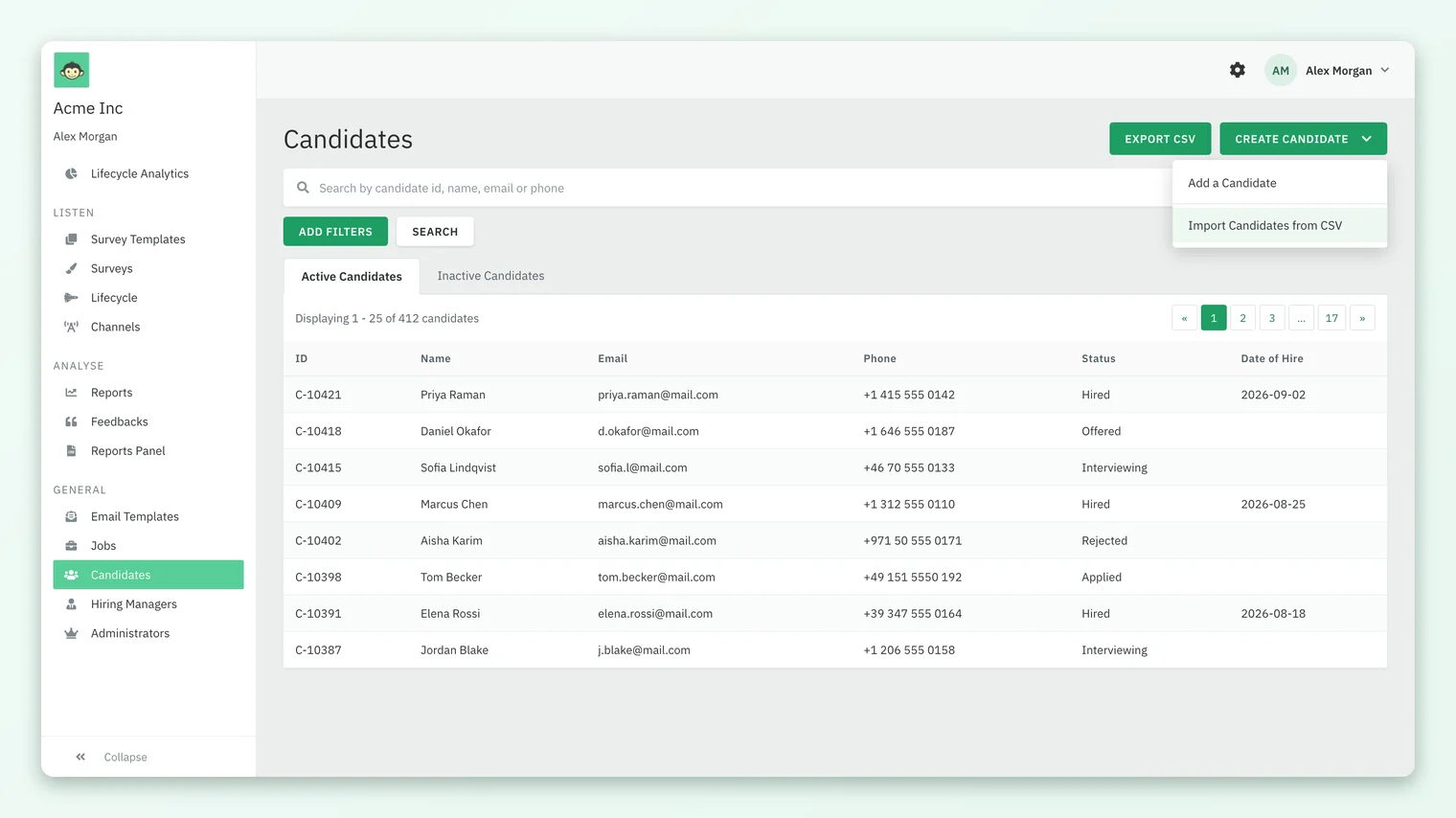
To add one candidate by hand, open Candidates, click Create Candidate and choose Add a Candidate. The form has a Personal Details section and a Candidate Details section, followed by your custom attributes. Choose the Hiring Manager and Primary Recruiter even though the form does not mark them as required: a candidate record cannot be saved without both.
What has to exist before candidates arrive?
A candidate record points at other things in CultureMonkey. Set those up first and your loads will go through cleanly:
- Hiring managers and recruiters as employees. The hiring manager, primary recruiter and recruiter manager are looked up by email among your existing CultureMonkey employee records. An email that does not match an employee fails the candidate with a message such as "Hiring Manager with email ... not found". Being an employee record is all that is needed; it does not give that person access to candidate results.
- Jobs. The API finds a job by its External ID and creates it if it is missing. The CSV import finds a job by its title and creates one if no job has that title. Adding or importing your jobs first keeps their External IDs and details correct. See Add jobs and import them from a CSV.
- Custom attributes. Create them under Settings before you send values. A CSV column for an attribute that does not exist yet is reported as an error. See Add custom attributes to candidate records.
- Locations need no preparation. A location name that CultureMonkey does not recognize is created for you.
Candidate Experience itself is turned on for your account by CultureMonkey. Once it is, admins with candidate access see Switch to Candidate in their profile menu, and the Candidates, Jobs and Hiring Managers screens sit under General in the candidate sidebar.
Which fields drive surveys and reports?
Most fields are there for reporting, but a few decide who is surveyed and when:
| Field | What it drives |
|---|---|
| Current Status and custom attributes | Lifecycle stage conditions. CultureMonkey sets up which values put a candidate into which stage, and a daily run enrolls matching candidates. See How candidate lifecycle stages and surveys work. |
| Date of Joining | The hiring-manager survey, where your account uses it. The hiring manager is surveyed on the day the candidate joins. See Survey hiring managers when a new hire joins. |
| Phone Number | SMS and WhatsApp delivery, where CultureMonkey has turned those channels on for your account. Include the country code. |
| Active or inactive | Inactive candidates are left out of every future survey. |
| Job, recruiters, hiring manager, gender, employee type | Heatmap demographics in candidate reports. See Use the candidate heatmap. |
| Custom attributes | Extra heatmap tabs once at least 3 candidates have a value, and optional Sub Admin scoping. |
Is the data flow one-way?
Yes. CultureMonkey receives candidate data and does not send any of it back. There is no outbound call, webhook or write-back to an ATS in the candidate module, and there are no named, one-click ATS connectors. Your ATS, or an integration tool in between, pushes candidates to the CultureMonkey API. The API also has read endpoints, so another system can pull candidate records from CultureMonkey if it needs to.
Treat your ATS as the source of truth. If you correct a candidate in CultureMonkey by hand, make the same change in the ATS, or the next API sync or CSV import will overwrite it.
Where candidates show up in CultureMonkey
- Candidates lists everyone, split into Active Candidates and Inactive Candidates tabs, with columns ID (the Candidate ID), Name, Email, Phone, Status and Date of Hire. Search by candidate ID, name, email or phone, filter by Employee Type, Current Status or Location, and use Export CSV to download the full list with custom attributes. Clicking a row opens the record for editing.
- Jobs lists the jobs candidates are linked to.
- Hiring Managers is a read-only list of employees who are the hiring manager on at least one candidate. You do not add people here; they appear once a candidate names them.
There is no separate candidate history or timeline screen. The record shows the candidate's current values.
Frequently asked questions
Can CultureMonkey connect directly to Greenhouse, Lever or another ATS?
There are no built-in, named ATS connectors. Any ATS or integration tool that can make HTTP requests can send candidates to the CultureMonkey candidate API, and any ATS that can export a CSV can feed the importer.
Does CultureMonkey update candidate records in our ATS?
No. The flow is one-way into CultureMonkey. Survey responses and statuses stay in CultureMonkey and are never written back to your ATS.
What happens if the same candidate is sent twice?
The API's update and bulk calls, and the CSV import, match an incoming candidate to an existing one by External ID or email and update it. The single-create API call always tries to add a new record, and it fails if the External ID is already taken, so use the update or bulk call for candidates you have sent before.
Do hiring managers need to be in CultureMonkey?
Yes, as employee records. CultureMonkey matches the hiring manager and recruiter emails to existing employees, and a candidate cannot be saved without a valid hiring manager and primary recruiter. This does not give them access to candidate reports.
How do we stop surveying a candidate?
Mark the candidate inactive: tick Mark this candidate inactive on the record, or send is_active as false through the API. Inactive candidates are excluded from all future surveys.
Can Sub Admins add or import candidates?
No. The Candidates list is for Super Admins; Sub Admins cannot open it, and they see the Jobs list read-only. See Candidate Super Admins, Sub Admins and access.
Where to go next
- Automate the feed: Send candidates to CultureMonkey with the API
- Load a spreadsheet: Import candidates from a CSV in CultureMonkey
- Set up jobs first: Add jobs and import them from a CSV
- Add your own fields: Add custom attributes to candidate records
- See the big picture: What is Candidate Experience in CultureMonkey?
- On the website: Candidate experience ATS integration
Your feedback helps us improve the Help Center.