

Candidate survey emails, placeholders and sender settings
How to create CultureMonkey email templates for candidate surveys, what each placeholder resolves to, how to attach templates, and how to choose the sending address.
On this page
CultureMonkey sends candidate surveys by email unless another channel is set, using a built-in invitation or an email template you design. Email templates let you write your own subject and body with placeholders such as {{candidate_name}} and {{job_requisition_title}}, and the Mail setting decides which address candidate emails are sent from.
Related release: Candidate Experience: bulk job imports and dedicated recruiting email (February 25, 2026). See every dated change on Product Updates.
This article covers the default emails, how to create a template, every placeholder and what it resolves to, how to attach templates to a survey or a lifecycle stage, and the Default, Custom Email and SMTP sender options.
In CultureMonkey, create templates under Email Templates: a name, From Email, Sender Name, Subject and Body, with placeholders in both subject and body. Attach them to a survey on its Settings step (Launch Template and Reminder Template) or to a lifecycle stage in its CONFIGURE window. Under the gear icon, Mail sets the sending address for all candidate email: Default, a Custom Email prefix on your CultureMonkey domain, or your own SMTP server. Emails are sent as written, in one language.
What do candidates receive by default?
If no template is attached, a survey sends CultureMonkey's built-in invitation. It greets the participant by first name, says your organization has invited them to the survey, asks them to take five minutes, shows the expiry date when the survey has one, and links to the survey with a START SURVEY button. The default subject is the brand name followed by "Survey:" and the survey's name.
The built-in wording is written for employees ("help us make Acme Inc a better place to work"), so for candidates it is worth replacing with your own template.
Create an email template
Open Email Templates in the candidate sidebar. Filter the list by All, Default or Custom, hover a template for Preview Email Body or Edit Template, or click Create New Email Template.
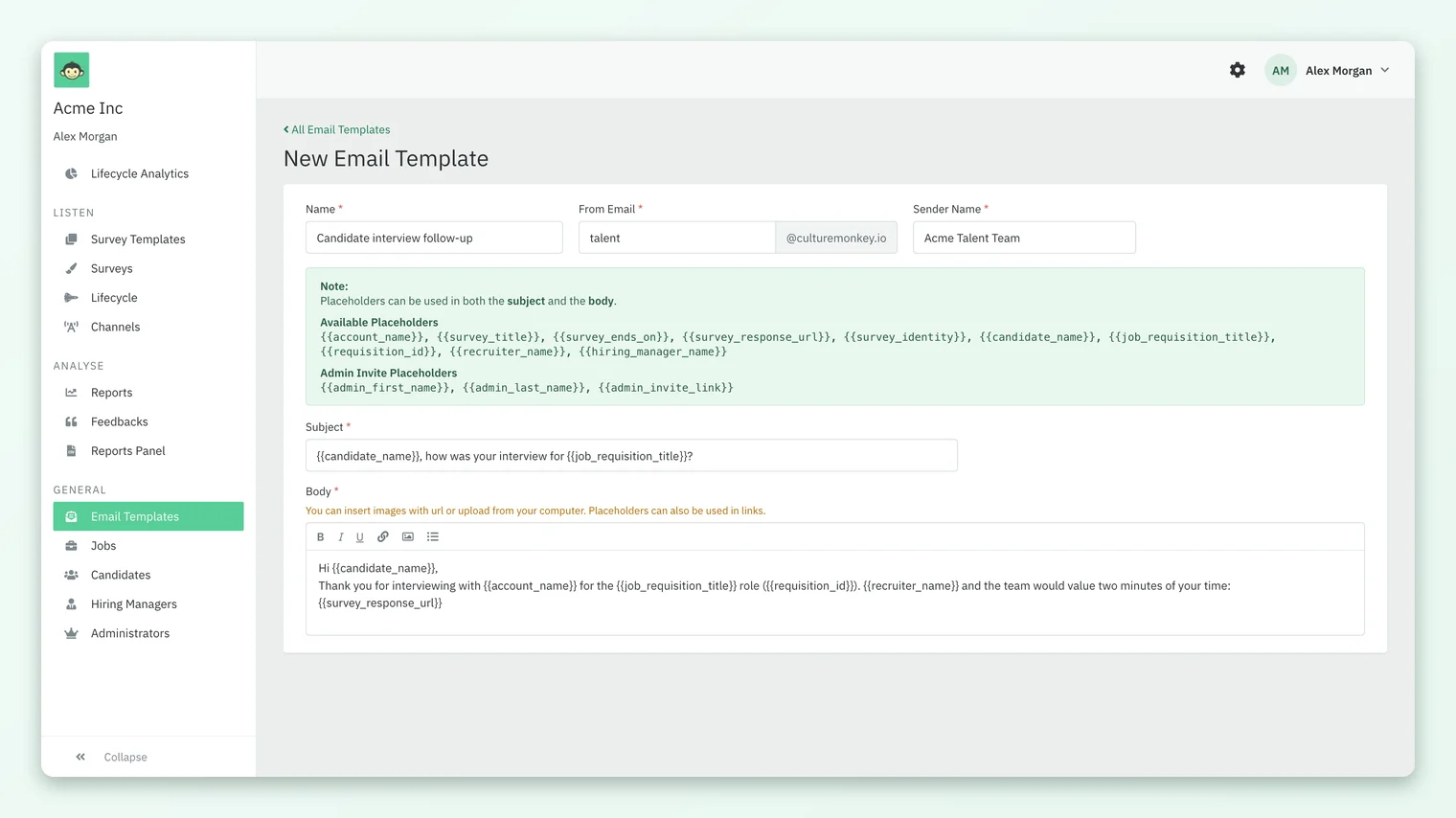
| Field | Required | What it does |
|---|---|---|
| Name | Yes | How the template appears in pickers. Candidates do not see it |
| From Email | Yes | The prefix of the sending address, before your CultureMonkey mail domain. Used when Mail is set to Default |
| Sender Name | Yes | The display name candidates see, such as Acme Talent Team |
| Subject | Yes | The subject line. Placeholders work here |
| Body | Yes | A rich-text editor. You can insert images by URL or upload, and use placeholders in text and links |
| Thumbnail Image | No | An image URL for the template card on the Email Templates page |
| Display Description | No | A short description shown on the template card |
Click Save Template. The template is then available in every template picker in the candidate workspace.
Placeholders and what they resolve to
Placeholders are replaced for each recipient when the email is sent, in the subject and the body alike.
| Placeholder | Replaced with |
|---|---|
{{account_name}} | Your organization's name |
{{survey_title}} | The survey's name as participants see it |
{{survey_response_url}} | The recipient's personal link to the survey |
{{survey_ends_on}} | The survey's end date. Only filled in when the survey has an end date |
{{survey_identity}} | A line about privacy: "It's 100% anonymous..." for anonymous surveys, "It's 100% confidential..." for non-anonymous ones |
{{candidate_name}} | The candidate's name |
{{job_requisition_title}} | The title of the candidate's job |
{{requisition_id}} | The job's External ID |
{{recruiter_name}} | The candidate's primary recruiter |
{{hiring_manager_name}} | The candidate's hiring manager |
Lifecycle stage surveys have no end date, so {{survey_ends_on}} is left unreplaced in their emails. Keep it out of templates you use for stages.
The editor also lists Admin Invite Placeholders ({{admin_first_name}}, {{admin_last_name}}, {{admin_invite_link}}). These are for admin invitation emails, not survey emails.
Every candidate placeholder depends on the candidate record, so a candidate without a job, recruiter or hiring manager gives you an incomplete email. See How candidate data gets into CultureMonkey.
Attach templates to a survey
- 1Open the survey from Surveys and go to the Settings step.
- 2Under Email Template, choose a Launch Template for the first email and a Reminder Template for every email reminder.
- 3Click Send a test Email under either picker to check how it renders.
- 4Click SAVE & CONTINUE.
If you do not see the Email Template section on the Settings step, email templates are not turned on for your account; ask your CultureMonkey Success Manager.
Attach templates to a lifecycle stage
On the Lifecycle page, click CONFIGURE under the stage. Click the name under First Email Template or Reminder Email Template and pick a template. The change applies to emails sent from then on. See How candidate lifecycle stages and surveys work in CultureMonkey.
Choose the sending address
Click the gear icon and open Mail in the Settings menu. This setting applies to all candidate email and is separate from the employee product's mail settings.
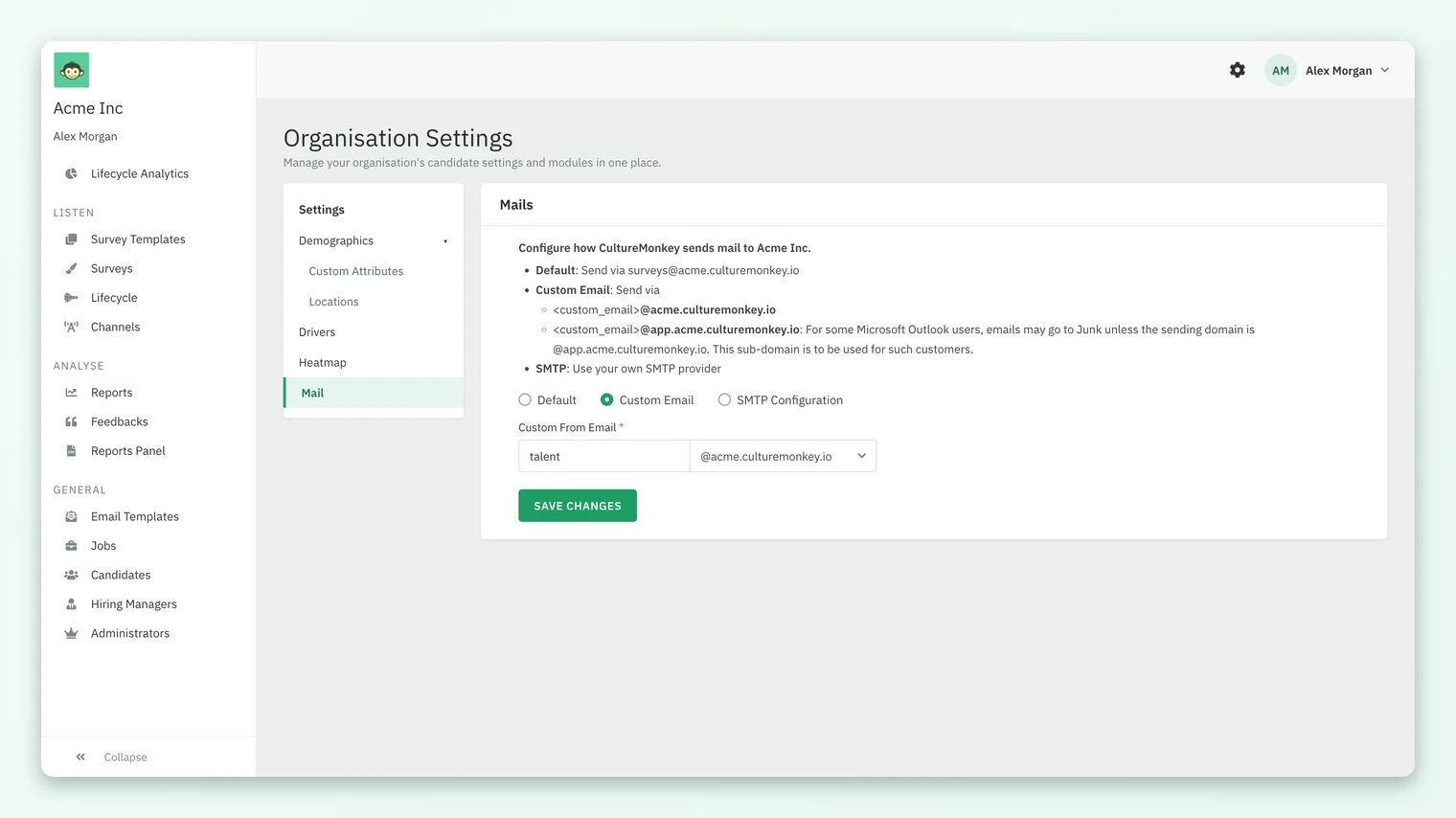
| Option | Candidate email is sent from |
|---|---|
| Default | Your CultureMonkey mail domain, using the From Email and Sender Name of the template attached to the survey, or surveys@ when there is no template |
| Custom Email | One fixed address: the prefix you enter at your CultureMonkey domain, or at its app. sub-domain. This overrides each template's From Email |
| SMTP Configuration | Your own mail server, using the sender email you enter. This also overrides each template's From Email |
Use the app. sub-domain if candidates on Microsoft Outlook find your emails in Junk. For SMTP, fill in User name, Password, Address, Port, Authentication, Domain and Sender email (an address your SMTP provider has authorized), tick Enable TLS if your server uses it, and click Save changes. The confirmation reads "SMTP configured successfully."
The Mail option is not shown on accounts with custom branding. If it is missing from your Settings menu, ask your CultureMonkey Success Manager about sending addresses.
What language are emails sent in?
Emails are sent exactly as the template is written. Even when a survey is multilingual, the launch and reminder emails are not translated into each candidate's language. If you recruit in several languages, write the email in the language most of your candidates use, or include short text in each. See Candidate survey channels and languages in CultureMonkey.
Frequently asked questions
Can I use candidate placeholders in the subject line?
Yes. Every placeholder, including {{candidate_name}} and {{job_requisition_title}}, works in both the subject and the body.
Why does my email show {{survey_ends_on}} as plain text?
The survey has no end date, which is always the case for lifecycle stage surveys. The placeholder is only replaced when an end date exists, so remove it from that template.
Which From address wins, the template or the Mail setting?
With Default, the template's From Email is used. With Custom Email or SMTP Configuration, the address from the Mail setting is used for all candidate email, whatever the template says.
Do candidate mail settings affect our employee surveys?
No. CultureMonkey keeps candidate mail settings separate from the employee product, so you can send candidate email from a recruiting address and employee email from another.
Can I send myself a test before a survey goes out?
Yes. On the survey's Settings step, use Send a test Email under the Launch Template or Reminder Template picker.
Can the default invitation text be edited without a template?
No. To change the wording, create an email template and attach it to the survey or stage.
Where to go next
- Attach templates to stages: How candidate lifecycle stages and surveys work in CultureMonkey
- Email hiring managers: Survey hiring managers when a new hire joins
- Other channels and languages: Candidate survey channels and languages in CultureMonkey
- The whole module: What is Candidate Experience in CultureMonkey?
- On the website: Candidate experience survey
Your feedback helps us improve the Help Center.