

Connect Keka to CultureMonkey
How the Keka HRIS integration syncs your employees, teams, locations and reporting lines into CultureMonkey - what you need to connect it, what data flows across, and how often it refreshes.
On this page
If your organization runs on Keka, you can keep CultureMonkey's people data in step with it automatically. Once the integration is live, CultureMonkey pulls your employees, their profile details, and your org structure (teams, locations, business units, and reporting lines) straight from Keka on a recurring schedule. No more exporting a spreadsheet every time someone joins, moves team, or leaves.
This guide explains what the Keka integration does, what you need to switch it on, exactly what data syncs across, how often it refreshes, and how to keep it healthy. It's written for the Account Admin who owns the connection.
The Keka connector runs through CultureMonkey's secure sync service. It's provisioned with the help of our team rather than through a self-serve form, so you'll share a few credentials, we wire it up, and from then on your employees, teams, locations, business units, and manager mappings refresh automatically on a recurring schedule.
What the Keka integration does
CultureMonkey works best when it knows who your people are and how they're organized. That org data powers who receives a survey, how results are grouped in reports, which manager sees which dashboard, and how anonymity thresholds are applied.
Keeping that picture accurate by hand is tedious and error-prone. The Keka integration removes that work. It treats Keka as the source of truth for your workforce and continuously mirrors it into CultureMonkey, so that:
- New joiners appear in CultureMonkey automatically and can be included in the next survey.
- Movers (a change of team, location, designation, or manager) are reflected without anyone re-uploading a file.
- Leavers are marked inactive, so they drop out of future sends.
The result is that your engagement data always reflects your current organization, not a snapshot from whenever someone last imported a CSV.
When Keka is connected, treat Keka as the master record for employee data. Editing an employee's team or manager directly in CultureMonkey can be overwritten on the next sync, because the integration reconciles CultureMonkey back to what Keka says.
How the connector works
The Keka integration doesn't talk to Keka's API directly from your CultureMonkey account. Instead, it runs through a dedicated CultureMonkey sync service (our middleware) that authenticates to Keka, reads your data, normalizes it, and hands it back to CultureMonkey in a consistent shape.
At a high level, three things make the connection work:
- Your Keka credentials, stored securely against your account so the sync service can authenticate to Keka on your behalf.
- Your Keka subdomain, which tells the sync service which Keka tenant to read from.
- A scheduled sync job that runs on CultureMonkey's side and fetches your latest data on a recurring basis.
Because the heavy lifting happens in the sync service, there's very little for you to configure once the credentials are in place. The connection either authenticates successfully and starts pulling data, or it reports back that it couldn't authenticate (usually a credential or subdomain issue).
What you'll need to connect
Before the integration can be switched on, you'll need a few things from your Keka administrator. Gather these first so the setup is quick:
| What | Why it's needed | Where it comes from |
|---|---|---|
| Keka API credentials | So the sync service can authenticate to Keka and read your data | Generated in your Keka admin settings |
| Keka subdomain | Identifies your specific Keka tenant to read from | The subdomain in your Keka URL |
| An Account Admin in CultureMonkey | Owns and manages the connection | Your CultureMonkey account |
Keka API credentials grant read access to your employee records. Share them only through a secure channel, and rotate them in Keka if you ever suspect they've been exposed. Never paste them into a public ticket or email thread.
Connecting Keka: the steps
Keka is set up as an assisted integration. Rather than a self-serve form inside the app, the connection is provisioned with our team, who register your credentials and verify the first sync. This keeps credential handling secure and lets us confirm your Keka data maps cleanly onto CultureMonkey's fields before it goes live.
Here's how the process runs end to end:
- 1Open Integrations - from the left navigation, go to Integrations and find Keka in the HRIS list. This is where connected integrations appear once they're live.
- 2Request the connection - reach out to your Customer Success contact (or use the in-product Contact us option on the integration) to start the Keka setup. Share your Keka subdomain and confirm who your Keka admin is.
- 3Provide credentials securely - your Keka admin generates the API credentials, and you pass them to our team through a secure channel. We register them against your account.
- 4We verify authentication - the sync service authenticates to Keka using your credentials and subdomain, and confirms it can read your data.
- 5First sync runs - once authentication succeeds, an initial sync pulls your teams, locations, business units, and employees into CultureMonkey. Larger directories are fetched page by page, so a big org can take a little while on the first run.
- 6You review the results - check your Employees list and your teams and locations to confirm the data landed as expected, then you're set for automatic ongoing syncs.
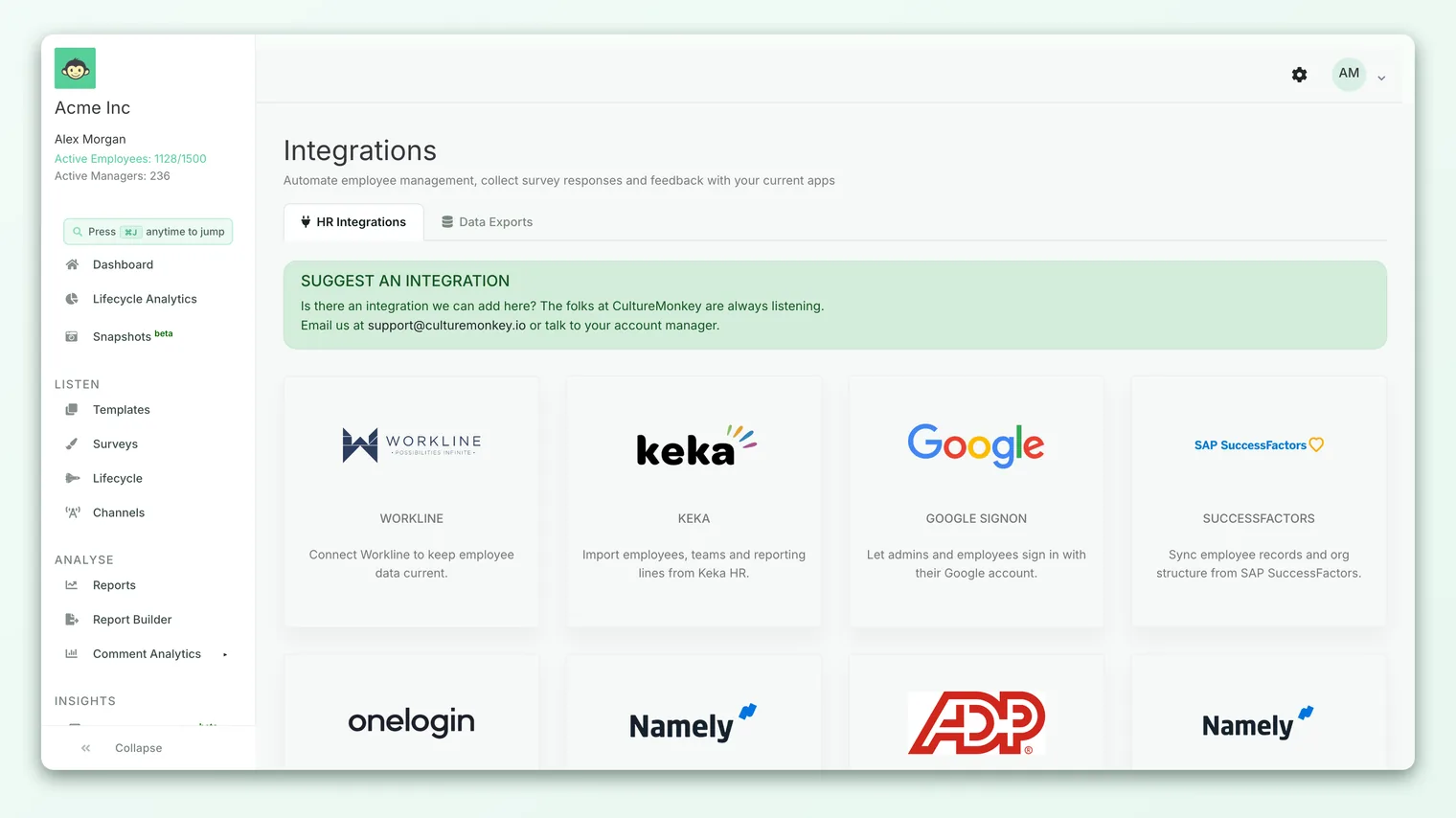
Some CultureMonkey integrations (like Zoho People or Microsoft Teams) use a one-click OAuth flow you can run yourself. Keka is provisioned with our team instead, so we can validate credentials and the first mapping for you. If you'd expected a self-serve "Connect" button and don't see one, that's why - reach out and we'll get it set up.
What data syncs from Keka
The integration brings across both people and the org structure they sit in. On each sync, CultureMonkey reconciles what it holds against what Keka reports, creating new records, updating changed ones, and marking departed employees inactive.
Employee fields
For each employee, the following details are pulled from Keka and mapped onto the matching CultureMonkey attributes:
| Employee detail | Notes |
|---|---|
| First and last name | The employee's display name |
| Work email address | The primary identifier used for surveys and matching |
| Employee ID | Your internal Keka employee identifier |
| Designation | Job title / role |
| Phone number | Used where mobile channels are enabled |
| Reporting manager | Builds the manager hierarchy in CultureMonkey |
| Date of birth | Supports lifecycle and celebration use cases |
| Date of joining | Powers tenure-based segments and lifecycle surveys |
| Date of separation | Marks when someone left |
| Gender | Available as a demographic attribute |
| Job status | The employee's employment status in Keka |
| Active flag | Whether the employee is currently active; inactive employees drop out of sends |
Org structure
Alongside individual employees, the integration syncs the groupings your reports and dashboards are built on:
- Teams - your primary team groupings from Keka.
- Sub-teams - the finer-grained team level (mapped from Keka's project team structure).
- Locations - office or geographic locations.
- Business units - your higher-level organizational divisions.
Each of these is matched by an external ID from Keka, so renaming a team in Keka updates the existing group in CultureMonkey rather than creating a duplicate.
Because a manager is also an employee, the integration first loads everyone, then wires up the reporting lines in a second pass. That's expected. If a brand-new manager and their report both arrive in the same sync, the reporting relationship settles correctly once the full run completes.
How field mapping works
The table above shows the default mapping between Keka fields and CultureMonkey attributes. Most of it is automatic, but the mapping is worth understanding, especially if you use custom attributes for segmentation.
If a Keka field doesn't line up with a CultureMonkey attribute the way you'd like, or you want to map an additional Keka field onto a custom attribute, that's handled through field mapping rather than by editing individual employees. See Configure HRIS field mapping for how mappings are defined and adjusted, so your Keka data lands in exactly the attributes your reports rely on.
Getting the mapping right early pays off: clean, consistent attributes mean cleaner segments, more useful reports, and manager dashboards that reflect the real org.
How often it syncs
After the first sync, the integration refreshes on a recurring, automatic schedule. There are two cadences, depending on how your account is configured:
| Cadence | When it runs | Who it applies to |
|---|---|---|
| Twice weekly (default) | Tuesday and Friday | All active HRIS connections, unless opted into daily |
| Daily | Once every day | Accounts opted into daily employee sync |
For most organizations the twice-weekly cadence keeps CultureMonkey comfortably current. If your headcount changes rapidly and you need same-day accuracy, ask your Customer Success contact about enabling the daily sync for Keka.
Beyond the scheduled runs, the first sync happens right after the connection is provisioned. If you ever need an out-of-band refresh (for example, after a large reorg in Keka), reach out and we can trigger a sync rather than waiting for the next scheduled slot.
Keeping the connection healthy
A few habits keep the Keka sync trouble-free:
- Maintain Keka as the source of truth. Make employee changes in Keka, not in CultureMonkey, so the two never drift apart. The sync reconciles CultureMonkey back to Keka.
- Keep email addresses clean. Work email is the primary way employees are matched. Duplicate or changed emails are the most common cause of a mismatch.
- Watch for credential expiry. If your Keka credentials are rotated or revoked, the sync will stop authenticating. Let us know when you rotate them so we can update the stored credentials.
- Check after big changes. After a reorg, restructure, or bulk onboarding in Keka, glance at your Employees list and org groups after the next sync to confirm everything landed.
Because the integration treats Keka as authoritative, editing a synced employee's team, manager, or profile inside CultureMonkey can be reverted on the next sync. Make those changes in Keka instead.
Frequently asked questions
Can I connect Keka myself from the Integrations page?
Keka is provisioned as an assisted integration rather than a self-serve OAuth flow, so the credentials are registered with our team. Start by contacting your Customer Success representative or using the in-product Contact us option on the integration. Once it's live, it appears in your Integrations list.
What happens to an employee when they leave in Keka?
On the next sync, the employee is marked inactive in CultureMonkey (with their separation date carried across) and drops out of future survey sends. Their historical, anonymized responses remain part of past reports.
Will connecting Keka create duplicate employees?
No. The integration matches on external IDs and email, so it updates existing records rather than duplicating them. If you previously imported employees via CSV, matching reconciles those existing records to their Keka counterparts.
How quickly will a new hire in Keka appear in CultureMonkey?
By the next scheduled sync. On the default cadence that's the following Tuesday or Friday; on the daily cadence it's within a day. If you need someone added sooner, you can add them manually or request an off-schedule sync.
Does the sync pull the reporting hierarchy?
Yes. Each employee's reporting manager comes across from Keka, and the manager mappings are resolved after all employees load, so your manager dashboards and org-based reports reflect the real structure.
Can I choose which Keka fields map to which CultureMonkey attributes?
Yes, through field mapping. The defaults cover the common fields, and you can map additional Keka fields onto custom attributes. See Configure HRIS field mapping.
Where to go next
- See the bigger picture: Connect an HRIS: overview & supported systems
- Map your fields: Configure HRIS field mapping
- Understand ongoing sync: Import employees from your HRIS
Your feedback helps us improve the Help Center.