

Manually edit feedback sentiment
How to override the AI-assigned sentiment on an individual comment in CultureMonkey, when it makes sense to do it, what it changes downstream, and who is allowed to.
On this page
Every open-text comment that lands in CultureMonkey is read by an AI model and tagged with a sentiment: positive, neutral, or negative. That tag is what powers your happy/neutral/sad counts, your sentiment trends, and the tone signal on each feedback card. The model is good, but it isn't perfect, and occasionally it gets a comment wrong. Sarcasm, mixed messages, and industry slang are the usual culprits.
When that happens, an Account Admin can step in and correct the sentiment by hand. This guide explains exactly how to do that, when it's worth doing (and when it isn't), what the override changes downstream, and the account setting that controls who sees the option at all.
Manual sentiment editing lets an admin change a comment's tag from Positive, Neutral, or Negative when the AI reads it wrong. The change is instant, sticks to that one comment, and flows into your aggregate sentiment counts. The Edit control only appears when sentiment editing is enabled on your CultureMonkey account, and only for admins.
Why sentiment is assigned automatically
Reading thousands of comments by hand doesn't scale, so CultureMonkey scores sentiment for you. When a comment arrives, the model assigns it a numeric sentiment score, and that score decides which bucket the comment falls into:
| Sentiment | Icon shown | Roughly what it means |
|---|---|---|
| Positive | Grin | The commenter is expressing approval, gratitude, or optimism |
| Neutral | Meh | Factual, mixed, or low-emotion feedback |
| Negative | Sad | Frustration, criticism, or concern |
The score is a decimal, and thresholds decide the bucket: comments at or above 0.2 read as happy, comments at or below -0.1 read as sad, and everything in between is neutral. You can see the raw score on each card under the sentiment icon. For a fuller explanation of how those numbers are produced and read, see Understand feedback sentiment scores.
This automation is what makes the Feedback section usable at volume. The trade-off is that a model working on one short sentence sometimes misjudges tone, and that's exactly what manual editing is for.
When you'd want to override the AI
Correcting sentiment is an occasional, deliberate action, not routine housekeeping. Reach for it when the tag is clearly wrong and the mistake would distort your reading of a survey. Common cases:
- Sarcasm. "Oh sure, another all-hands, exactly what we needed" reads positive on the surface but is plainly negative in context. Models struggle with this, humans don't.
- Mixed messages. A comment that praises the team but slams a policy can land in the wrong bucket depending on which half the model weighted. If the dominant point is critical, you may want it counted that way.
- Domain language or slang. Words that are negative in general English but neutral in your workplace (or vice versa) can trip the model.
- Short or ambiguous comments. A two-word reply gives the model very little to work with, so the score can be a coin toss.
- Non-English nuance. Translated or code-switched comments occasionally lose their tone in the reading.
The goal is accuracy, not a rosier (or gloomier) picture. Only change a tag when a reasonable person reading the comment would agree the AI got it wrong. Editing sentiment to massage a report defeats the purpose of collecting honest feedback in the first place.
If a whole batch of comments looks mis-tagged in the same way, that's worth a note to your CultureMonkey contact rather than dozens of manual edits. One-off corrections are what this feature is built for.
Who can edit sentiment
Manual sentiment editing is gated on two things at once:
- Sentiment editing must be turned on for your account.
- The person editing must be an admin. Managers and other non-admin roles never see the control, even when the setting is on.
By default the setting is off, so on a fresh account no one sees an Edit option next to feedback. Turning it on is done at the account level.
The Edit link appears only when sentiment editing is enabled for your account and you're signed in as an admin. If you don't see it, one of those two conditions isn't met.
The same setting also unlocks editing the drivers attached to a comment, since the two live behind one switch. This article focuses on sentiment; driver editing works the same way from the same Edit mode.
How to change a comment's sentiment
Once the setting is on and you're signed in as an admin, correcting a comment takes a few seconds.
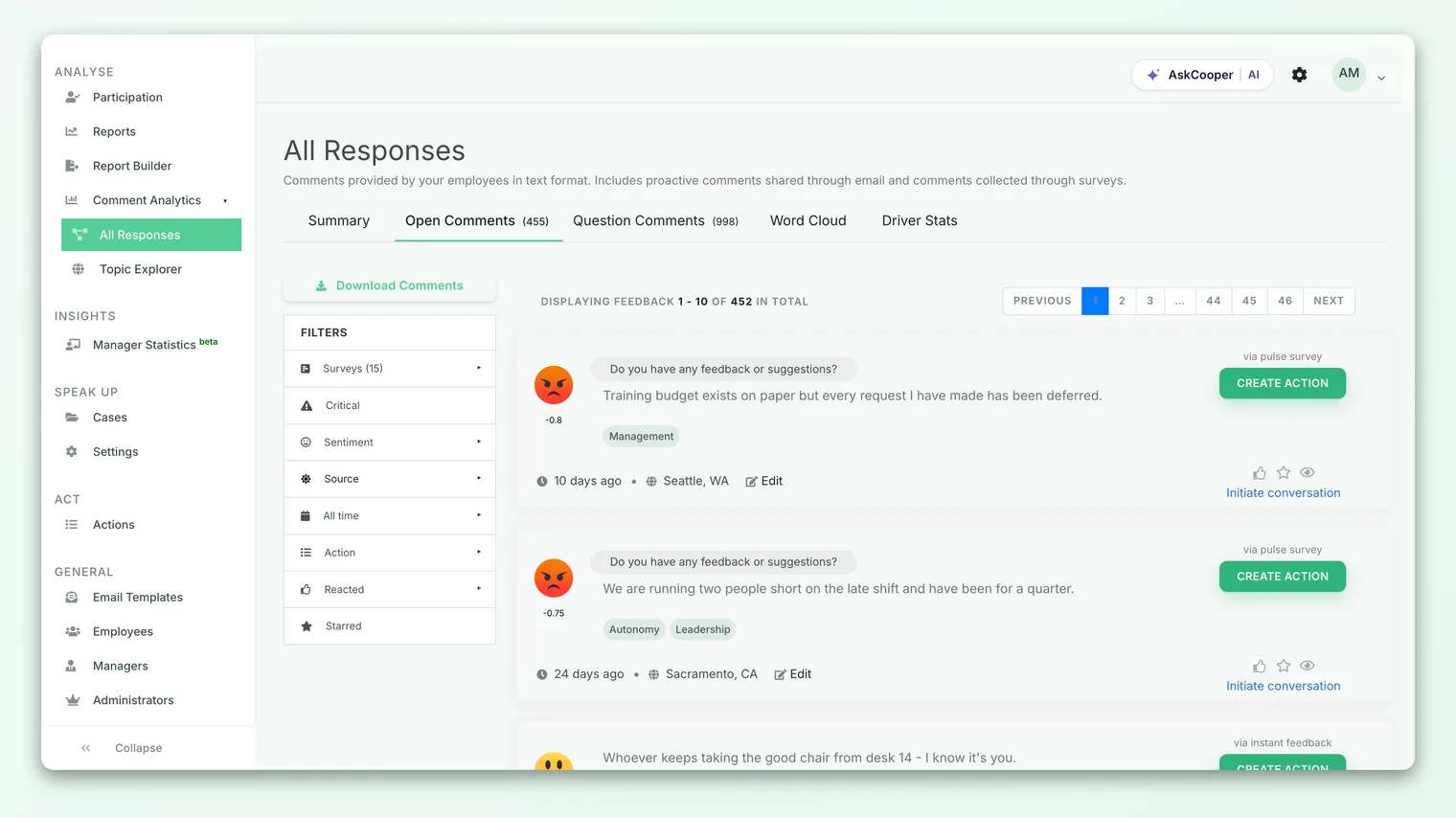
- 1Open the Feedback section. Go to Analyse > Feedback and find the comment whose sentiment you want to correct. Every card shows its current sentiment icon and score.
- 2Click Edit. On the card, use the Edit link (the pencil control) in the footer. The card switches into edit mode.
- 3Pick the correct sentiment. A dropdown appears with three choices: Positive, Neutral, and Negative. Choose the one that matches the comment.
- 4Let it save. The change is applied the moment you select a value, so there's no separate Save button to hunt for. A brief spinner confirms it's working.
- 5Done, or cancel. The card refreshes with the corrected sentiment. If you opened Edit mode by mistake, click Cancel to leave without changing anything.
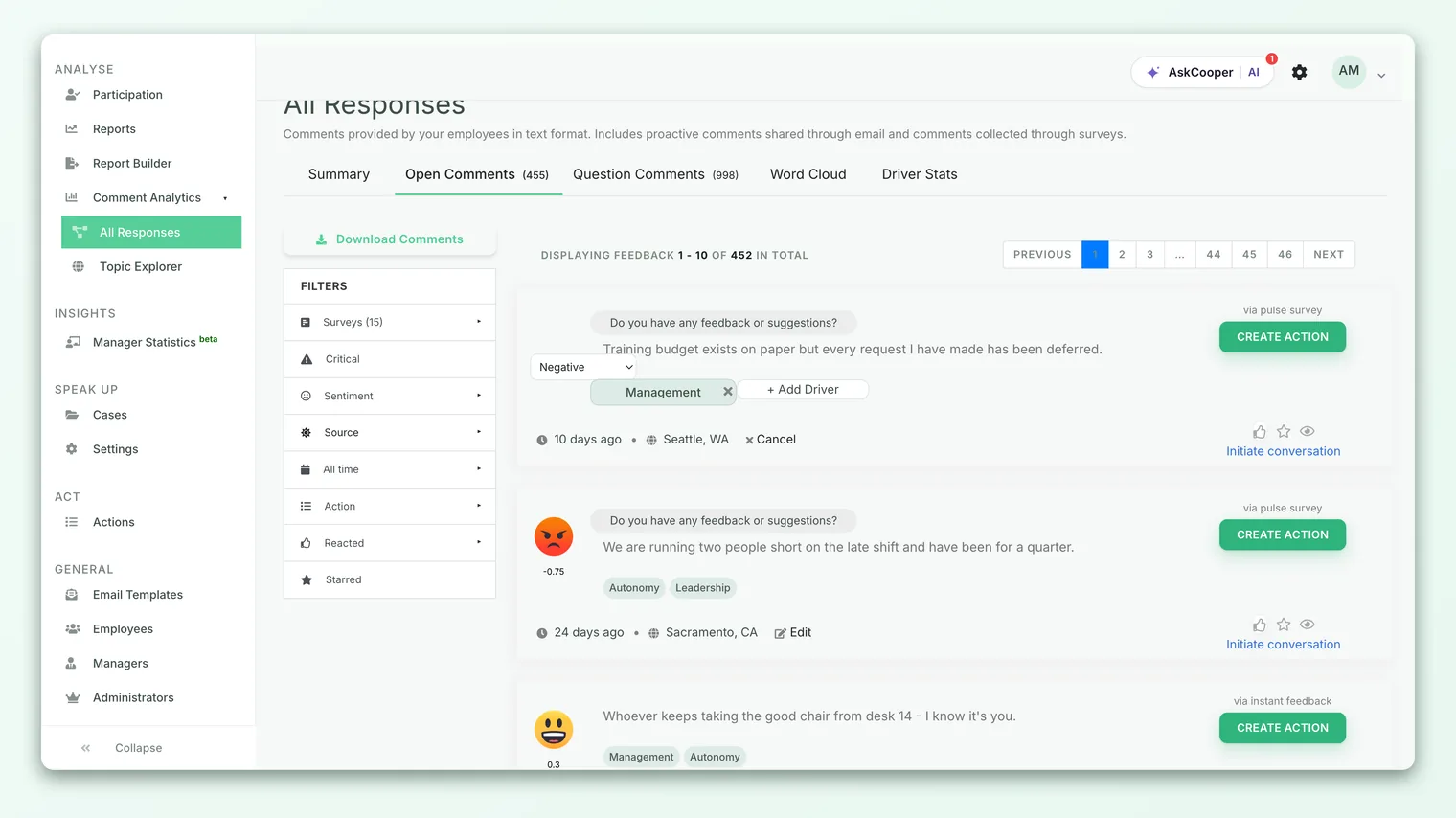
Behind the scenes, choosing a value writes a fixed score for that bucket (positive, neutral, or negative) onto the comment and flags it as edited, so the card and every count that reads from it update to match your choice.
What the override actually changes
It helps to know exactly how far a manual edit reaches, so you neither under- nor over-trust it.
- It changes one comment. The edit applies to that single comment only. It doesn't retrain the model, doesn't touch similar comments, and doesn't change how future feedback is scored.
- It replaces the score with a fixed value. Your choice maps to a set score for that bucket rather than nudging the original number. So a comment you mark Negative gets a standard negative score, not the specific decimal the AI first assigned. The card will show that new, rounded value.
- It's marked as edited. The comment is flagged internally as manually edited, which distinguishes your correction from the AI's original read.
- It's not a threshold tweak. You're picking a bucket, not fine-tuning a number. There's no way to set an arbitrary score by hand; the three options are the whole menu.
Manual editing is deliberately coarse. You move a comment between the same three buckets the reports already use. That keeps corrections simple and consistent, and it means an edited comment behaves exactly like any other comment in that bucket.
Does it affect aggregate sentiment?
Yes. This is the part people most want to be sure of.
Your happy/neutral/sad counts, sentiment percentages, and sentiment trends are all built from the same per-comment sentiment that you just edited. When you move a comment from, say, Positive to Negative, it leaves the positive tally and joins the negative one, and the aggregate figures recompute accordingly.
That's the intended behavior: the reason to correct a mis-tagged comment is precisely so your rollups reflect reality. A few things worth keeping in mind:
- Small samples move more. In a survey with a handful of comments, one correction can visibly shift the percentages. In a large one, a single edit barely registers.
- Numbers may take a moment. Reporting views can read from cached or indexed data, so an aggregate figure might lag a beat behind the card before it settles.
- Filtered sentiment follows too. Because the edit lives on the comment, sentiment slices by team, location, or manager reflect the corrected value wherever that comment appears.
Best practices
- Read the whole comment before deciding. Tone often lives in the second half of a sentence. Don't judge from the snippet alone.
- Edit sparingly and consistently. If you're changing more than the occasional comment, either the model is genuinely struggling on your data (worth flagging) or you may be curating rather than correcting.
- Agree on a house rule for mixed comments. Decide in advance whether a comment that's half praise, half criticism should follow its dominant point or default to neutral, and apply that rule the same way every time.
- Leave a trail when it matters. For sensitive corrections, a quick note to co-admins keeps everyone aligned on why a tag was changed.
- Don't use it to hide bad news. Negative feedback that's correctly tagged is a gift. Reclassifying it away doesn't make the underlying issue disappear, it just blinds you to it.
Limitations and caveats
- Three buckets only. You can't set a custom score, only pick Positive, Neutral, or Negative.
- No bulk edit. Corrections are made one comment at a time from its card. There's no multi-select.
- Admin-gated. Non-admins can't edit sentiment, so this can't be delegated to managers.
- Off by default. If the account setting is off, no one sees the option, and turning it on is an account-level change.
- Same switch as drivers. The setting that enables sentiment editing also enables driver editing; you can't separate the two.
Frequently asked questions
Why don't I see an Edit option on feedback?
Two conditions must both be true: sentiment editing has to be on for your account, and you have to be signed in as an admin. If either is missing, the control is hidden.
Does editing one comment retrain the AI?
No. A manual edit changes that single comment's tag. It has no effect on the model or on how future comments are scored.
Will my edit change the reported sentiment numbers?
Yes. Aggregate sentiment counts, percentages, and trends are built from per-comment sentiment, so correcting a comment flows through to those rollups. On small samples the shift can be noticeable.
Can I set an exact sentiment score by hand?
No. You choose one of three buckets (Positive, Neutral, Negative), and CultureMonkey applies a standard score for that bucket. There's no free-form number entry.
Can managers edit sentiment?
No. Editing is limited to admins, regardless of whether the account setting is on.
How do I undo an edit?
Re-open the card in edit mode and select the sentiment you want. There's no separate history to roll back to, but you can always set the tag to whatever value you believe is correct.
Where to go next
- Understand the numbers behind the tags: Understand feedback sentiment scores
- Find your way around comments: Reading the Feedback section
- Turn a comment into follow-through: Create an action from feedback
Your feedback helps us improve the Help Center.