

Grid (matrix) questions
How to build a grid question in CultureMonkey - one shared rating scale asked across several statements - including rows, columns, how each row maps to a driver, and how grid answers show up in reports.
On this page
A grid question - sometimes called a matrix question - asks employees to rate several related statements using the same answer scale. Instead of presenting five separate rating questions, you present one compact block: a list of statements down the side (the rows) and a single shared scale across the top (the columns). The employee reads each statement and picks one point on the scale.
Grids are the neatest way to ask a cluster of closely-related questions without your survey feeling long. This guide covers when to use one, how to build it in CultureMonkey, how rows and columns work, how each row maps to a driver and scores like any other rating question, and how grid answers show up in reports and exports.
A grid is one question title, one shared rating scale (the columns), and a set of sub-questions (the rows). Each row is scored individually and can be attached to its own driver - so a single grid can feed several drivers at once. Grid questions are an optional CultureMonkey feature; if you don't see the Add Grid Question button, ask your account admin to enable it.
What a grid question is
Picture a small table. Down the left you have a handful of statements - "My manager gives me useful feedback," "My manager supports my development," "My manager treats me with respect" - and across the top you have one scale, say Strongly disagree → Strongly agree. The employee answers all three statements against that same scale in one tidy block. That's a grid.
In CultureMonkey the grid is stored as a question set: a container with a title, a chosen question type, a chosen rating scale, and a list of sub-questions (the rows). The sub-questions are ordinary rating questions under the hood - which is what makes grids so useful. Each row keeps its own driver and is scored just like a standalone rating question, but the employee experiences them as a single, quick-to-answer group.
When to use a grid - and when not to
Grids shine when you have several statements that share a natural scale and a common theme - a block about your manager, about the tools people use, or about a recent change initiative. Reach for a grid when:
- The statements share one scale. Every row is answered on the same axis (agreement, frequency, satisfaction, and so on). If different statements need different scales, they can't live in the same grid.
- You want to save space. A grid packs five or six questions into the footprint of one, reducing perceived survey length and fatigue.
- The statements belong together. Grouping related items helps employees answer thoughtfully, one topic at a time.
Avoid a grid when:
- The questions are unrelated. Forcing unrelated items into one scale confuses respondents.
- Rows need different answer types. A grid uses one type and one scale for every row. If you need a free-text answer or a different scale for one item, make it a separate question.
- The list is long. Grids with too many rows feel like a chore and hurt completion. Keep it to a handful of statements.
A grid of three to six rows on one clear theme is the sweet spot. Beyond that, split it into two grids or move some items out. A tight, focused grid gets better-quality answers than a sprawling one.
Before you start: enabling grid questions
Grid questions are an optional capability controlled at the account level. In the survey builder you'll only see the Add Grid Question button inside a section if the feature is switched on for your account. If it's missing, your other question types (custom rating, single/multiple select, free text, and library questions) still work as normal - you simply won't have the grid option until it's enabled. If you need grids and don't see the button, contact your CultureMonkey account admin or support.
Building a grid question
Grids are added from inside a section of your survey, the same place you add any custom question. Open your survey in the builder, expand the section you want, and you'll add the grid there.
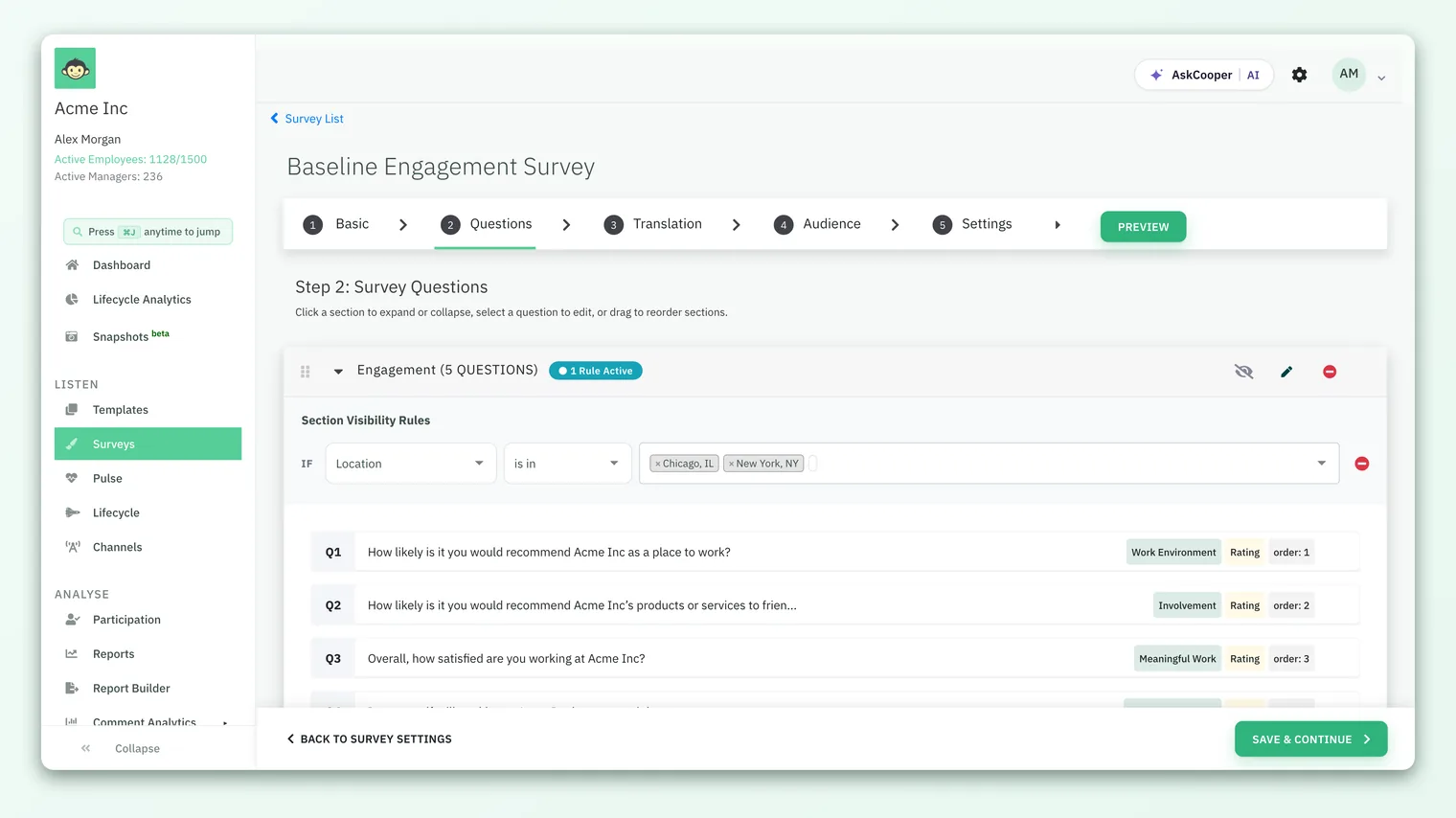
- 1Open the section - in Listen › Surveys, open your survey and go to its questions. Expand the section where the grid belongs.
- 2Click "Add Grid Question" - this opens the Add a grid question dialog. (No button? See enabling grid questions above.)
- 3Give it a title - this is the shared prompt shown above the grid, e.g. "Thinking about your manager, how much do you agree with the following?" A title of at least two characters is required.
- 4Pick the question type - grids default to Rating, which is what makes a matrix work. Every row uses this same type.
- 5Pick the rating scale - this defines your columns. It defaults to Agreement (Strongly disagree → Strongly agree). Choose the scale that fits your statements.
- 6Add your sub-questions (rows) - under Sub Questions, type each statement and choose its Driver from the dropdown. Use Add a sub question to add more rows.
- 7Set order and mandatory - set the grid's position within the section, and optionally tick Mark this grid question as mandatory, which makes every row required.
- 8Save - the grid is added to the section. It appears as a single question in the list, labeled with its sub-question count.
Rows and columns explained
The two parts of a grid do different jobs, and it helps to be clear on which is which.
| Part | In CultureMonkey it's called | What it controls |
|---|---|---|
| Columns | The rating scale | The shared answer scale every row uses - the same choices across the top of the grid |
| Rows | The sub-questions | The individual statements employees rate, each on its own line |
The columns: one shared scale
Every grid uses one rating scale for all of its rows - that's the whole point of a matrix. When you pick the scale, you're choosing the labels employees will see across the top. CultureMonkey ships with several ready-made 5-point scales, including:
| Scale | Points (low → high) |
|---|---|
| Agreement | Strongly disagree · Disagree · Neither agree nor disagree · Agree · Strongly agree |
| Satisfaction | Very dissatisfied · Dissatisfied · Neither · Satisfied · Very satisfied |
| Frequency | Never · Rarely · Occasionally · Frequently · Very frequently |
| Quality | Very poor · Poor · Fair · Good · Very good |
| Importance | Not at all important · Slightly important · Moderately important · Very important · Extremely important |
Pick the scale that reads naturally against all your rows. If one statement would need a different scale, it doesn't belong in this grid - make it a separate question instead.
The rows: statements, each with a driver
Each sub-question is one statement plus a driver. This is the important part: even though the rows share a title and a scale, they are stored as individual rating questions, and each one carries its own driver assignment. That means a single grid can feed several different drivers - or you can point every row at the same driver if the statements all belong to one theme.
Which drivers are available in the dropdown depends on your survey: if it uses custom drivers, you'll see your custom list; otherwise you'll see CultureMonkey's default engagement drivers.
Because each row has its own driver, you can build a "Manager" grid whose rows quietly map to Feedback, Growth, and Respect drivers. Employees see one clean block; your reports see three distinct driver signals. Assign drivers deliberately - it's what turns a grid into structured, analyzable data rather than a loose cluster of statements.
How grid answers are scored
Here's the reassuring part: a grid needs no special scoring rules. Because each row is an ordinary rating question, it's scored exactly the way every other rating question is - a response on the 5-point scale contributes to the driver you assigned that row and rolls up into your engagement and driver scores in the usual way.
So a grid with four rows behaves, for scoring purposes, like four rating questions - you've just presented them more efficiently. There's no separate "grid score"; the value lives in the individual row scores and the drivers behind them. See Rating scales explained for how rating answers roll up.
Grid questions in reports and exports
In your survey Reports, the sub-questions of a grid appear as rating questions, contributing to their assigned drivers just like any standalone rating item. You read them, filter them, and compare them by segment the same way - there's nothing special you have to do to analyze a grid.
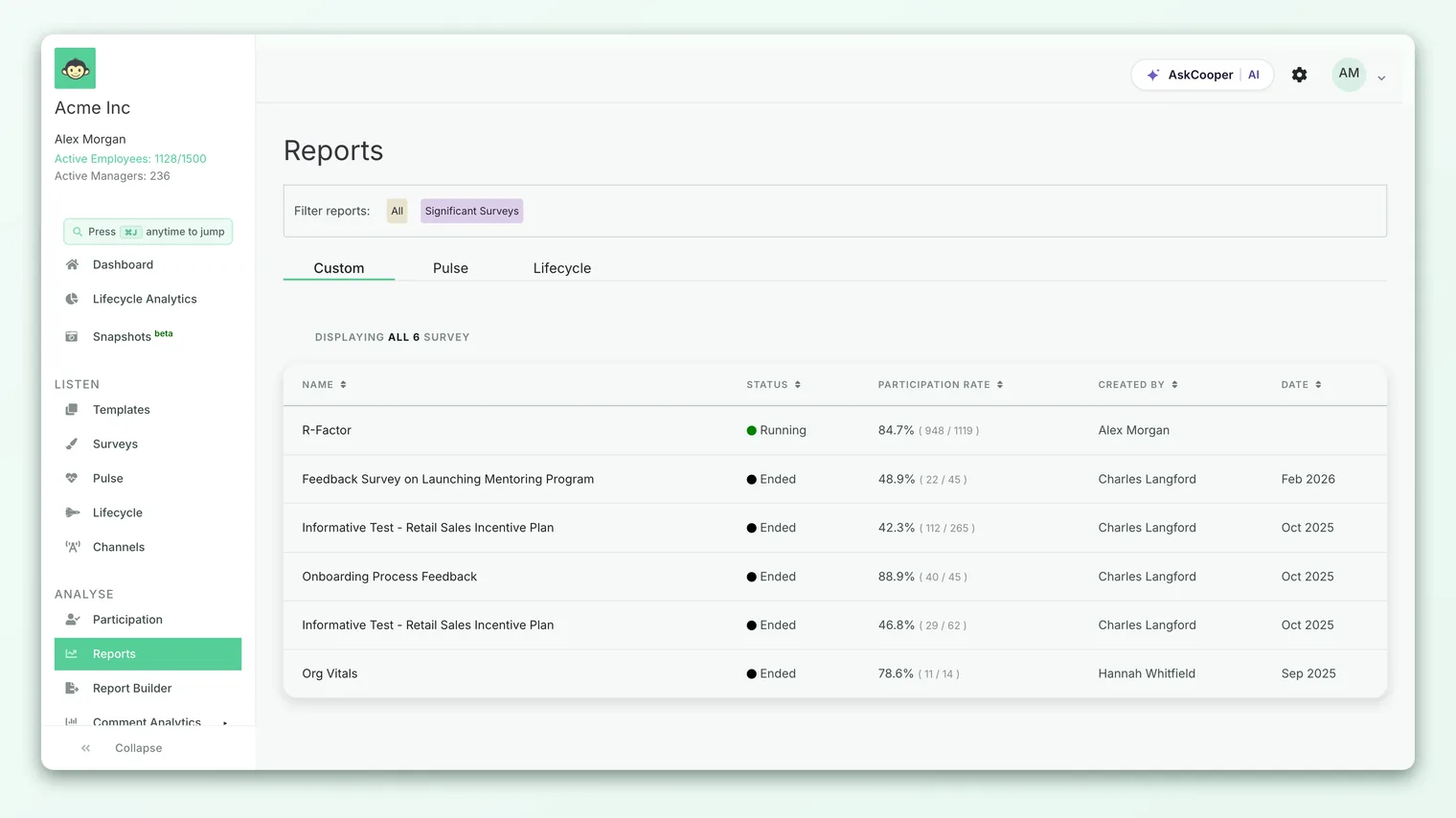
When you export a survey's rating results to a spreadsheet, CultureMonkey knows which questions came from a grid and adds an extra Grid Question column so you can see which parent grid each row belongs to. Each row still appears with its own rating breakdown; the grouping column simply keeps the grid's structure visible in the export.
Like all results, grid rows respect your account's anonymity thresholds. If a segment is too small, its scores are hidden until enough people respond. If a breakdown looks empty, that's expected - see Why can't I see results yet?.
Best practices
- One theme per grid. Every row should plausibly sit under the same title. If a statement feels out of place, it probably is.
- Keep it to a handful of rows. Three to six statements is comfortable; long grids hurt completion.
- Choose the scale for the whole block. The scale has to read naturally for every row, not just most of them.
- Assign drivers on purpose. The driver you pick for each row is what makes it analyzable. Don't leave it to chance.
- Write parallel statements. Rows read best when they're phrased consistently - all positive, all the same length and structure - so the shared scale feels natural.
- Mind the mandatory toggle. Marking a grid mandatory makes every row required. Only do that if you genuinely want an answer to all of them.
Frequently asked questions
Can each row have a different scale?
No. A grid uses one rating scale for all of its rows - that's what makes it a matrix. If a statement needs a different scale, add it as a separate question outside the grid.
Can rows in one grid feed different drivers?
Yes. Each sub-question carries its own driver, so one grid can map its rows to several different drivers, or point them all at the same one. It's your choice per row.
Is a grid scored differently from normal rating questions?
No. Each row is a standard rating question and CultureMonkey scores it the same way, contributing to its driver and to your overall scores. There's no separate "grid score."
Why don't I see the "Add Grid Question" button?
Grid questions are an optional, account-level feature. If the button isn't showing in your section, the capability isn't enabled for your CultureMonkey account yet - contact your account admin or support to turn it on.
What happens to a grid if I mark it mandatory?
Marking the grid mandatory makes all of its sub-questions required, so employees must answer every row before submitting.
Where to go next
- Build the survey around it: Create a survey from scratch
- Compare question formats: Question types overview
- Understand the columns: Rating scales explained
Your feedback helps us improve the Help Center.