

Configure roles, access and trust copy
How to control who can manage Speak Up cases and what they can see, and how to edit the reporter-facing trust and reassurance copy on your portal.
On this page
Speak Up handles some of the most sensitive information in your organization: reports of misconduct, harassment, safety concerns, and ethics complaints. Getting the access model right is not optional. The people who can open a case need to be the right people, they need to see only what their role justifies, and the reporter on the other side needs to trust that their words are being handled with care.
This guide covers both halves of that trust equation. First, the roles and access controls that decide who can manage cases and see what. Second, the trust copy you show reporters on the portal, the reassurance text that tells them who will read their report and how it will be handled. Both are configured from Speak Up → Settings, and both should be reviewed by whoever owns your compliance or ethics program before you go live.
CultureMonkey Speak Up members come in three roles: Admin (full control, sees every case), Member (manages cases within an assigned set of categories), and Viewer (read and respond only, cannot change case stage or close). Access is scoped by category, so a member only sees the kinds of reports they are responsible for. Separately, the trust copy ("Description") on the intake page reassures reporters, and you can edit it, and translate it, per portal.
Who this is for
Configuring roles and trust copy is an Account Admin task, and inside Speak Up it is gated to the Admin role specifically. If you are not an Admin, the Settings tab will redirect you back to the case list. If Speak Up is not yet turned on for your account, start with Enable Speak Up, then come back here to set up your team.
The distinction that trips people up: a person's regular CultureMonkey admin level (Super Admin, Sub Admin, Manager) does not automatically grant Speak Up access. Speak Up has its own membership list. Someone has to be explicitly added as a Speak Up member before they can open a single case. This separation is deliberate. HR leaders and compliance officers often need to handle whistleblowing reports without being platform administrators, and platform administrators should not automatically see confidential cases.
The three Speak Up roles
Every Speak Up member is assigned exactly one role. The roles are cumulative in power, and each one carries a clear set of permissions.
| Role | Can view cases | Can respond to reporter | Can assign | Can change stage / close | Can configure settings and members |
|---|---|---|---|---|---|
| Admin | All cases | Yes | Yes | Yes | Yes |
| Member | Cases in assigned categories | Yes | Yes | Yes | No |
| Viewer | Cases assigned to them or in scope | Yes | No | No | No |
Here is what each role is really for:
- Admin is your full module administrator. An Admin can configure every setting (including the trust copy you will edit below), add and remove members, see every case regardless of category, assign investigators, respond to reporters, move cases through their stages, and close them. Keep this role tight. In most organizations, one or two people (the Chief Compliance Officer, the Head of Ethics) hold it.
- Member is your working case handler. A Member can view, manage, assign, respond to, and close cases, but only within the categories they have been given access to (more on scoping below). A Member cannot touch portal settings or the member list.
- Viewer is the most limited role. A Viewer can read cases within their scope and respond to the reporter, but cannot change a case's stage or close it. This role suits someone who needs visibility into a specific category (say, an HR business partner following harassment reports) without the authority to steer the investigation.
It is tempting to make every senior leader an Admin. Resist it. The narrower each person's access, the stronger the confidentiality guarantee you can make to reporters, and the smaller the group who could ever see a sensitive report. Give people the least access that lets them do their job.
How access is scoped by category
The single most important access control in Speak Up is the category scope. When a reporter files a report, they pick a category (for example, "Harassment," "Financial misconduct," or "Safety"). That category determines who can see the case.
When you add or edit a Member or Viewer, you choose a category scope: either All categories or a specific subset. A member then only sees cases whose category falls inside their scope. A Member scoped to "Safety" will never see a harassment report, and vice versa. This is enforced at the data layer, not just hidden in the interface, so a scoped member genuinely cannot query cases outside their categories.
The Admin role is the exception. Admins always see every case, regardless of category scope, because their job is to oversee the whole module. When you assign the Admin role, category scope effectively becomes "all."
Whistleblowing programs live or die on confidentiality. A financial-fraud report often names people who work near the HR team, and a harassment report may involve someone in finance. Category scoping lets you keep those investigation circles separate, so the only people who can read a given report are the ones responsible for that type of concern. See Anonymity in Speak Up for how this pairs with the reporter's own anonymity.
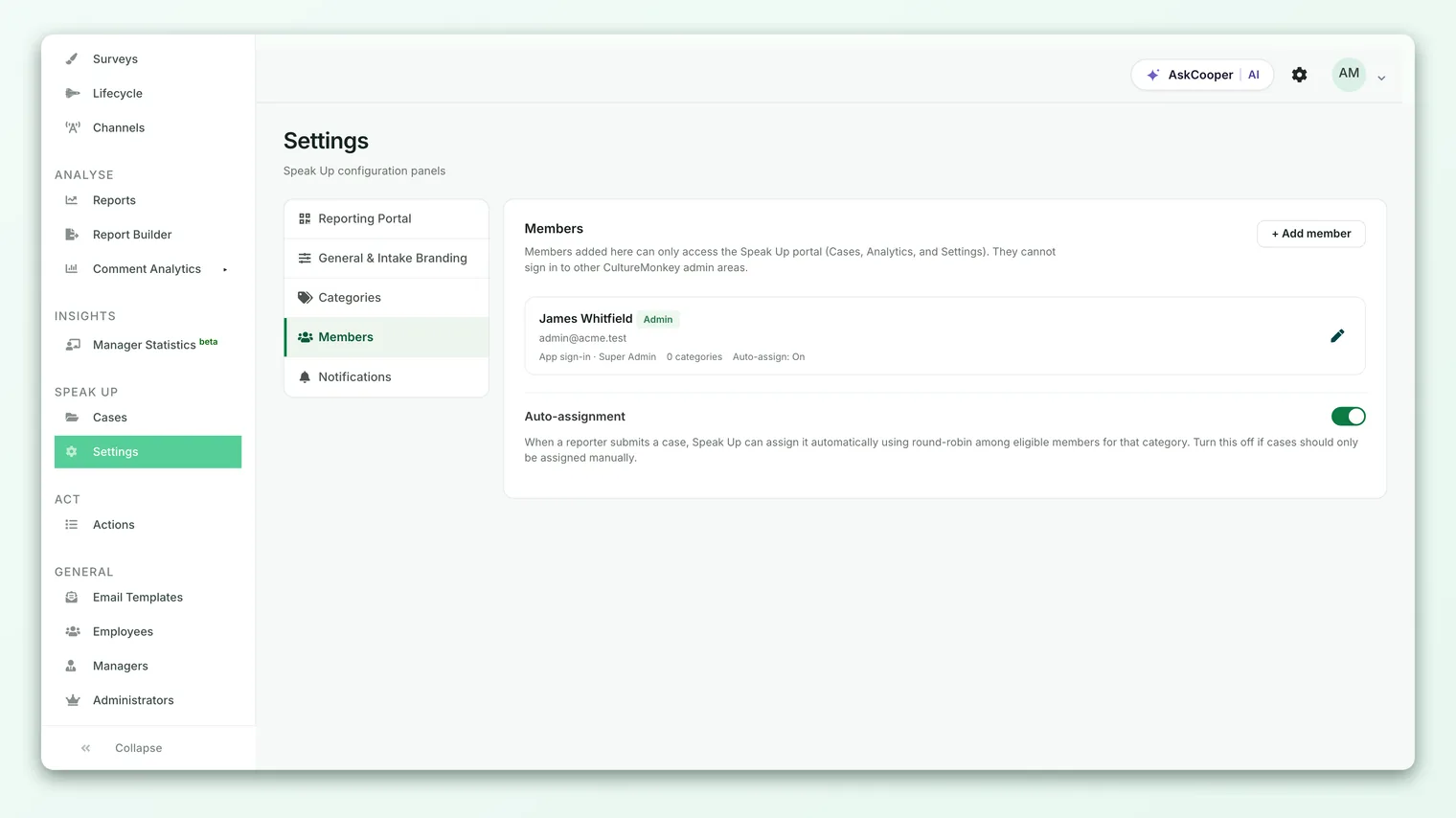
Adding and managing members
Members are managed on Speak Up → Settings → Members. A member added here can only access the Speak Up portal (Cases, Analytics, and Settings if they are an Admin). They cannot sign in to any other CultureMonkey admin area.
- 1Open the Members tab - go to Speak Up → Settings and select Members.
- 2Search for the person - click Add member and search by name or email. Only active employees with an email address on file appear. Internal demo and service accounts are intentionally excluded.
- 3Choose a role - pick Admin, Member, or Viewer. The dropdown shows a short description of each so you can confirm you have the right one.
- 4Set the category scope - leave it on All categories, or pick the specific categories this person should see. At least one category is required for Members and Viewers.
- 5Decide on auto-assignment - if auto-assignment is enabled for your portal, toggle whether new cases in this member's scope can be routed to them automatically. See Assign investigators to a case.
- 6Save - the member is added and, if needed, a temporary password is generated for them.
How members sign in
There are two sign-in paths, and Speak Up picks the right one automatically based on who the employee is:
- App credentials. If the person is already a CultureMonkey Super Admin, Sub Admin, or Manager, they sign in to Speak Up with their existing app login. No separate password is created. Their member row shows an "App sign-in" note. For these members, the Reset password action does not apply, because there is no separate Speak Up password to reset.
- Portal-only credentials. If the person is not one of those admin types, Speak Up generates a temporary password shown to you once, right after you add them. Share it securely. They will use their work email and that password to reach the portal directly. You can generate a fresh one at any time with Reset password.
When Speak Up creates a portal-only member, the temporary password appears a single time in a confirmation notice. It is not stored in plain text and cannot be retrieved later. If you miss it or the member loses it, use Reset password to issue a new one.
Editing and removing members
Click the pencil icon on any member row to change their role, category scope, or auto-assignment setting. Removing a member does not delete their history; it deactivates their access, so any cases they touched keep their audit trail intact. A removed member immediately loses the ability to sign in and view cases.
What each role sees in the case list
The scoping rules above are enforced everywhere cases appear, not just in one screen. When a Member or Viewer opens the case list, they see only cases inside their assigned categories. The category filter itself only offers the categories they can see. An Admin sees the full, unfiltered list.
Case management actions follow the same logic. Moving a case to a new stage, or closing it, is available to Admins and Members but not Viewers. So a Viewer can open a case in their scope and post a message to the reporter, but the "change stage" and "close" controls are not offered to them. This is exactly the read-and-respond boundary the Viewer role is meant to enforce.
Editing the reporter-facing trust copy
The second half of the trust equation is what the reporter sees. When someone lands on your Speak Up portal, they see a trust strip: a short, reassuring message under a shield icon that tells them their report is confidential and who can access it. That message is the trust copy, and you control it.
You will find it on Speak Up → Settings → General & Intake Branding, labeled Description. The default text reads:
> "Share your concern securely. Only authorized case handlers can access your report."
This is your chance to speak to a nervous reporter in your own organization's voice. Good trust copy does three things: it confirms the report is confidential, it names who will (and will not) read it, and it sets a calm, human tone. Keep it short, honest, and specific to how your program actually works. Do not promise more anonymity than your setup delivers.
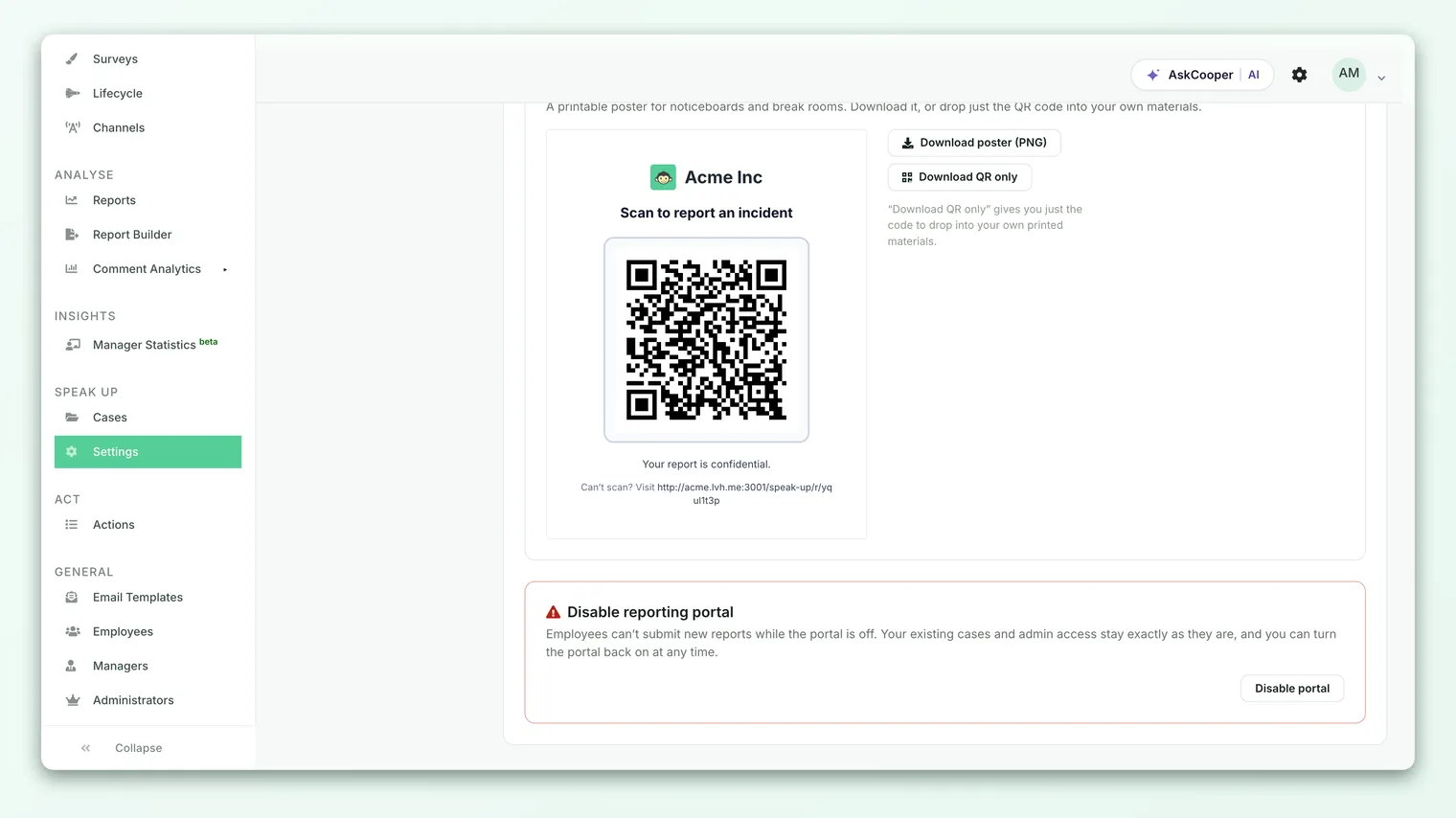
- 1Open General & Intake Branding - go to Speak Up → Settings and stay on the first tab.
- 2Edit the Description field - replace the default with your own reassurance text. A few sentences is plenty.
- 3Save general settings - your new copy appears immediately on the reporter landing page.
The anonymity reassurance line
If you have turned off non-anonymous reporting (so every report is anonymous by default), the portal shows an additional reassurance line beneath the trust copy. Its default reads: "This is an anonymous reporting portal. Your identity is not shared with case handlers." This line only appears when identified reporting is disabled, because it would be misleading to show it when reporters can choose to attach their name. For how the anonymity modes work end to end, see Anonymity in Speak Up.
Translating the trust copy
If your portal supports more than one language, reporters see a language switcher, and your trust copy should follow. Once you have added non-English supported languages under Supported languages on the same tab, Speak Up can auto-translate your trust copy into each of them, and you can then review and hand-edit any translation per language before it goes live. Reporters always see the copy in the language they have chosen, falling back to your English text if a translation is missing.
Auto-translation is a strong first draft, especially for reassurance copy where tone matters. Have a fluent speaker review each language once, then mark it reviewed. A reporter reading in their own language is exactly the moment you most want the words to land right.
Putting it together: a worked setup
Imagine a 2,000-person company launching Speak Up with three categories: Harassment, Financial misconduct, and Workplace safety.
- The Chief Compliance Officer is added as an Admin. She configures the portal, writes the trust copy, and can see every case.
- Two investigators on the ethics team are added as Members scoped to all categories. They handle the bulk of casework, assign, respond, and close.
- An HR business partner is added as a Viewer scoped to Harassment only. She can follow harassment cases and message reporters for HR context, but cannot move a case's stage or close it, and never sees a finance or safety report.
- The trust copy is rewritten to: "Your report goes only to our small, trained ethics team. You can stay anonymous, and we will never try to identify you without your consent."
That is a clean model: one owner, a couple of full handlers, tightly scoped read access where it is needed, and honest reassurance for reporters.
Frequently asked questions
Does a Super Admin automatically see Speak Up cases?
No. Speak Up membership is separate from your regular CultureMonkey admin roles. A Super Admin has to be explicitly added as a Speak Up member (with a role and scope) before they can see any case. This keeps confidential reports out of the hands of platform administrators who have no case-handling responsibility.
Can a member see cases outside their assigned categories?
No, unless they are an Admin. CultureMonkey enforces category scope at the data layer, so a scoped Member or Viewer genuinely cannot retrieve cases outside their categories, not even by manipulating the URL.
What is the difference between a Member and a Viewer?
Both can view cases in their scope and respond to the reporter. The difference is authority over the case: a Member can assign, change the stage, and close cases; a Viewer cannot. Use Viewer for people who need visibility but should not steer or end an investigation.
If I remove a member, is their case history deleted?
No. Removing a member deactivates their access but preserves the full audit trail of everything they did. Their sign-in stops working immediately, but the record of their actions on past cases remains.
Can I edit the trust copy after the portal is live?
Yes, at any time. Changes to the Description field take effect immediately on the reporter landing page. If you support multiple languages, remember to update or re-translate the other language versions too.
Who can edit roles and trust copy?
Only the Admin role. Members and Viewers cannot reach the Settings tab; they are redirected to the case list if they try.
Where to go next
- The whole picture: How CultureMonkey handles multiple languages
- Not turned on yet? Enable Speak Up
- Understand anonymity end to end: Anonymity in Speak Up
- Route cases to the right people: Assign investigators to a case
- Running concerns as cases: HR case management
Your feedback helps us improve the Help Center.