

The response threshold for a CultureMonkey survey
What the response (anonymity) threshold is at the survey level, the default minimum of 3, how it decides when a group's results appear, and how to set or adjust it without exposing small teams.
On this page
- What the response threshold is
- The default minimum: why 3
- How the survey threshold relates to the account and dashboard thresholds
- How the threshold decides what appears
- Setting or adjusting the threshold for a survey
- The trade-off: protection vs. seeing small teams
- How this connects to "why can't I see results?"
- Best practices
- Frequently asked questions
- Where to go next
Every survey in CultureMonkey carries a quiet setting that does a lot of work: the response threshold. It's the minimum number of people who must respond before results for a group are shown. It's the reason a team of three sees a report while a team of two sees nothing - and it's the single most important dial for balancing protecting your people against being able to read small teams.
This guide explains what the response threshold is at the survey level, where its default of 3 comes from, how it relates to the account and dashboard thresholds, how to set or adjust it for a survey, and exactly how it governs when a group's results appear. If you've ever wondered why a report is blank, the threshold is almost always the answer - and this is the setting behind it.
Each CultureMonkey survey has a minimum-response count that defaults to 3 on anonymous surveys. Any group - the whole survey, a team, a location, a filtered slice - stays hidden until at least that many people have responded. Anonymous surveys can't go below 3; non-anonymous surveys use your account's lower floor. Raising the threshold protects small groups more strongly but hides more of them; lowering it reveals small teams sooner but weakens their anonymity.
What the response threshold is
The response threshold is the minimum number of responses a group needs before CultureMonkey will display any results for it. It is set on each survey, and it's often described in the product as the survey's anonymity threshold or minimum response count.
The idea is simple and protective. Results are only ever shown for groups large enough that no single person's answer can be picked out. If a "group" is just one or two people, showing its score would come dangerously close to revealing what each of them said. So below the threshold, the survey shows nothing at all rather than risk exposing an individual.
This one number governs a lot. It applies to the overall survey report, to team and manager views, to eNPS and driver breakdowns, to demographic filters, and to comment and free-text views. Wherever results are grouped, the threshold decides whether that group is big enough to be safe to show. It's the survey-level foundation the rest of CultureMonkey's anonymity protections build on.
The default minimum: why 3
When you create a survey, its threshold is set automatically. For an anonymous survey, the default and hard floor is 3 responses - a survey can't be configured any lower. Three is the smallest group where an individual's answer is genuinely pooled with others rather than standing alone, so it's the point CultureMonkey treats as the minimum safe size for anonymous feedback.
For a non-anonymous (identified) survey, the floor is lower and is set by your account, because identity isn't the thing being protected - the point of an identified survey is to know who said what so you can follow up. The survey still carries a minimum so that reports don't render for essentially empty groups, but it isn't held to the anonymous floor of 3.
The default is enforced in the product, not just suggested. New surveys inherit the floor automatically, and the survey won't save with a threshold below it. For anonymous surveys that floor is a fixed 3; for identified surveys it's your account's configured non-anonymous minimum.
How the survey threshold relates to the account and dashboard thresholds
It helps to know that "the threshold" isn't a single number - there are a few related floors, each governing a different surface. They work together, and knowing which one you're looking at saves a lot of confusion.
| Threshold | Where it applies | Typical default | Who sets it |
|---|---|---|---|
| Survey response threshold | This survey's reports, segments, filters, breakdowns | 3 (anonymous); account floor if identified | Set per survey; defaults from the floor |
| Non-anonymous account floor | The lowest a non-anonymous survey's threshold can go | Configured per account | Account admin |
| Dashboard anonymity threshold | A manager's own dashboard cards | 5 | Account admin (can't go below 3) |
The survey threshold is the one you control on a per-survey basis, and it's the floor for that survey's reports. The dashboard anonymity threshold is separate and usually higher - it defaults to 5 and governs whether a manager's dashboard fills in. That's why a manager can sometimes see a survey report for their team but not their dashboard, or vice versa: the two surfaces answer to different floors.
The account-level non-anonymous floor comes into play only for identified surveys - it defines how low their threshold is allowed to sit. Anonymous surveys ignore it entirely and use the hard floor of 3.
The exact number depends on where you're looking - a survey report versus a manager dashboard - and how your account is set up. But the principle is always the same: too few respondents in a group means no result for that group. More responses, or a broader view, is the fix.
How the threshold decides what appears
Here's the mechanism, because understanding it explains almost every "empty report" moment.
For each group CultureMonkey is about to display, it counts the responses in that exact group and compares the count to the survey's threshold. If the count is at or above the threshold, the group renders. If it's below, the group is hidden - not blurred, not partially shown, but withheld entirely.
- The whole survey. The overall report only becomes "ready" once total submissions reach the threshold. Right after launch, when only a couple of people have replied, the report is legitimately empty.
- A team or manager view. A team's results appear once that team clears the threshold on its own. A small team may never reach it, which is expected - rolling up to the parent team pools more people and crosses the line.
- Demographic filters and slices. Filter to a location, a department, a tenure band, or any combination, and CultureMonkey re-counts the responses in that slice. Narrow slices fall below the threshold long before broad ones do, which is why a filtered view can go blank while the unfiltered report is fine.
- eNPS, drivers, comments. Every score type and the comment list obey the same floor. A single narrow breakdown missing while the overall number shows almost always means that slice is below threshold.
Because the check is per-group, suppression is always scoped to the group that's too small - never to you as a viewer. If your whole department clears the threshold but one sub-team inside it doesn't, the department view works and only the sub-team stays hidden. For the reader-facing version of this, see Why can't I see results yet?.
Setting or adjusting the threshold for a survey
The threshold is set automatically when a survey is created, so most surveys never need you to touch it - the default of 3 is right for the great majority of anonymous surveys. When you do want to change it, it's a deliberate, per-survey adjustment.
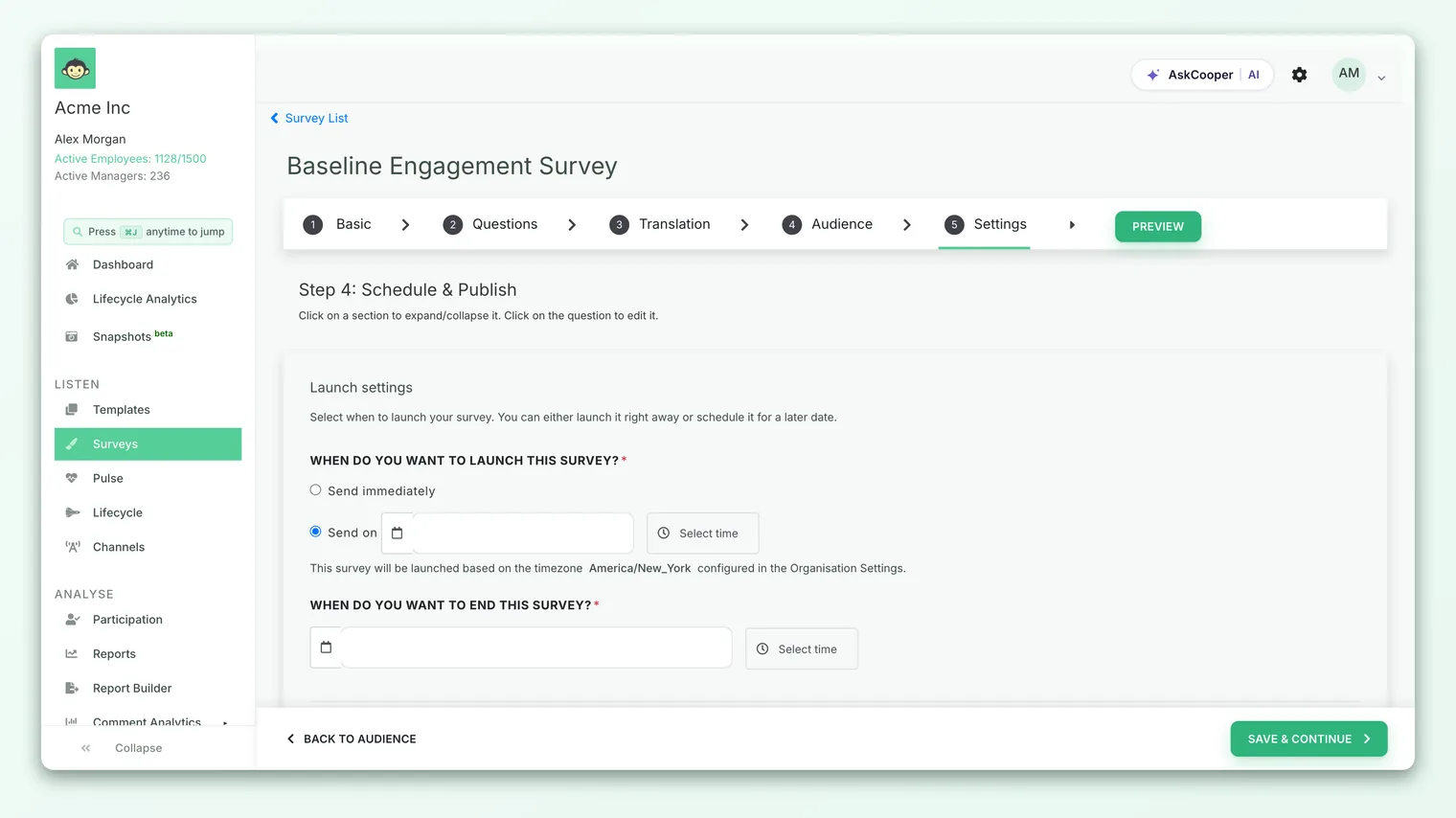
- 1Open the survey. In the survey builder, work through to the audience and configuration steps where the survey's response requirements live.
- 2Find the minimum-response setting. This is the survey's anonymity threshold - the minimum number of respondents needed before any group's results show. It's described in-product as the count below which reports won't display data for a group.
- 3Set the number. Enter the minimum you want. Anonymous surveys can't go below 3; you can raise it higher for extra caution. Identified surveys can use your account's lower floor.
- 4Mind the audience size. If you set the threshold higher than the number of people you're actually surveying, the survey can never produce results - CultureMonkey flags this so you don't accidentally lock yourself out of your own report.
- 5Save. The threshold takes effect for every report, filter, and breakdown on that survey.
The threshold is tied to whether the survey is anonymous. If you switch a survey to anonymous, CultureMonkey automatically raises its threshold up to the floor of 3 if it was lower - small groups can't be left exposed. If you switch a survey to identified, the threshold resets to your account's non-anonymous floor. See Set survey anonymity for how the two settings interact.
The trade-off: protection vs. seeing small teams
This setting is a genuine trade-off, and it's worth being clear-eyed about both directions.
Raise the threshold and you protect small groups more strongly. A higher floor means more people must respond before any group is revealed, so the odds of anyone being singled out drop further. The cost is visibility: more teams - especially small ones - stay hidden, and some may never clear the bar on their own. Managers of small teams see less.
Lower the threshold (only possible on identified surveys, since anonymous surveys stop at 3) and small teams appear sooner. The cost is protection: the smaller the group you're willing to show, the easier it becomes to infer an individual's answer. That's exactly why anonymous surveys have a hard floor you can't cross.
| If you… | You gain | You give up |
|---|---|---|
| Raise the threshold | Stronger anonymity for small groups | More small teams hidden; managers see less |
| Keep the default (3) | A balanced floor that fits most surveys | Nothing unusual - this is the norm |
| Lower it (identified only) | Small teams' results appear sooner | Weaker protection; individuals easier to infer |
Reducing a threshold makes more results visible sooner - but it also makes small groups easier to de-anonymize, and it can quietly break a promise you made to employees. If you drop it, do so deliberately, only where identity isn't the concern, and communicate it. For anonymous engagement surveys, leaving it at the default 3 is almost always the right call.
How this connects to "why can't I see results?"
When a manager or admin opens a report and finds it blank, greyed out, or showing a "not enough responses" message, the response threshold is nearly always the reason. It isn't a bug - it's this setting doing its job.
The most common versions:
- Right after launch, total responses haven't reached the threshold yet, so the whole report is empty. It fills in as people reply.
- A filtered view goes blank because the slice you filtered to has fewer responses than the threshold, even though the unfiltered report is fine.
- A small team never fills in because it can't reach the threshold on its own; rolling up to the parent team pools enough responses to cross it.
The fix is always the same shape: get more responses into the group, or look at a broader group. It's never to slice your way down to an individual. The full diagnostic walkthrough - including how to tell which cause you're hitting - lives in Why can't I see results yet?.
Best practices
- Leave the default alone for engagement surveys. For anonymous surveys, 3 is a well-judged floor. Change it only when you have a specific reason.
- Raise it for genuinely sensitive surveys. If a survey touches especially delicate topics, a higher threshold buys extra reassurance for small teams - worth the reduced visibility.
- Check your audience size before raising the number. A threshold higher than your smallest team means those teams will never show. Make sure the trade is one you intend.
- Only lower it on identified surveys. Where you've told people their responses are tied to their profile, a lower floor is defensible. On anonymous surveys, you can't go below 3 anyway - and shouldn't want to.
- Communicate the promise you're keeping. "We never show results for any group smaller than a handful of people" reassures employees far more than silence, and the threshold is what makes it true.
Frequently asked questions
What's the default response threshold?
3 for anonymous surveys - which is also the hard floor, so anonymous surveys can't go lower. Identified surveys use your account's configured non-anonymous minimum, which can be lower because identity isn't being protected.
Can I set the threshold below 3?
Not on an anonymous survey. Three is the minimum group size CultureMonkey treats as safe for anonymous feedback, and it's enforced - the survey won't save below it. Identified surveys can sit at your account's lower floor.
Is the survey threshold the same as the manager dashboard threshold?
No. They're separate floors for different surfaces. The survey threshold (default 3) governs that survey's reports and filters; the dashboard anonymity threshold (default 5) governs a manager's dashboard cards. Your account admin can adjust the dashboard threshold, but never below 3.
Everyone on my small team responded, so why is it still hidden?
If the team is smaller than the threshold, even 100% participation won't cross it - the floor is about the number of people, not the percentage. View the results rolled up to a larger group, where the numbers combine and clear the threshold.
What happens to the threshold if I switch the survey's anonymity mode?
Switching to anonymous raises the threshold up to the floor of 3 if it was lower, so small groups stay protected. Switching to identified resets it to your account's non-anonymous floor. The threshold always follows the anonymity mode. See Set survey anonymity.
Will a high threshold hide my whole report?
It can, if you set it above your audience size - no group could ever reach it. CultureMonkey warns you when the threshold exceeds the number of people you're surveying, so you can correct it before launch.
Where to go next
- Choose a survey's anonymity mode: Set survey anonymity
- Understand the bigger picture: How anonymity keeps your feedback safe
- Report looks empty? Why can't I see results yet?
- For the employees taking the survey: Is my feedback anonymous in CultureMonkey?
- For candidate surveys: Are candidate survey answers anonymous in CultureMonkey?
Your feedback helps us improve the Help Center.