

Candidate Super Admins, Sub Admins and access
What Super Admins and Sub Admins can do in the candidate module, how to scope a Sub Admin, and how to give a hiring manager access.
On this page
CultureMonkey's candidate module has two admin roles: Super Admin, who can do everything, and Sub Admin, who works with surveys and reports for a defined slice of candidates, such as one hiring manager's hires or one set of locations. Super Admins create both from Administrators in the sidebar.
Related release: Candidate Experience: configurable heatmaps and a new Sub Admin role (July 29, 2026). See every dated change on Product Updates.
This guide covers what each role can and cannot open, how Sub Admin scoping works, how to invite an admin, and how to give a hiring manager access to results for their own hiring.
Super Admins have full access. Sub Admins get Surveys, Reports and read-only Jobs, filtered to the candidates that match the attribute values you pick for them. The Sub Admin role appears on the admin form once CultureMonkey has turned on Sub Admin access for your account. There is no separate hiring-manager login: to give a hiring manager access, make them a Sub Admin scoped to their own name under Manage Hiring Manager.
What can each candidate admin role do?
| Area | Super Admin | Sub Admin |
|---|---|---|
| Surveys (create, edit, questions, participants, reminders, translations) | Yes | Yes, for surveys they created or that have been opened to Sub Admins |
| Reports, including the heatmap | Yes | Yes, filtered to their candidates |
| Jobs | Yes | Read only |
| Lifecycle Analytics and Lifecycle | Yes | No |
| Survey Templates, Channels, Email Templates | Yes | No |
| Feedbacks page and Reports Panel | Yes | No |
| Candidates, Hiring Managers, Administrators | Yes | No |
| Settings, including Heatmap Settings | Yes | No |
If a Sub Admin opens a page they cannot use, they are taken to Reports with the message "You don't have access to that page. Redirected you to a page you can access."
How does Sub Admin scoping work?
A Sub Admin is scoped by candidate attributes. For each attribute your account allows, you choose which values the Sub Admin covers, and every report they open only counts candidates who match. The attributes that can be used are:
- Job, Hiring Manager, Primary Recruiter, Primary Recruiter Manager and Employee Type.
- Job Category, Job Profile, Job Family and Job Family Group.
- Job Level L2, L3 and L4 from the job's level hierarchy, and Job Location.
- Candidate custom attributes.
Gender cannot be used for scoping. Which of these attributes appear on the form is decided when CultureMonkey turns on Sub Admin access; nothing is applied by default, so tell your CultureMonkey Success Manager which attributes you want to scope by.
The scope reaches every part of a report: scores, answers, candidate NPS, comments, feedback and the word cloud. A Sub Admin also only sees a survey's report once enough of their own candidates have taken part to meet the survey's minimum. Their sidebar shows a short summary of their scope, such as "1 Hiring Manager(s), 2 Job Location(s)".
How do I add a candidate admin?
Only a Super Admin can add admins. Open Administrators in the sidebar and click Create Administrator to open the Create Admin form.
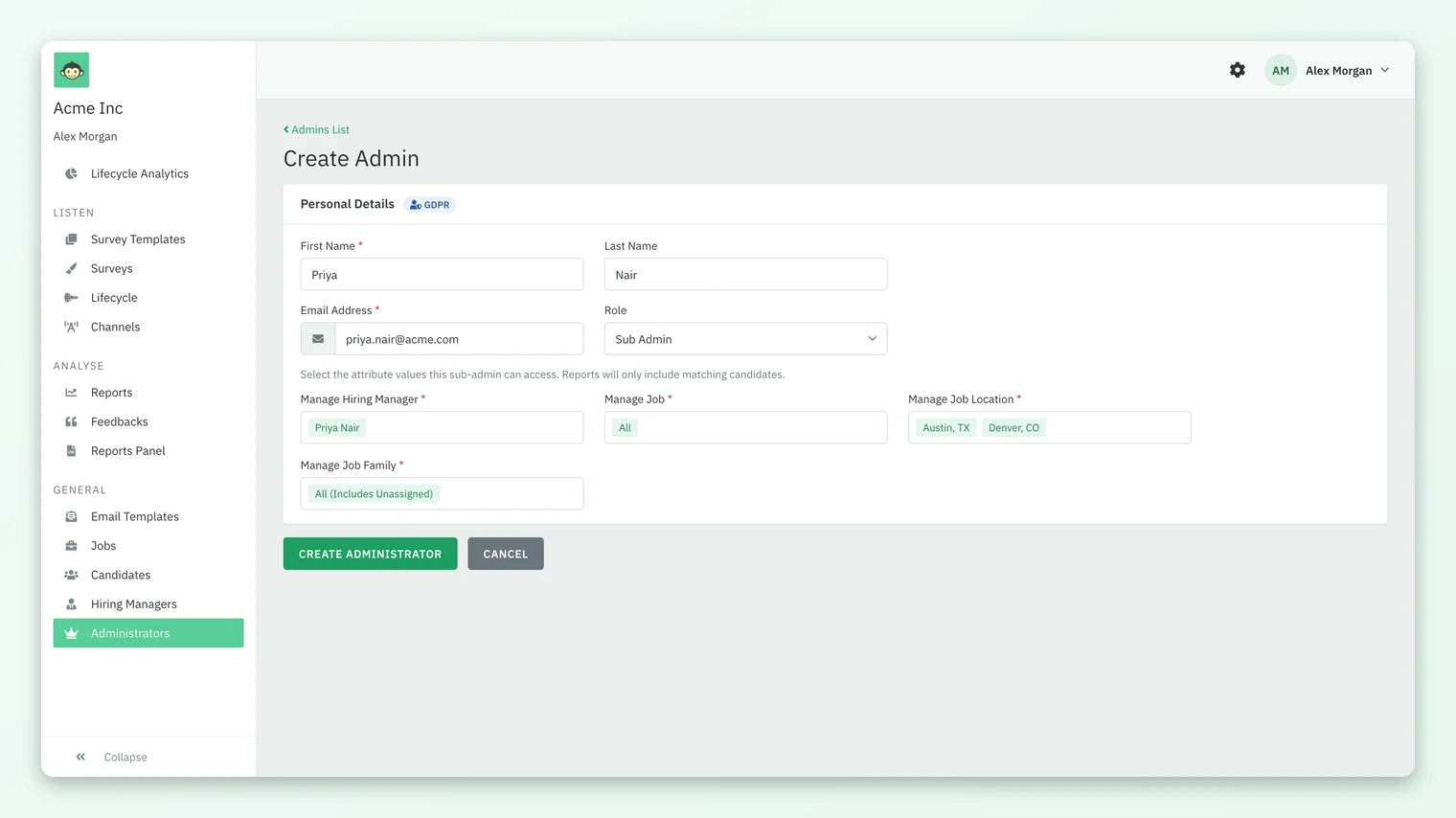
- 1Under Personal Details, enter First Name and Email Address (both required) and, optionally, Last Name.
- 2Leave Role as Super Admin for full access, or choose Sub Admin.
- 3For a Sub Admin, fill in every Manage field that appears, for example Manage Hiring Manager or Manage Job Location. Pick specific values, All, or All (Includes Unassigned) to also cover candidates with no value for that attribute.
- 4Click Create Administrator.
Every Manage field needs at least one value. If one is left empty you will see "Please select at least one value for each attribute." Choose All for any attribute you do not want to restrict.
What happens after I invite someone?
CultureMonkey emails the new admin straight away:
- Someone new to CultureMonkey gets a sign-up confirmation email saying they have been invited as an admin for the Candidate platform. The link logs them in and asks them to set a password.
- Someone who already has a verified CultureMonkey admin account on the employee side gets an email saying they now have access to the Candidate platform. They can move between the two with Candidate mode.
The Admins list shows each admin's ID, NAME, STATUS, CREATED AT, ACCEPTED AT and ROLE. Status reads Awaiting Confirmation until the invite is accepted, then Verified. If an invite gets lost, ask your CultureMonkey Success Manager to resend it. To change a role or scope later, open the admin from the list and edit; Delete Admin removes them, and you cannot delete yourself.
How do I give a hiring manager access to their own results?
Hiring managers are not candidate admins by default. They appear on the Hiring Managers page because candidates are linked to them, and they receive the hiring-manager survey when a new hire joins (see Survey hiring managers when a new hire joins), but they have no login to candidate results. To give one access:
- 1Make sure Sub Admin access is turned on for your account, with Hiring Manager as one of the allowed attributes.
- 2Under Administrators, click Create Administrator and enter the hiring manager's name and email.
- 3Set Role to Sub Admin and choose only their own name under Manage Hiring Manager. Set any other Manage fields to All.
- 4Click Create Administrator.
They will then see Surveys and Reports for their own candidates only. They will not see Lifecycle Analytics, and they will only see a survey's report once enough of their candidates have answered it.
Good practice for candidate admin access
- Keep Super Admins few. Super Admins can open named downloads in Reports Panel and every candidate record, so reserve the role for the people who run the programme.
- Scope by responsibility. Pick the attribute that matches what the person actually owns: Hiring Manager for a hiring manager, Primary Recruiter for a recruiter, Job Location for a regional talent lead.
- Use All (Includes Unassigned) deliberately. It also covers candidates with no value for that attribute, which can widen a scope more than you expect if your candidate data has gaps.
- Check Heatmap Settings. Sub Admins see only the demographics ticked for their role, so review those before inviting your first Sub Admin.
Frequently asked questions
Why is there no Role dropdown on the Create Admin form?
The Role field only appears once CultureMonkey has turned on Sub Admin access and chosen the attributes it can be scoped by. Until then every new admin is a Super Admin. Ask your CultureMonkey Success Manager to set it up.
Can a Sub Admin see Lifecycle Analytics?
No. Lifecycle Analytics and the Lifecycle stages page are for Super Admins only. Sub Admins work from Surveys and Reports.
Can a Sub Admin see surveys other people created?
A Sub Admin sees the surveys they created themselves, plus any survey CultureMonkey has opened to Sub Admins on your account. Within those, results are always limited to their own candidates.
Can a Sub Admin add or edit jobs?
No. Sub Admins can view the Jobs list and job details, but cannot create, edit or delete jobs.
Is there a hiring manager or recruiter role?
No. The candidate module has Super Admin and Sub Admin only. A hiring manager or recruiter gets access by being made a Sub Admin scoped to their own name.
Which heatmap demographics does a Sub Admin see?
Whatever a Super Admin has ticked as visible for the Sub Admin role under Heatmap Settings. See Use the candidate heatmap, filters and heatmap settings.
Where to go next
- Heatmap: Use the candidate heatmap, filters and heatmap settings
- Reports: Read candidate survey reports in CultureMonkey
- Hiring managers: Survey hiring managers when a new hire joins
- Privacy: Are candidate survey answers anonymous in CultureMonkey?
- On the website: Candidate experience platform
Your feedback helps us improve the Help Center.