

Read candidate survey reports in CultureMonkey
Find a candidate survey report and read its Summary, Report, Questions, word cloud and Feedback tabs, plus what you can export.
On this page
- Where do candidate reports live?
- What does the report header show?
- The Summary tab: reach and response
- The Report tab: scores and the heatmap
- The Questions tab: one question at a time
- The word cloud and Feedback tabs: what candidates wrote
- What can you download from a candidate report?
- Frequently asked questions
- Where to go next
Every candidate survey in CultureMonkey gets its own report under Reports in the sidebar. A report opens on five tabs: Summary for reach and response, Report for scores and the heatmap, Questions for each question's score and comments, a word cloud of the themes candidates wrote about, and Feedback for every written comment with its sentiment.
Related release: Candidate Reports: how candidates experience your hiring journey (April 1, 2026). See every dated change on Product Updates.
This guide walks through the reports list, what each tab shows and how its numbers are worked out, where the candidate comments live, and which parts of a report you can download.
Open Reports, pick Custom or Lifecycle, and click a survey name. A survey only appears once it has enough responses to meet its minimum (3 by default for anonymous surveys). Summary tells you how many candidates were reached and how many answered, Report gives the Overall Score, participation, candidate NPS and the heatmap, and Questions and Feedback take you down to single questions and comments. CultureMonkey keeps all of it aggregated; named data is a separate download that only exists for non-anonymous surveys.
Where do candidate reports live?
Click Reports under ANALYSE in the sidebar. The page is titled Reports and reads "All reports go here. Click on a survey name to see detailed report." It has two tabs:
- Custom lists the one-off candidate surveys you created and launched yourself.
- Lifecycle lists the stage surveys that run automatically as candidates move through your hiring stages. See How candidate lifecycle stages and surveys work.
Each row shows the survey Name, its Status, the Participation Rate written as a percentage with the raw count beside it (for example 62% ( 301 / 486 )), who it was Created by, and the Date.
| You see this | Because |
|---|---|
| A survey you launched is missing from the list | It has not yet reached its minimum number of responses. The report appears as soon as it does. |
| "Not enough data!" | No survey on this tab has reached its minimum yet. CultureMonkey emails you when a report is ready. |
| A Sub Admin sees fewer reports than you | A Sub Admin's list only includes a survey once enough of their candidates have taken part. See Candidate Super Admins, Sub Admins and access. |
What does the report header show?
Above the tabs, every report shows the survey status with a Configure survey link back to its settings, the number of questions, the number of participants, the run dates and the survey owner. The List of Reports link at the top takes you back to the list.
The Summary tab: reach and response
Summary answers the first question anyone asks about a survey: did candidates actually get it and answer it?
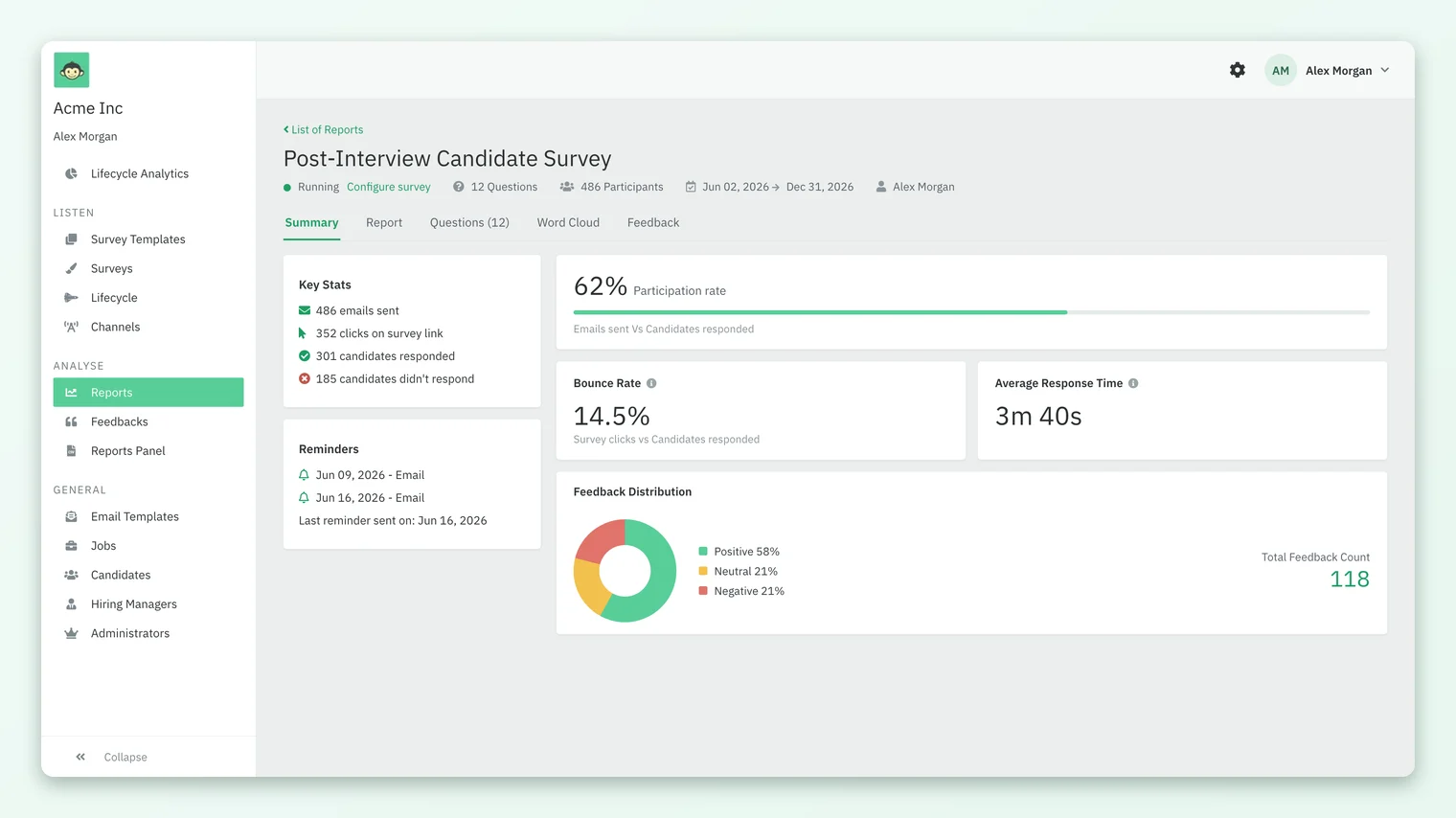
| Card | What it tells you |
|---|---|
| Participation rate | Candidates who submitted, divided by candidates the survey was sent to. |
| Bounce Rate | Candidates who opened the survey but did not answer it: (clicks minus submissions) divided by clicks. A high bounce rate usually points at survey length or the first question. |
| Average Response Time | How long candidates took, on average, to answer the survey. |
| Key Stats | Emails sent, clicks on the survey link, candidates who responded and candidates who did not. A survey shared only by QR code says so instead of counting emails. |
| Reminders | Each reminder with its date and channel, and when the last one went out. |
| Feedback Distribution | When candidates left comments: the positive, neutral and negative split, the Total Feedback Count, and the Average Feedback Sentiment on a scale from -1 to +1. |
The Report tab: scores and the heatmap
Report is where the scores live. It opens on three cards: Overall Score, Participation Rate and, when the survey includes the recommendation question, a candidate NPS card labelled eNPS. How that last number is worked out is in How candidate NPS is calculated.
Below the cards you will find:
- PARTICIPATION OVER TIME, a chart of responses across the survey window.
- DRIVER SCORES OVER TIME, shown for lifecycle surveys, so you can see a stage's drivers move as new candidates pass through it.
- ENGAGEMENT SCORE BY DRIVERS, the heatmap that breaks every driver down by job, recruiter, hiring manager and other candidate attributes. It has its own guide: Use the candidate heatmap, filters and heatmap settings.
The Questions tab: one question at a time
Questions lists every question with its Score and the number of comments it collected. The Download button exports the list. Click a question to open its own page, which shows:
- Responses and the answer distribution, which you can download as an image or a table.
- Quick Digest, a plain-language line naming the job, recruiter, recruiter manager or hiring manager whose candidates rated the question highest or lowest, for example "Candidates handled by recruiter Jordan Lee have rated the ...".
- By group, the same question split across candidate attributes.
- Comments, every comment left on that question.
The word cloud and Feedback tabs: what candidates wrote
The word cloud tab pulls the ten most common keywords from free-text answers, question comments and feedback, and lets you switch between feedback, question comments or all of them. When there is too little text to work with it shows Insufficient data!.
Feedback lists each comment as a card: a sentiment icon and score, the question it answered, the drivers it was tagged with, how long ago it arrived, and the candidate's job, primary recruiter, hiring manager and location. That context is what makes a comment actionable, and it is also why you should read Are candidate survey answers anonymous? before sharing cards outside the recruiting team.
For comments across every survey at once, use Feedbacks in the sidebar. It collects "comments provided by your candidates in text format", from surveys and from email, and its Download Comments button sends the export to your inbox.
Read the Summary tab before the scores. A driver score from 12 respondents out of 400 invited tells a very different story from the same score out of 300, and the Key Stats card is the quickest way to know which one you are looking at.
What can you download from a candidate report?
| Export | Where | Notes |
|---|---|---|
| Heatmap | Chart menu on the Report tab | CSV or XLSX, named "Engagement scores by drivers" |
| Question list | Download on the Questions tab | Scores for every question |
| One question | Responses and distribution menus on a question page | Distribution as an image or a table |
| All comments | Download Comments on the Feedbacks page | Sent by email |
| Named responses | Reports Panel, report type Participant Details (with name) | Non-anonymous surveys only, sent by email |
Frequently asked questions
Why doesn't my candidate survey appear under Reports?
A survey is listed only after its submissions reach the survey's minimum response count, which is 3 by default for anonymous surveys, and rows with zero participation are hidden. You can see the minimum on the survey's own page as "N responses required". Once enough candidates answer, the report appears on its own.
What is the difference between the Custom and Lifecycle tabs?
Custom holds one-off surveys you launch yourself, and Lifecycle holds the stage surveys that CultureMonkey sends automatically as candidates reach each hiring stage. Lifecycle reports also show DRIVER SCORES OVER TIME, because new candidates keep flowing through a stage.
How is bounce rate calculated for candidate surveys?
Bounce rate is the number of candidates who clicked the survey link minus the number who submitted, divided by the number of clicks. It measures drop-off after opening, not candidates who never opened the email.
Can I see which candidate gave a particular answer?
Not inside the report, which is always aggregated. For a non-anonymous survey, a Super Admin can download Participant Details (with name) from Reports Panel; for an anonymous survey no named export exists.
Do Sub Admins see the same report as Super Admins?
They see the same tabs, but every number, comment and word cloud is filtered to the candidates their access covers, and the heatmap shows only the demographics a Super Admin has made visible to Sub Admins.
Does CultureMonkey suggest what to do about a low candidate score?
No. Candidate reports show you where scores are low, through the heatmap, the question scores and the Quick Digest, but they do not attach recommended actions. Deciding what to change stays with your recruiting and hiring teams.
Where to go next
Your feedback helps us improve the Help Center.