

Set up your first pulse survey in CultureMonkey
A step-by-step walkthrough of turning on pulse surveys in CultureMonkey - where Pulse lives, how to set the frequency and cadence, when the first question goes out, how the question pool works, who receives it, and how to launch.
On this page
- Before you begin
- Where Pulse lives
- Step 1: Open the setup screen
- Step 2: Choose the frequency
- Step 3: Confirm the start date and cadence
- Step 4: Understand the question pool
- Step 5: Confirm your audience
- Step 6: Launch
- After you launch: Schedule and Reminders
- Best practices for your first pulse
- Frequently asked questions
- Where to go next
A pulse survey is CultureMonkey's always-on listening channel. Instead of asking your people to sit through a long questionnaire a couple of times a year, it drips one short question at a time into their inbox on a steady rhythm, then quietly assembles those answers into a continuous read on engagement. Setting it up is refreshingly light: you choose how often it runs, confirm the cadence, and turn it on. CultureMonkey handles the question rotation, the audience split, and the scheduling for you.
This guide walks through that setup end to end, from finding Pulse in the navigation to launching your first cycle. If you want the conceptual background first, read What is a pulse survey?; if you want to fine-tune the rhythm afterwards, see Configure your pulse cadence.
Pulse lives under Listen > Pulse in the left sidebar. You pick a frequency (weekly, every two weeks, or monthly), save, and CultureMonkey schedules a rotation of short questions that go out automatically - by default on the next Wednesday at 10:00 AM in your account timezone. The question pool and the audience split are managed for you, so there's very little to configure and almost nothing to maintain.
Before you begin
A few things need to be in place before pulse setup will work:
- Pulse must be enabled for your account. Pulse is a distinct listening module, and it may not be switched on for every workspace by default. If you don't see it in the sidebar, or you land on an empty state asking you to reach out, contact support@culturemonkey.io to have it turned on.
- You need the right permission. Setting up and managing pulse surveys is a Survey Admin task. If the Pulse menu item is missing even though the feature is enabled, your role likely doesn't include pulse access.
- You need enough employees. Pulse splits each question across two randomly chosen halves of your workforce, so it needs a real population to work with. CultureMonkey requires more than four active employees before it will let you enable pulse. If your employee list is thin, add people first (see Add and manage employees).
Pulse setup is available to Survey Admins on accounts where the pulse module is enabled. The menu is gated on both your role and the account-level pulse setting, so if either is missing you won't see the option.
Where Pulse lives
Pulse sits in the Listen group of the left navigation, alongside Templates, Surveys, Lifecycle, and Channels. Look for the heartbeat icon labeled Pulse.
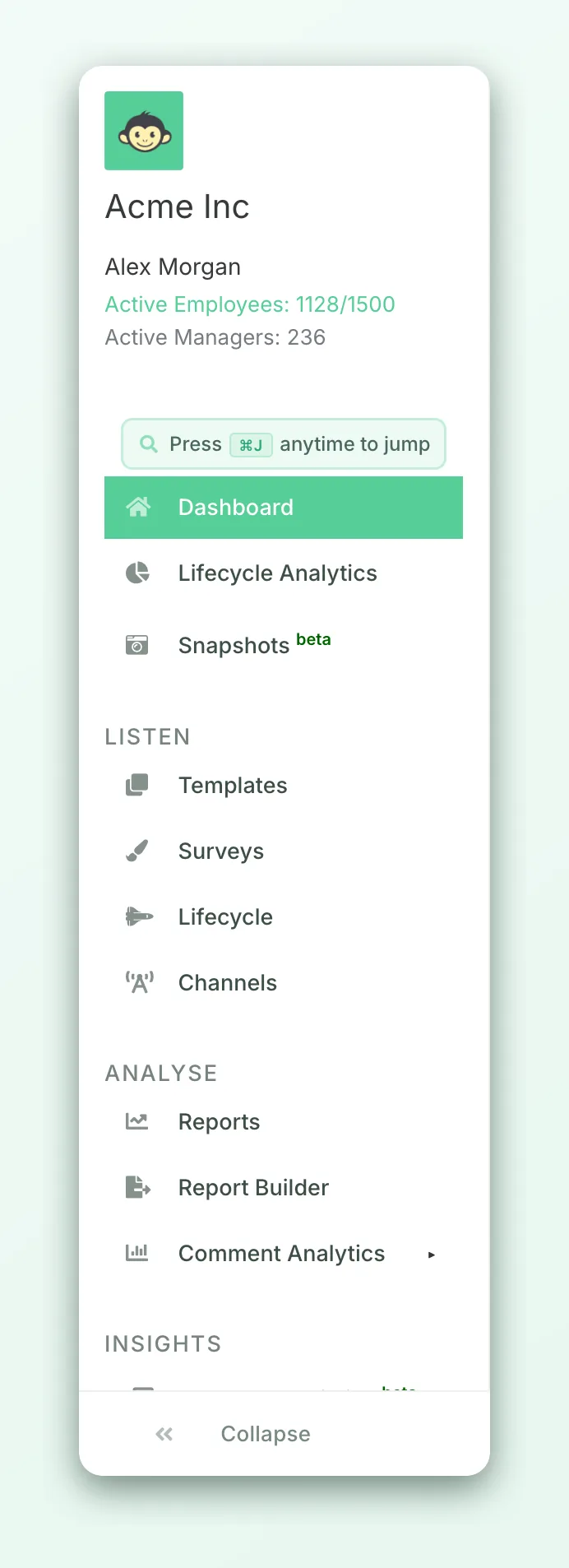
Clicking Pulse takes you to /pulse_surveys. What you see there depends on the state of your account:
- Pulse not yet enabled for the account: an empty state that invites you to reach out to support to learn more. There's nothing to configure here until the module is switched on.
- Enabled but no pulse created yet: you're taken straight to the new pulse setup screen, where you choose a frequency.
- A pulse already running: you land on the edit screen for your active pulse, with the Settings, Schedule, and (once reminders exist) Reminders tabs across the top.
Because only one pulse survey is active at a time per account, the app always routes you to the right place automatically. You don't manage a list of pulses; you manage the single live one.
Step 1: Open the setup screen
From the sidebar, click Pulse. If no pulse exists yet, you'll arrive on the setup form directly. If one already exists and you want to change how it runs, you'll open on the edit screen, which uses the same controls.
The setup screen is deliberately minimal. Rather than asking you to build a survey, pick questions, and define an audience, it asks a single question:
> How frequently do you want to run this survey?
Everything else - which questions go out, in what order, and to whom - is derived from that one choice.
Step 2: Choose the frequency
The frequency is the heartbeat of the whole survey. It controls how often a new question lands in your employees' inboxes. You'll see a short set of radio options:
| Option | Interval | Best for |
|---|---|---|
| Every Week | 7 days | High-touch listening; the fastest read on sentiment and the quickest signal when something shifts |
| Every 2 Weeks | 14 days | A balanced default for most teams - frequent enough to stay current, spaced enough to avoid fatigue |
| Every Month | 28 days | Lighter-touch cadence for smaller teams or organizations easing into continuous listening |
The help text on the screen reminds you of an important detail about how pulse works:
> Only 1 question will be sent at a time to two different groups. These groups will be split randomly.
In other words, on each run CultureMonkey sends a single question, and it splits your active employees into two randomly assigned halves so it can rotate coverage and keep any one person from being asked too much. You don't configure these groups; the split is automatic.
It's tempting to choose Every Week for the richest data, but response quality matters more than volume. If you're new to pulse, Every 2 Weeks is a strong starting cadence: it keeps the signal fresh without training people to ignore the emails. You can always tighten the rhythm later. For a deeper look at the trade-offs, see Configure your pulse cadence.
Step 3: Confirm the start date and cadence
Once you've chosen a frequency, CultureMonkey works out when the first question goes out. By default, a new pulse starts on the next occurring Wednesday and questions are sent at 10:00 AM in your account timezone. Each subsequent question then follows the interval you picked - so a weekly pulse sends every Wednesday, a fortnightly pulse every other Wednesday, and so on.
This is why the enable confirmation you'll see reads that "automated pulse survey emails will be sent to all employees starting this Wednesday." The Wednesday default gives you a predictable, mid-week send that avoids Monday inbox pile-ups and Friday wind-downs.
It helps to picture the mechanics. Say you pick a weekly cadence. On the first Wednesday, half your employees get question A and the other half get question B. The following week the halves swap and rotate through the next questions. Over a full cycle, everyone sees the same set of questions, just staggered - which is what lets pulse cover a broad range of engagement drivers without overloading anyone.
Step 4: Understand the question pool
One of the biggest differences between a pulse survey and a survey you build from scratch is that you don't hand-pick pulse questions. CultureMonkey draws from a curated pulse question bank and schedules the rotation automatically when you save your setup.
Here's how the pool is assembled:
- Questions are organized by engagement driver. Each of your active engagement drivers (the themes CultureMonkey measures, such as recognition, growth, or management) contributes a small number of questions to the rotation.
- A fixed number run per driver. The scheduler pulls a set number of questions per driver into the cycle, so coverage is even across themes rather than skewed toward one area.
- Two questions are scheduled per run window. Because each send goes to two randomly split halves, two questions are staged for each interval - one per half - and the halves alternate across runs.
- An eNPS question is included. The rotation also seeds the eNPS ("how likely are you to recommend us as a place to work?") question so your advocacy signal stays current alongside the driver questions. To understand that metric, see What is eNPS and how is it calculated?.
The practical upshot: setup is fast because the content is already decided for you, and the rotation is balanced by design. You're choosing a rhythm, not authoring a questionnaire.
The pulse question bank is curated centrally, so it isn't edited from the standard setup screen. If your organization needs to tailor the questions that go into the rotation, that's a conversation to have with your Customer Success contact or support@culturemonkey.io rather than a self-serve setting.
Step 5: Confirm your audience
Pulse targets all active employees by default. There's no audience picker on the setup screen because the whole point of pulse is broad, continuous coverage: everyone who is active and not deleted is eligible, and the random two-way split determines who receives which question on any given run.
That means two things worth remembering:
- Keep your employee list current. Because participants are drawn from your active employee records at each launch, new joiners are automatically folded into upcoming cycles and departures drop out. The Schedule view even notes that participant counts are computed at each weekly launch specifically to accommodate new employees.
- You can't hand-pick recipients for a pulse. If you need to survey a specific team or segment in isolation, a targeted survey built from scratch is the better tool. See Create a survey from scratch.
Step 6: Launch
When you're happy with the frequency, click Save Changes. That single action creates the pulse survey, generates the full question schedule, and queues the first send.
- 1Open Pulse. Click Pulse in the Listen group of the sidebar to reach
/pulse_surveys. - 2Pick a frequency. Choose Every Week, Every 2 Weeks, or Every Month based on how often you want to hear from your people.
- 3Review the cadence. Note the start (the next Wednesday, 10:00 AM in your timezone) and confirm the interval fits your team.
- 4Save Changes. Click the button to create the pulse and generate its schedule.
- 5Confirm the launch. Read and accept the confirmation prompt. On a brand-new pulse this enables automated emails starting the coming Wednesday.
- 6Check the Schedule tab. Open Schedule to see the full timeline of upcoming questions, their drivers, and participant counts.
If you later come back and change the frequency of a running pulse, CultureMonkey will warn you that all pending questions in the current cycle are cancelled and a new cycle begins from scratch, covering the same questions again from the start. That's expected: the schedule is regenerated around the new rhythm. It's not a reason to avoid changing cadence, just something to do deliberately rather than repeatedly.
After you launch: Schedule and Reminders
Once your pulse is live, two tabs at the top of the Pulse screen help you keep an eye on it:
- Schedule shows the upcoming timeline - each dated send, the drivers being measured, and, for live and completed sends, how many participants were included. This is the clearest way to see what's coming and confirm the rotation looks right.
- Reminders appears once reminders exist and lets you track nudges sent to employees who haven't answered yet, which helps lift participation without you chasing people manually.
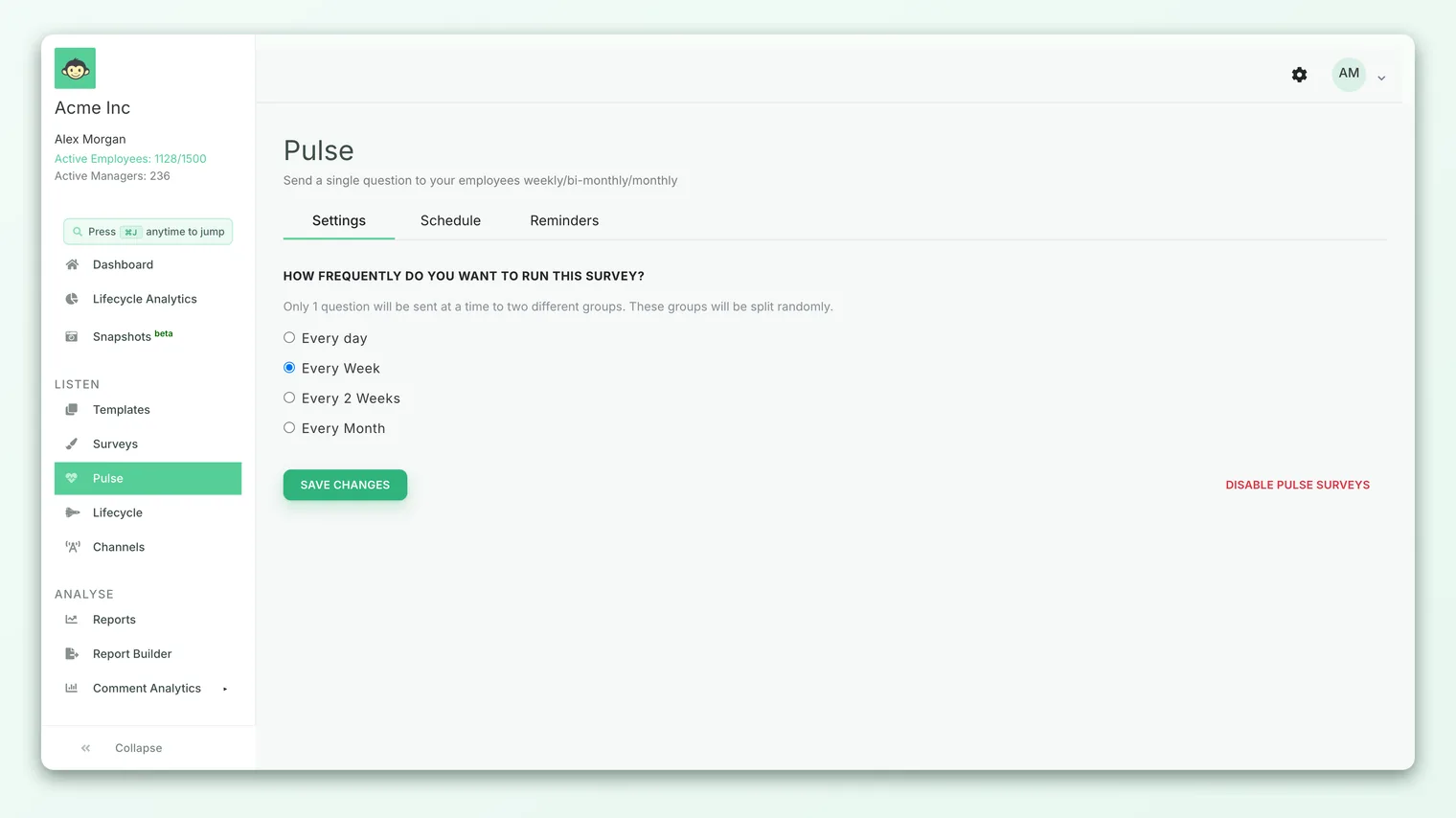
You can also disable a running pulse at any time from the same screen. Disabling cancels all pending scheduled questions, so use it when you genuinely want to pause listening rather than as a quick reset.
Best practices for your first pulse
- Announce it. A short heads-up to your organization ("you'll start getting a one-question pulse every couple of weeks") sets expectations and lifts early participation.
- Pick a sustainable cadence. Every two weeks is a safe, well-balanced default. Weekly is powerful but only if your culture will engage with it consistently.
- Let it run before judging it. Pulse is a trend instrument. A single week's answers are noisy; the value shows up over several cycles as the line settles.
- Close the loop. The fastest way to kill pulse participation is to collect answers and do nothing. Pair pulse with visible action planning so people see that their input matters.
- Keep employee data clean. Because the audience is drawn live at each launch, an up-to-date employee list is what keeps your pulse accurate.
Frequently asked questions
Can I choose which questions go out?
Not from the setup screen. Pulse draws from a curated question bank and schedules the rotation automatically, balanced across your engagement drivers, with an eNPS question included. If you need to tailor the pool, talk to your Customer Success contact or support.
Can I run more than one pulse at a time?
No. Each account has a single active pulse survey. Creating or changing one replaces the previous configuration, and older pending schedules are cancelled when a new cycle begins.
When exactly does the first question go out?
By default, on the next Wednesday at 10:00 AM in your account timezone. Subsequent questions follow the interval you chose from that starting point.
Who receives each question?
All active employees are eligible. On each run, CultureMonkey randomly splits them into two halves and sends one question to each half, rotating coverage over the cycle so everyone eventually sees the full set.
What happens to new employees I add later?
They're automatically included in upcoming sends. Participant counts are recomputed at each launch specifically so newly added people are picked up.
How do I stop a pulse?
Open the pulse screen and choose to disable it. That cancels all pending scheduled questions. You can enable it again later when you're ready to resume.
Where to go next
- Understand the concept: What is a pulse survey?
- Tune the rhythm: Configure your pulse cadence
- Need a targeted, custom questionnaire instead? Create a survey from scratch
- Make the results count: Create an action plan
Your feedback helps us improve the Help Center.