

Review your team's feedback sentiment
How to read the positive, neutral, and negative split of your team's comments as a manager, what each band means, and why anonymity limits shape what you can and can't see.
On this page
As a manager, the numbers on your dashboard tell you how much your team feels something. Your team's feedback sentiment tells you which way they feel. It's the split of your people's open-text comments into positive, neutral, and negative, so you can see at a glance whether the mood of the team is warming up or cooling down, without reading every comment one by one.
This guide covers how to find that split, exactly how each comment is sorted into a band, how to read the breakdown for your team specifically, and the anonymity limits that decide what you're allowed to see. Sentiment is one of the most useful signals you have as a manager, but only if you understand what it is and what it deliberately hides from you.
Every comment your team leaves is scored on a sentiment scale. CultureMonkey sorts each one into Positive, Neutral, or Negative, then shows you the count in each band, scoped to only the people you manage. You'll always see the aggregate mood, but individual comments and small groups are protected by an anonymity threshold so no single person can be identified.
What "feedback sentiment" means for a manager
When someone on your team answers a survey and adds a comment, or drops an instant piece of feedback, that text carries a feeling. CultureMonkey reads each comment and assigns it a sentiment score, a number that captures how positive or negative the language is. You don't see the raw score in your day-to-day view. Instead, each comment is placed into one of three buckets:
- Positive - the comment leans clearly favorable.
- Neutral - the comment is mixed, factual, or too faint to call either way.
- Negative - the comment leans clearly unfavorable.
Your team's feedback sentiment is simply the tally of those three buckets across all the comments from the people you manage. If 20 of your team's comments are positive, 8 are neutral, and 4 are negative, that's your breakdown. It's a fast read on team mood that would otherwise take an hour of reading to feel.
The important word is scoped. Everything you see is filtered down to your own team automatically. You're not looking at the whole company's sentiment; you're looking at the slice that belongs to the employees who report to you. More on exactly how that scoping works below.
How each comment gets its band
Behind the three buckets is a single number per comment, its sentiment score, which runs from strongly negative to strongly positive. CultureMonkey uses fixed cut-off points to turn that number into a band. The thresholds are the same everywhere in the product, so a comment that counts as "positive" for you counts as positive for everyone.
| Band | How the score falls | What it usually reads like |
|---|---|---|
| Positive | Score at or above the positive cut-off | Praise, enthusiasm, gratitude, clear support |
| Neutral | Score in the middle band, or not yet scored | Mixed, factual, ambivalent, or very short |
| Negative | Score at or below the negative cut-off | Frustration, criticism, disappointment |
A few things are worth knowing about how this works in practice:
- The middle band is deliberately wide. A comment has to lean meaningfully positive or negative to leave neutral. This is on purpose, so a mildly worded remark isn't overstated as glowing praise or a serious complaint.
- Unscored comments count as neutral. If a comment hasn't been scored yet (scoring happens automatically just after a comment is submitted), it sits in the neutral band until the score arrives. That means a fresh batch of feedback can look more neutral than it eventually settles.
- The scoring is done by AI, not by keyword matching. Sentiment is derived from a language model that reads the whole comment in context, so sarcasm, negation ("not bad at all"), and tone are handled far better than a simple word list would manage.
For the full detail on how scores are produced and where the cut-offs sit, see How sentiment scores work.
No automated read of language is perfect. A comment can be misread, especially if it's very short or heavy on sarcasm. Treat the breakdown as a fast way to find the comments worth reading, not as the final word on how any one person feels. You can correct a misclassified comment yourself, which also improves the aggregate view. See Edit a comment's sentiment.
Where to find your team's breakdown
Your sentiment breakdown shows up in two connected places.
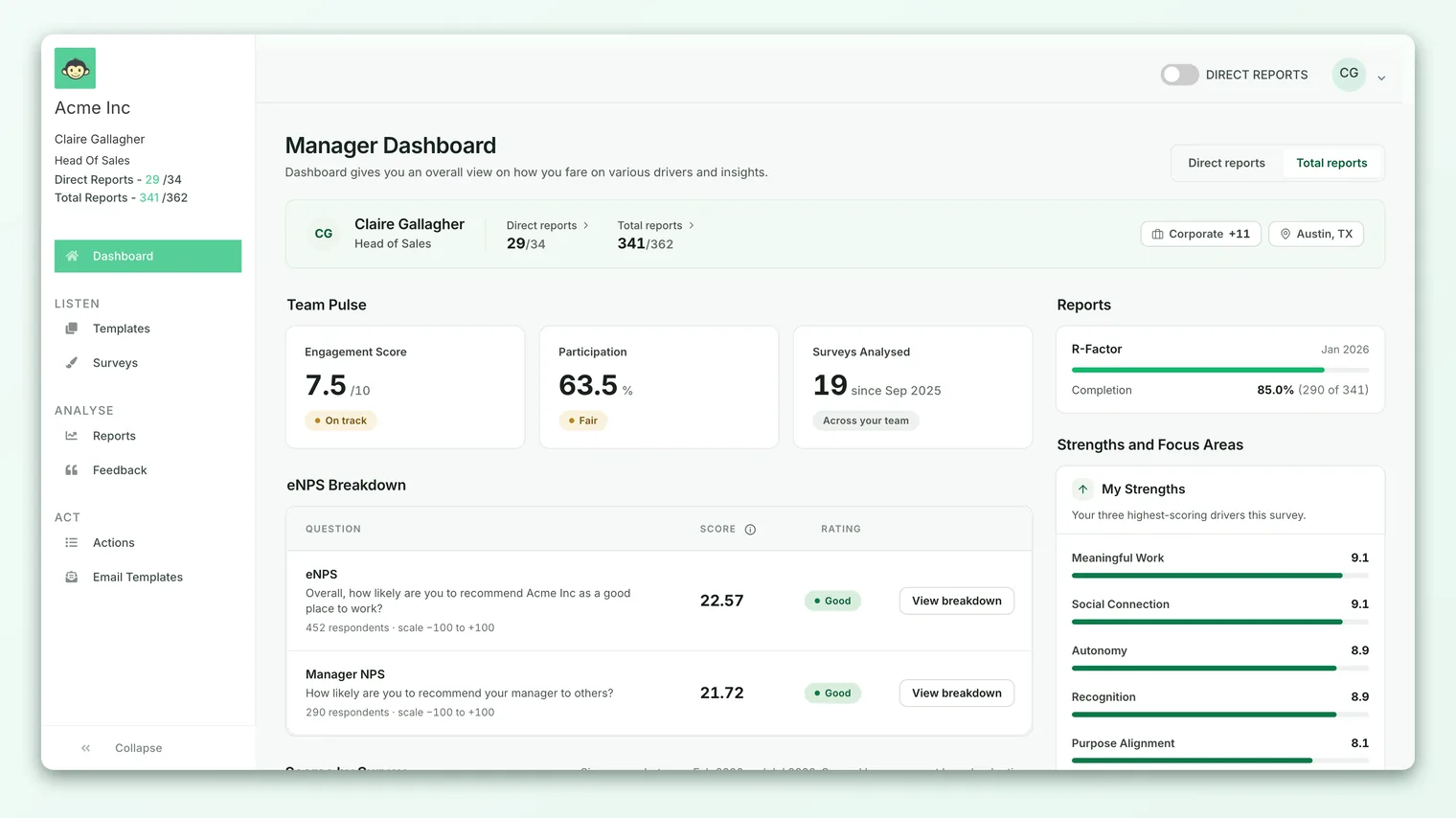
The first is your manager dashboard, where the positive, neutral, and negative split appears alongside your team's other headline numbers as an at-a-glance summary of mood.
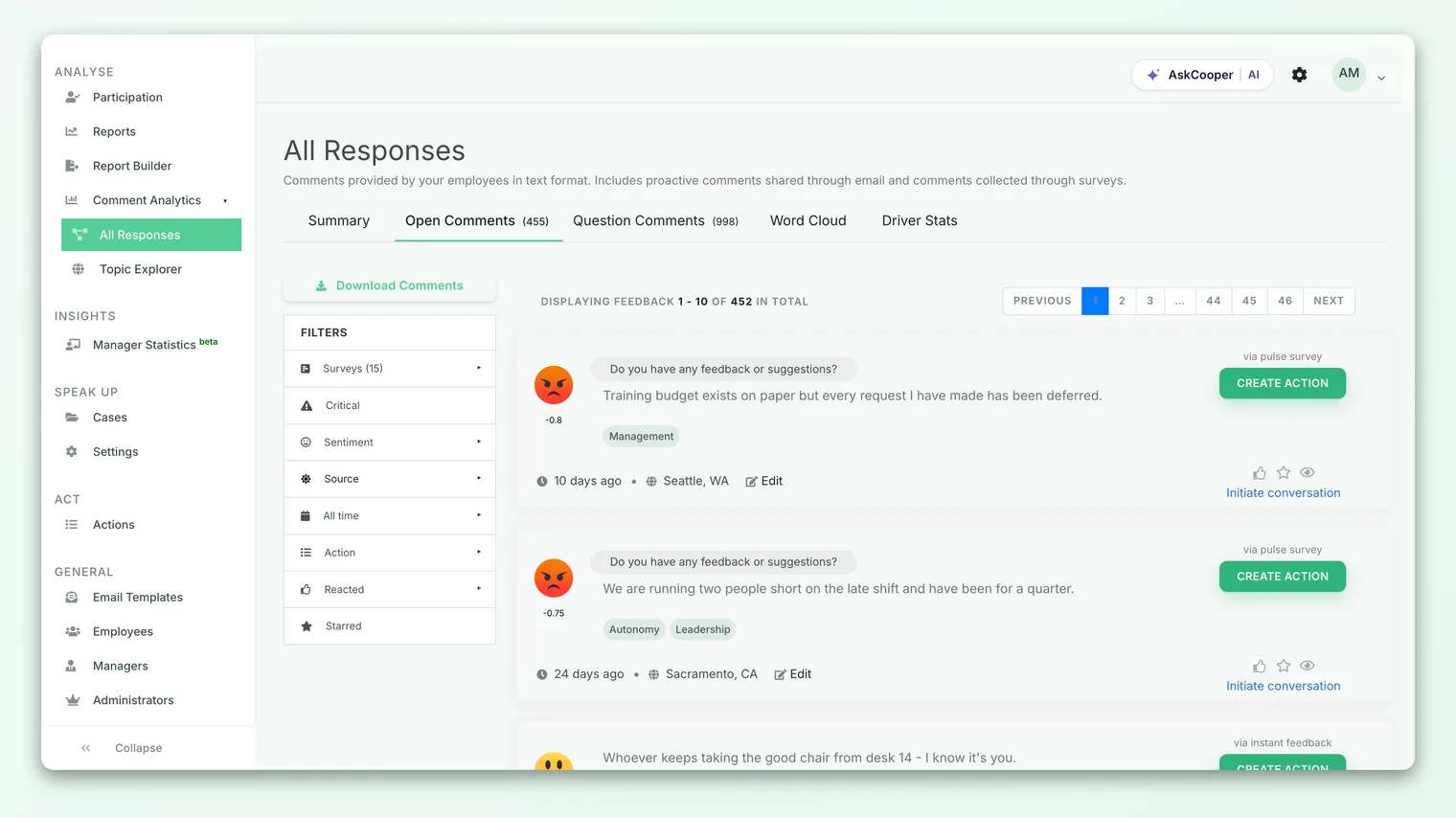
The second is the Feedback view under Analyse, where the same split sits at the top of the actual comments. This is where the breakdown becomes actionable, because you can click into a band and read the comments behind the number.
To go from the summary to the substance:
- 1Open Feedback - go to Analyse, then Feedback, from the left navigation. The view opens already scoped to your team.
- 2Read the summary - the counts of positive, neutral, and negative comments appear at the top.
- 3Filter to one band - use the sentiment filter to show only positive, only neutral, or only negative comments. Negative is usually the most valuable place to start.
- 4Read and act - open individual comments, reply where a conversation is invited, and turn recurring themes into an action. See Create an action from feedback.
For a fuller tour of filtering, searching, and replying, see Browse and filter feedback.
Reading the breakdown well
The split of three numbers is easy to glance at and easy to misread. A few habits keep you honest.
Look at proportions, not raw counts. Ten negative comments sounds alarming until you notice they sit among two hundred positive ones. Conversely, three negative comments out of six is a strong signal even though the raw count is small. Always read each band as a share of the total.
Watch the trend, not the snapshot. A single week's breakdown is noisy. The valuable read is direction: is the negative share shrinking or growing across survey cycles? A team moving from 20% negative to 10% is a team getting better, even if 10% still feels like a lot.
Neutral is not the same as fine. A large neutral band can mean genuine ambivalence, but it can also mean short or unscored comments, or people hedging. If neutral dominates, read some of those comments rather than assuming everything is calm.
Negative comments are the gift. The point of surfacing negativity is not to feel bad about it; it's that critical feedback is where the specific, fixable problems live. A team with zero negative comments often has a trust problem, not a perfect culture.
It can be tempting to try to work out which team member left a negative comment. Resist it. Feedback is anonymous by design, and trying to unmask a commenter, even informally, breaks the trust that makes the feedback honest in the first place. Respond to the theme, never to the suspected person.
The anonymity limits you'll run into
This is the part managers most often trip over, so it's worth being precise. Feedback in CultureMonkey is anonymous, and that anonymity is enforced with hard limits, not just a promise. Those limits shape what your sentiment breakdown can show you.
You only see your own team. The breakdown is automatically scoped to the employees you manage. The system builds the list of people whose feedback you're allowed to see from your reporting line, and every count you see, positive, neutral, and negative, is restricted to that group. You cannot see sentiment for another manager's team, and you cannot see the company-wide split from a manager view.
Comments never carry a name. No matter how the breakdown is sliced, individual comments are shown without identifying the author. You see the words and the sentiment; you do not see who wrote them.
Small groups get hidden entirely. If your team is too small, or a filter narrows the group below a minimum size, the breakdown can be suppressed so that no single person's response could be inferred. On some accounts this anonymity threshold is applied to the manager dashboard specifically: if the number of people behind the view falls below the configured minimum (commonly around five distinct respondents, though your admin can set it), the sentiment view is withheld rather than shown for a handful of people.
| Situation | What you'll see |
|---|---|
| Your team is large enough | The full positive / neutral / negative split |
| Your team is below the threshold | The breakdown is hidden until enough people respond |
| A filter narrows below the threshold | That filtered view is suppressed, even if the whole team isn't |
| A comment is critical | It's surfaced in the negative band, but still without a name |
An empty or withheld breakdown almost never means something is broken. It usually means the group is too small to show safely. The fix is more responses, not a support ticket. If your team is small, aggregate across a longer period or a wider survey so enough comments accumulate.
Whether the manager-dashboard anonymity check is switched on, and the exact minimum group size, are account-level settings your administrator controls.
Turning sentiment into action
The breakdown is only worth looking at if it changes what you do. A simple loop works well:
- 1Start with negative. Filter to the negative band and read every comment. These are your most specific, most fixable signals.
- 2Look for repeats. One frustrated comment is a data point; the same theme three times is a pattern worth acting on.
- 3Check the neutral band for hidden concerns. Skim neutral comments for lukewarm or hedged language that a first pass might miss.
- 4Create an action for the biggest theme. Assign an owner and a deadline. See Create an action from feedback.
- 5Close the loop. Tell your team what you heard and what you're changing. Visibly acting on feedback is the single most reliable way to move future sentiment in the right direction.
Sentiment tells you the temperature. Your follow-through is what changes it.
Frequently asked questions
Why can't I see my team's sentiment at all?
The most common reason is that your team is below the anonymity threshold, so the breakdown is withheld to protect individuals. It can also mean no one has left a comment yet, or that recent comments haven't been scored. Give it time and encourage more responses; the view appears once the group is large enough.
Do comments without a score disappear from the breakdown?
No. A comment that hasn't been scored yet is counted as neutral until its score arrives. CultureMonkey scores comments automatically soon after submission, so unscored comments are usually a temporary state right after a survey closes.
Can I see which of my team members left a negative comment?
No, and this is intentional. Feedback is anonymous, and CultureMonkey does not attach names to comments in your view. You can act on the theme, but not identify the author. This is what keeps feedback honest.
The sentiment on one comment looks wrong. Can I fix it?
Yes. If a comment is clearly misclassified, you can correct its sentiment, which also updates the aggregate breakdown. See Edit a comment's sentiment.
Is a mildly positive comment counted as positive?
Not necessarily. The neutral band is deliberately wide, so a comment has to lean meaningfully positive to be counted as positive. Faint or mixed remarks stay neutral on purpose, which keeps the positive band trustworthy.
Does the breakdown include instant feedback, or only surveys?
It includes the comments you're authorized to see across sources, including survey comments and instant feedback from your team, as long as the group meets the anonymity threshold. Use the Feedback view's filters to focus on a particular source.
Where to go next
- Understand the scoring behind the bands: How sentiment scores work
- Read and filter the actual comments: Browse and filter feedback
- See the rest of your team's numbers: Manager dashboard overview
- Correct a misread comment: Edit a comment's sentiment
- Act on what you find: Create an action from feedback
Your feedback helps us improve the Help Center.