

Add custom attributes to CultureMonkey candidate records
Create Textbox or Dropdown custom attributes for candidates, fill them by form, CSV or API, and use them in heatmaps and access rules.
On this page
Custom attributes let you add your own fields to CultureMonkey candidate records, such as source channel, hiring region or business unit. You create them in the candidate settings under Demographics > Custom Attributes, choose whether each one is free text (Textbox) or a fixed list (Dropdown), and then fill in values through the candidate form, the CSV import or the API.
This guide covers where custom attributes live, how to create and edit one, how values get onto candidates, and where the attributes show up in reports and access rules.
Open the gear icon, then Demographics > Custom Attributes, and click Add Master Attribute. Give it a name, a description and a data type: Textbox or Dropdown. The key is generated from the name and is the column name in CSV imports (prefixed with cf_) and the field name in the API. In CultureMonkey reports, an attribute becomes a heatmap tab once at least 3 candidates have a value. After creation only the dropdown options can change.
What are candidate custom attributes for?
The standard record covers identity, job, recruiters, hiring manager and dates. Custom attributes hold anything else you want to group or filter candidates by:
- Where candidates came from, such as referral, job board, careers site or agency.
- How your organization is structured, such as business unit or hiring region, when that is not captured by the job.
- Process details, such as work mode offered or requisition priority.
- Sensitive demographics your policies allow you to collect. Race or ethnicity, for example, is not a standard candidate field and can only be tracked as a custom attribute.
Once candidates carry values, CultureMonkey can use those attributes as heatmap tabs, report filters, lifecycle stage conditions and Sub Admin scopes. The last three are set up with CultureMonkey, described below.
Where to find custom attributes
In the candidate workspace, click the gear icon at the top right to open Organisation Settings. In the Settings menu, open Demographics and choose Custom Attributes. The page, Custom Attributes - Candidate, lists every attribute with its Name, Key, Data Type, Description and Options. These attributes are separate from the custom attributes on your employee records.
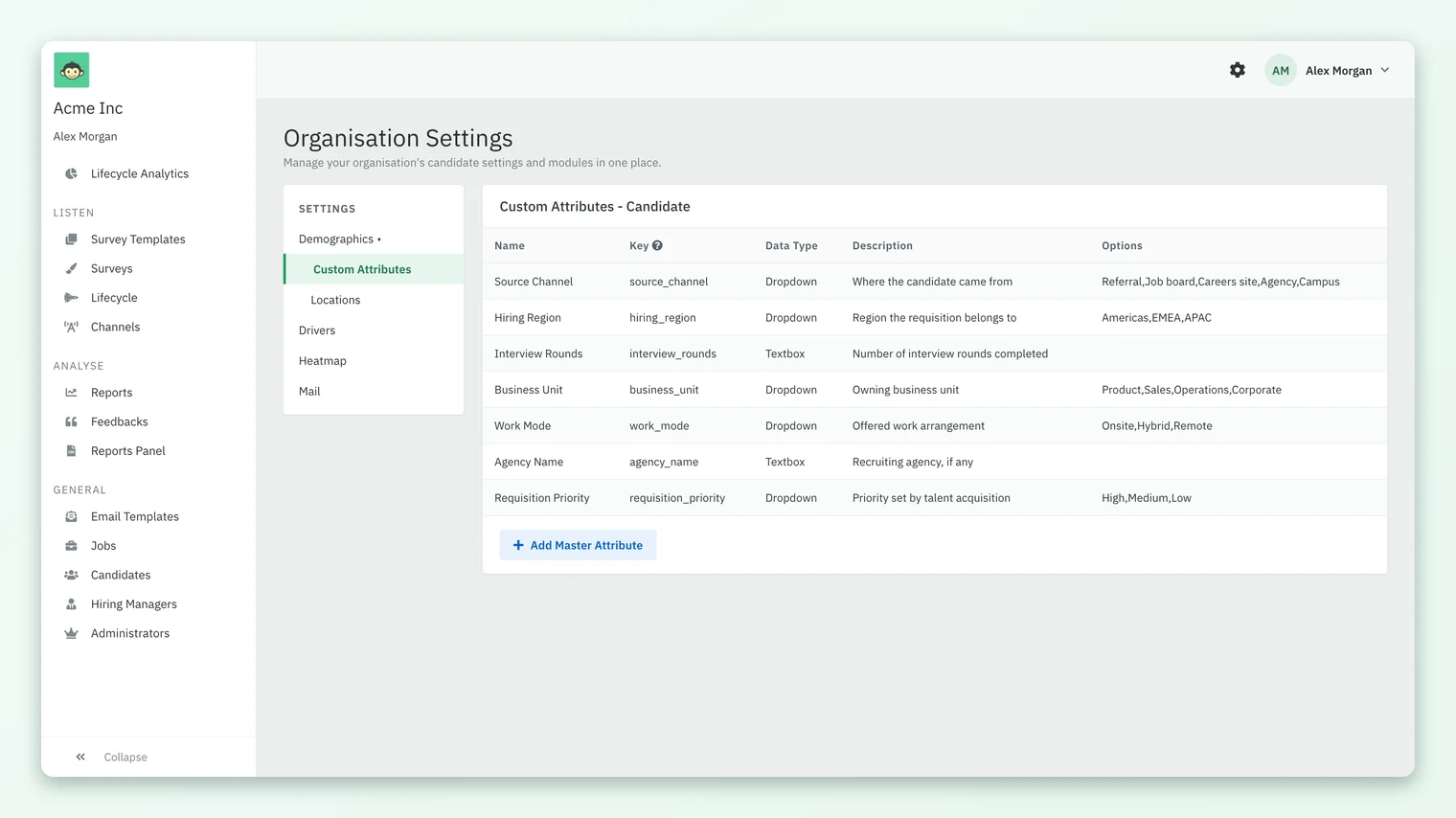
Create a custom attribute
- 1On the Custom Attributes - Candidate page, click Add Master Attribute.
- 2Enter the Attribute Name, for example Source Channel. The Key fills in automatically: the name in lowercase with spaces turned into underscores (
source_channel). - 3Add an Attribute Description so other admins know what the field means and where its values come from.
- 4Choose the DATATYPE: Textbox or Dropdown.
- 5For a Dropdown, enter the Dropdown Options separated by commas, for example
Referral,Job board,Careers site,Agency. - 6Click Add.
Choose the data type with reporting in mind:
| Textbox | Dropdown | |
|---|---|---|
| Accepts | Any text | One value from your list |
| Validation | None | The API rejects values that are not in the list |
| Good for | Agency names, free-form notes, numbers | Anything you will group by in a heatmap, where consistent values matter |
| Risk | "Referral", "referral" and "Employee referral" become separate groups | New values need the list updated first |
Each attribute holds one value per candidate. There is no multi-select type.
Edit or delete a custom attribute
Click an attribute on the list to open it. The name, description and data type are locked once the attribute exists; only Dropdown Options can change, so you can add values to a list. Click Update to save.
You can delete an attribute only while no candidate has a value for it. After that the Delete button is disabled. Its tooltip mentions employee mapping, but it applies here to candidate values. If you need a different name or data type for an attribute already in use, create a new attribute and move values to it.
How values get onto candidates
| Route | How to fill the attribute |
|---|---|
| Candidate form | Custom attributes appear at the end of Candidate Details when you add or edit a candidate, as a text box or a dropdown |
| CSV import | Add a column named cf_ plus the key, for example cf_source_channel, and map it under Custom Attributes on the Map Attributes step. The sample template already includes these columns. See Import candidates from a CSV |
| API | Send "custom_attributes": {"source_channel": "Referral"}. Keys are lowercased and spaces become underscores. See Send candidates with the API |
Create attributes before you send values. A CSV column for an attribute that does not exist is reported as an error. Over the API, an unknown key does the opposite: it creates a new Textbox attribute on the spot, so a misspelled key leaves you with a stray attribute and no dropdown validation.
The key's tooltip, "Prefix the key value with cf_ to use in CSV import", is the reminder for the CSV route. The candidate Export CSV on the Candidates list also includes a cf_ column per attribute, which is a quick way to audit values.
Where custom attributes show up
- Heatmap tabs. Each custom attribute appears as a tab on the candidate heatmap once at least 3 candidates have a value for it. Groups below your anonymity threshold are hidden as usual. See Use the candidate heatmap, filters and heatmap settings.
- Heatmap Settings. Super Admins choose which custom attributes are visible, and in what order, separately for Super Admins and Sub Admins, under Settings > Heatmap.
- Report filters. Custom attributes can be offered as heatmap filters. Ask your CultureMonkey Success Manager to add or change filters.
- Lifecycle stage conditions. A stage can enroll candidates by attribute value, for example only candidates whose hiring region is EMEA. CultureMonkey sets these conditions up for you. See How candidate lifecycle stages and surveys work.
- Sub Admin access. Where CultureMonkey has turned on attribute-based access, a Sub Admin can be limited to candidates with certain attribute values. See Candidate Super Admins, Sub Admins and access.
Frequently asked questions
Can a candidate custom attribute hold more than one value?
No. Custom attributes are Textbox or Dropdown, and each holds a single value per candidate. For combinations, create separate attributes or agree on combined dropdown values.
Why does my custom attribute not appear on the heatmap?
An attribute becomes a heatmap tab once at least 3 candidates have a value. If it still does not show, check Settings > Heatmap, where a Super Admin may have hidden it for your role.
Can I rename an attribute or change its type?
No. Only dropdown options can change after an attribute is created. While no candidate has a value you can delete it and create it again; after that, create a new attribute instead.
Can we track race or ethnicity for candidates?
Only as a custom attribute; CultureMonkey has no standard race or ethnicity field for candidates. Check your local rules on collecting it, and remember that small groups are hidden in reports by the anonymity threshold.
Are candidate attributes shared with employee attributes?
No. The candidate module has its own list of custom attributes, managed in the candidate settings, separate from the attributes on employee records.
Where to go next
- Fill values in bulk: Import candidates from a CSV in CultureMonkey
- Send values automatically: Send candidates to CultureMonkey with the API
- Use them in reports: Use the candidate heatmap, filters and heatmap settings
- Scope admin access: Candidate Super Admins, Sub Admins and access
- On the website: Recruitment dashboard
Your feedback helps us improve the Help Center.