

Candidate Lifecycle Analytics and silent candidates
Compare hiring stages on score, NPS and participation, see the highest and lowest scoring groups, and find candidates who have not responded.
On this page
Candidate Lifecycle Analytics in CultureMonkey is the dashboard that compares your hiring stages side by side. It sits at the top of the sidebar as Lifecycle Analytics and shows, for each lifecycle stage, the engagement score, candidate NPS, participation, feedback sentiment, the groups scoring highest and lowest, and a count of silent candidates: people who were sent the stage survey and have not answered it.
This guide explains each part of the dashboard, how the high and low score groups are chosen, what a silent candidate is and where to find them by name, and who can open the dashboard.
Lifecycle Analytics opens on Lifecycle Reports, with Summary, Reports and Drivers tabs. Pick a stage, or Overall, to see its score cards. Silent candidates appear as a count here; the named list lives on each stage in Lifecycle, and only for non-anonymous stage surveys. The dashboard is for Super Admins, and CultureMonkey applies a separate candidate threshold (5 by default) before showing any group.
What is on the Lifecycle Analytics dashboard?
Click Lifecycle Analytics in the sidebar. The page is titled Lifecycle Reports, "Detailed analysis of all lifecycle surveys", and stays empty until at least one lifecycle stage survey has enough responses to report on.
| Tab | What it shows |
|---|---|
| Summary | Score cards for one stage at a time, or for all stages together with Overall. |
| Reports | Overall Lifecycle Engagement and Lifecycle Time Series, including a Participation Rate chart over time. |
| Drivers | The LIFECYCLE HEATMAP, which you can filter by stage and click for driver drill-down, and LIFECYCLE COMPOSITE ANALYSIS, which shows which driver needs focus across stages. |
Reading the stage summary cards
On Summary, the pills under the tabs list your lifecycle stages, followed by Overall. Pick one and the cards below refresh for that stage.
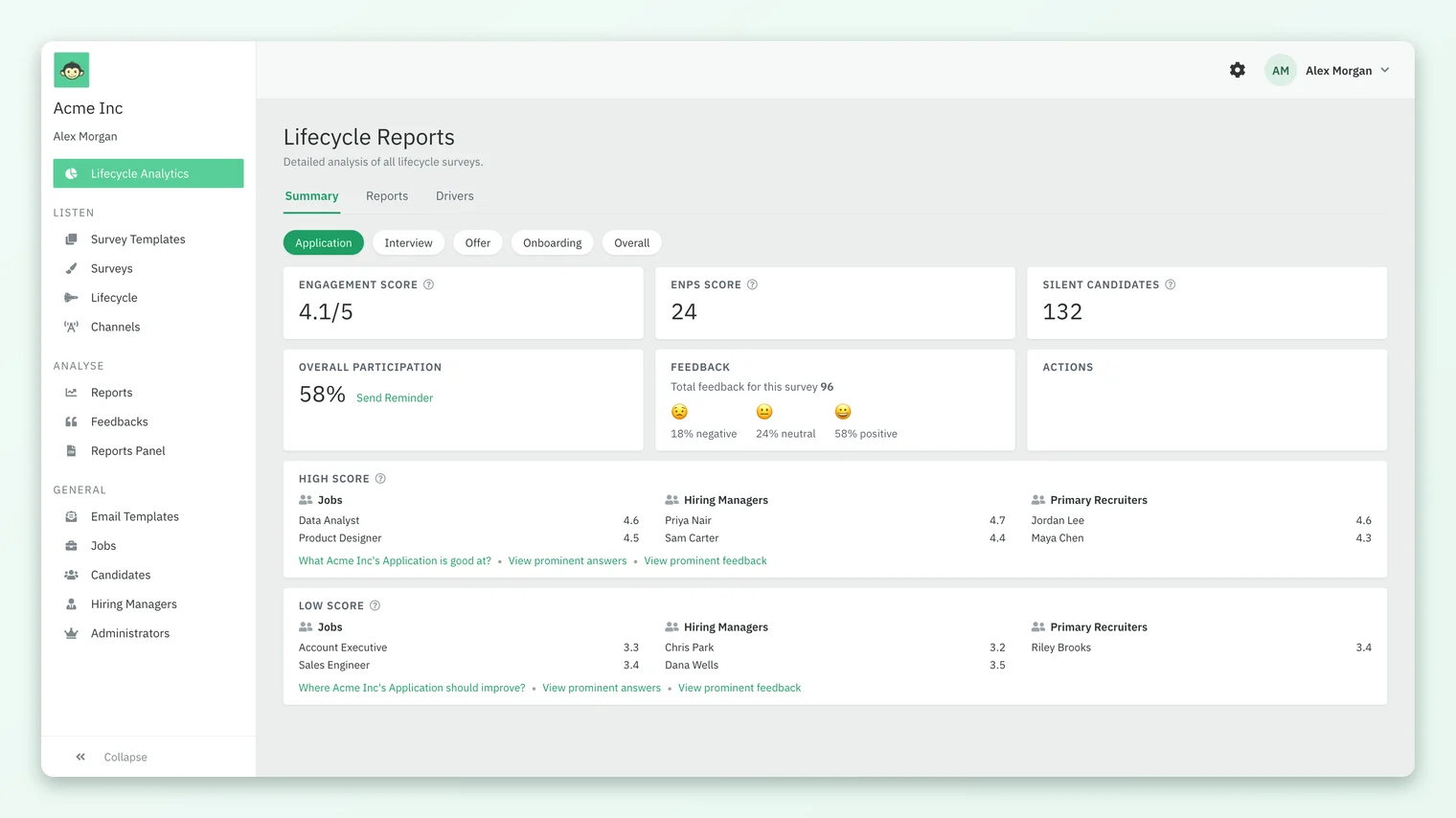
| Card | What it tells you |
|---|---|
| Engagement Score | The stage survey's overall score, shown out of your scale's maximum (for example 4.1/5). |
| eNPS SCORE | The candidate NPS for the stage, when the stage survey includes the recommendation question. See How candidate NPS is calculated. |
| Silent CANDIDATES | How many candidates were sent this stage's survey and have not answered it. |
| Overall Participation | The stage's participation rate, with a Send Reminder link. |
| Feedback | Total feedback for the stage survey, split into negative, neutral and positive percentages. |
| High Score / Low Score | The groups scoring highest and lowest on the stage, explained below. |
Send Reminder asks you to confirm, then sends a reminder to every participant who has not answered the stage survey yet. It is worth knowing that stage surveys do not create automatic reminders on their own, and a candidate stops receiving lifecycle reminders once their survey is more than 30 days old.
How are the High Score and Low Score groups chosen?
High Score lists the top 5 groups by average engagement score on the stage, and only groups scoring 80% or more of the maximum qualify. Low Score lists the bottom 5, and only groups at 70% or below qualify. On a 5-point scale that is 4.0 and above, and 3.5 and below.
By default the groups are Jobs, Hiring Managers and Primary Recruiters. CultureMonkey can change these for your account to include L2 manager (from the job hierarchy) or requisition location, and can rename the headings.
Each card ends with links that open the detail behind it:
- What <your company>'s <stage> is good at? shows the three highest-rated questions on the stage.
- Where <your company>'s <stage> should improve? shows the three lowest-rated questions.
- View prominent answers and View prominent feedback show the standout free-text answers and comments, positive or negative.
A group only appears on these cards when it has at least as many respondents as your candidate dashboard threshold. That threshold is separate from the employee one, defaults to 5 and can never be lower than 3. It applies to these score cards and the time-series breakdown only; survey reports and the heatmap use each survey's own minimum. Ask your CultureMonkey Success Manager if you want it changed.
What are silent candidates?
A silent candidate is someone who was sent a lifecycle stage survey and has not submitted a response. CultureMonkey shows them in two places:
| Where | What you get | Limits |
|---|---|---|
| Lifecycle Analytics, Silent CANDIDATES card | A count for the stage, or for all stages under Overall | A number only; there is no breakdown by group for candidates |
| Lifecycle, each stage's Silent participants: N | Click the number for the list: EXTERNAL ID, NAME, EMAIL ADDRESS and STATUS, with a Download button | Only for stages whose survey is non-anonymous |
| Lifecycle, All silent participants button | One CSV across every stage | Non-anonymous stage surveys only |
To follow up with silent candidates by name:
- 1Click Lifecycle in the sidebar to open your stages.
- 2Find the stage and click the number next to Silent participants. The list covers everyone in that stage "since activation" who has not responded.
- 3Click Download for a CSV of that stage, or use All silent participants at the top of the page for every stage at once.
Silent candidate lists exist for lifecycle stages only. For a one-off custom survey, the Summary tab of its report shows how many candidates did not respond, but not who.
Who can see Lifecycle Analytics?
Super Admins only. Sub Admins do not see Lifecycle Analytics or Lifecycle, and are sent to Reports if they try to open them. See Candidate Super Admins, Sub Admins and access.
Frequently asked questions
Why is Lifecycle Analytics empty?
The dashboard waits until at least one lifecycle stage survey has enough responses to produce a report. Check that your stages are enabled under Lifecycle and that candidates are being enrolled.
Why can't I click the silent participants number for a stage?
The named list is only available when the stage survey is non-anonymous. For an anonymous stage survey you see the count, but CultureMonkey does not reveal which candidates have or have not answered.
Does the Silent CANDIDATES card show which jobs or recruiters have the most non-responders?
No. For candidates the card shows the count only. Use the named list on the Lifecycle page, which includes each candidate's details, when the stage survey is non-anonymous.
Can I change which groups appear on the High Score and Low Score cards?
Yes, through CultureMonkey. The allowed groups are job, hiring manager, primary recruiter, L2 manager and requisition location, and your CultureMonkey Success Manager can set them up for your account.
Does Lifecycle Analytics recommend actions for low-scoring stages?
No. It points you at the weak spots through the Low Score groups, the lowest-rated questions and the composite driver analysis, but it does not generate recommended actions.
Do silent candidates get reminded automatically?
Stage surveys do not create automatic reminders. Use Send Reminder on the Overall Participation card to remind everyone who has not answered a stage survey.
Where to go next
Your feedback helps us improve the Help Center.