

Use complex (multi-condition) filters
How to stack several filter conditions on a report at once, whether they combine with AND or OR, how the dropdowns cascade, which attributes are available to filter on, and how anonymity protects a narrow combined segment.
On this page
A single filter answers a single question: how does the Sales team score? But the most useful insights usually live at an intersection. How do the senior engineers in Berlin who report to one particular manager feel? Answering that means stacking several conditions at once, and that's exactly what CultureMonkey's complex filters are for.
This guide covers how to add more than one condition to a report, whether those conditions combine with AND or OR logic, how the dropdowns narrow each other as you go, which attributes you can filter on (and who decides), and - importantly - how anonymity protects the people inside a very narrow combined segment. If you only need one condition at a time, start with Filter a report by demographic and come back here when you want to combine them.
Open the Filter panel on a report, then set values in more than one field (for example Location and Team and Manager). Conditions across different fields combine with AND (a respondent must match all of them). Where a field allows multiple selections, those values combine with OR (match any of them). The dropdowns cascade, so each choice narrows the options in the next. If the resulting group is smaller than the survey's anonymity threshold, CultureMonkey keeps the scores hidden.
What "complex" means here
A complex filter is simply a filter with more than one condition applied at the same time. Nothing about it is complicated to use - the word "complex" refers to the combination, not the difficulty.
Every report in CultureMonkey is, under the hood, a pool of responses. Each condition you add removes the responses that don't match, leaving a smaller and more specific pool behind. Add "Location = Berlin" and you keep only Berlin responses. Add "Team = Engineering" on top and you keep only the responses that are both Berlin and Engineering. Keep going and you can zoom all the way down to a very precise slice of your workforce.
This is how you move from a headline number ("our overall score is 72") to a targeted one ("but among new hires in the Manila support team it's 58"). The headline tells you what; the combined filter helps you find the where.
Where to find the filter panel
Complex filters live inside your survey reports, not on the main Dashboard. Open a report from Analyse > Reports, then look for the Filter control (marked with a funnel icon) near the top of the view.
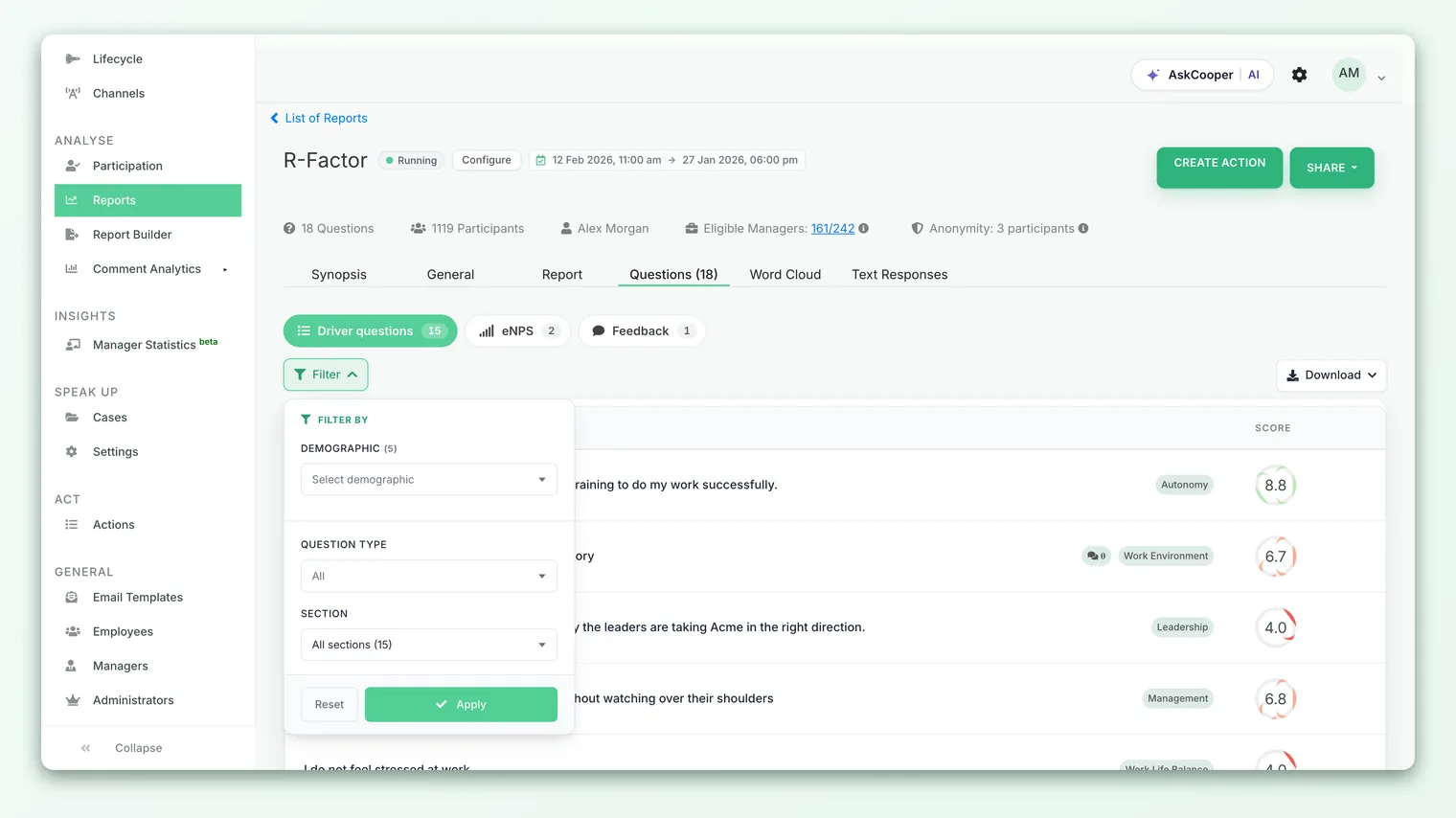
Clicking Filter opens a small panel with a stack of dropdowns, one per available attribute. A typical panel includes Location, Business Unit, Team, and Manager, plus any custom attributes your account has set up. You set a value in as many of these as you like, then click Apply Filter. The report redraws to show only the matching segment, and a small FILTERED badge appears so you always know you're looking at a slice rather than the whole population.
Adding more than one condition
Building a combined filter is just a matter of setting several dropdowns before you apply:
- 1Open the Filter panel - click the funnel-marked Filter control at the top of the report.
- 2Set your first condition - pick a value in one field, for example Location = Berlin.
- 3Add the next condition - move to another field and pick a value, for example Team = Engineering. Notice the options have already narrowed (more on that below).
- 4Keep stacking as needed - add Manager, Business Unit, or any custom attribute to tighten the segment further.
- 5Apply the filter - click Apply Filter. The report recalculates for the combined segment and shows the FILTERED badge.
There's no separate "add condition" button to hunt for. Every available field is already on the panel; a condition simply becomes active the moment you choose a value for it. Leaving a field on its default ("All" or the blank prompt) means that field places no restriction on the results.
Do conditions combine with AND or OR?
This is the question that trips people up, so it's worth being precise. There are two different combinations happening, and they use different logic.
Across different fields: AND. When you set a value in Location and a value in Team, a respondent has to match both to be counted. Every field you add is another hurdle the response must clear. This is why each condition makes the segment smaller, never larger.
Within a single multi-select field: OR. Some fields let you pick more than one value at once (for example, selecting two locations in one dropdown). Within that one field, the values combine with OR - a respondent matches if they belong to any of the selected values. Whether a given field allows multiple selections is a setting your administrators control (see the next section).
| You select | Logic | Reads as |
|---|---|---|
| Location = Berlin, Team = Engineering | AND (different fields) | "Berlin and Engineering" |
| Location = Berlin or Munich (one multi-select field) | OR (same field) | "Berlin or Munich" |
| Location = Berlin or Munich, and Team = Engineering | Both | "(Berlin or Munich) and Engineering" |
So the general rule is: different attributes narrow, multiple values within one attribute widen. There is no free-form query builder where you type your own AND/OR/NOT logic; the combination follows this fixed and predictable pattern, which keeps results easy to reason about.
Picture one bucket per attribute. Inside a bucket, "any of these will do" (OR). Between buckets, "all buckets must be satisfied" (AND). That mental model tells you exactly what any combination will return before you apply it.
How the dropdowns cascade
The filter dropdowns are dependent, not independent. As you make a selection, the options available in the next dropdown update to reflect only what's still possible.
Pick a Location, and the Business Unit dropdown repopulates with only the business units that exist in that location. Pick a Business Unit, and the Team dropdown narrows to teams within it. Pick a Team, and the Manager dropdown narrows to the managers of that team. This cascade means you can't accidentally build an impossible combination (a team that doesn't exist in the location you chose), and it makes drilling down feel like a guided path rather than a guessing game.
A useful side effect: the values that appear in each dropdown already respect the anonymity threshold. Options that would resolve to a group too small to report on are filtered out of the list, so a value you can pick is generally a value that will return something.
Which attributes you can filter on
The fields on the panel aren't fixed. Your account's administrators decide which attributes are available as filters, in Settings > Complex Filters. That list can include:
- Standard attributes that CultureMonkey knows about out of the box, such as Team, Location, Manager, Sub-team, Business Unit, Business Group, Tenure, Gender, and Employee Type.
- Custom attributes your organization imports about employees (for example Job Level, Shift, Cost Center, or Contract Type). Anything you sync through your employee import or HRIS can be turned into a filter.
For each attribute, an administrator sets three things:
| Setting | What it controls |
|---|---|
| Display title | The label that appears on the filter panel. |
| Multi-select | Whether viewers can pick several values in that one field (which enables the OR behavior described above). |
| Visibility | Which roles - Super Admin, Sub Admin, or Manager - see that filter at all. |
Because of the visibility setting, two people opening the same report may see a slightly different set of filters. A manager might see fewer attributes than a full account admin. If a filter you expected is missing, that's usually a visibility choice rather than a bug. See Manage custom employee attributes for how attributes get created in the first place.
CultureMonkey doesn't currently store a named, reusable set of applied conditions that you can recall in one click. What administrators configure once is the list of available filters on the panel; the specific combination you apply is chosen fresh each time you open a report. To return to a segment, just re-select the same values - the cascade makes that quick.
A worked example
Say you ran an engagement survey and the company-wide score looks healthy, but exit interviews hint at a problem among newer technical hires in one region. You want to isolate exactly that group.
- 1Open the report and click Filter.
- 2Location = Berlin. The report now covers everyone in Berlin.
- 3Business Unit = Technology. The Business Unit dropdown already listed only Berlin's units; you pick Technology. Now it's Berlin and Technology.
- 4Tenure = 0-6 months. If Tenure is available as a custom or standard attribute, add it. Now it's Berlin and Technology and new hires.
- 5Apply Filter. The report redraws for that precise slice, and the FILTERED badge confirms it.
If the resulting group is large enough, you'll see its overall score, driver scores, and eNPS just as you would for the whole company - but now they describe only those new Berlin technologists. That's the difference between suspecting a problem and locating it.
Anonymity and narrow segments
Combining conditions is powerful precisely because it makes segments small - and small segments are where anonymity matters most. CultureMonkey protects respondents by enforcing an anonymity threshold (the survey's minimum number of responses, usually 3 for anonymous surveys) on every view, including a heavily filtered one.
Here's what that means in practice. Each condition you add shrinks the pool. If the combined segment ends up below the threshold, the platform will not show its scores - it hides them rather than let a number be traced back to one or two identifiable people. This is expected behavior, not an error or a data gap.
The more conditions you combine, the smaller (and more identifiable) the group becomes. If a combined filter returns empty scores, the most common reason is that you've narrowed past the anonymity threshold. Remove a condition or broaden a value to bring the group back above the minimum. This safeguard is deliberate and can't be bypassed by filtering.
Two things soften this in day-to-day use. First, as noted above, the cascading dropdowns already hide values that would produce a sub-threshold group, so you'll often be steered away from dead ends before you apply. Second, if a view does come back empty, it's usually a signal to zoom out one level - look at the whole region rather than one team within it. For the full picture of how thresholds work and why a view might be blank, see Why can't I see results yet? and How anonymity works.
Best practices
- Start broad, then narrow. Apply one condition, read the result, then add the next. It's easier to understand which condition moved the number when you add them one at a time.
- Watch the FILTERED badge. It's easy to forget a filter is active and misread a slice as the whole company. If a number looks surprising, check whether the badge is showing.
- Don't over-slice. Three or four well-chosen conditions usually tell the story. Piling on more mostly just risks crossing the anonymity threshold and hiding the answer.
- Compare like with like. When you filter one report to a segment, filter the comparison the same way. An unfiltered benchmark next to a filtered segment can mislead.
- Clear filters between questions. Reset the panel when you move on to a new line of inquiry so a leftover condition doesn't skew the next view.
Frequently asked questions
If I select two teams, do I get both teams' people or nobody?
You get both. Multiple values within one field combine with OR, so selecting Team A and Team B returns everyone in either team (provided that field is set up as multi-select). It's conditions across different fields that combine with AND.
Why did my report go blank after I added a filter?
Almost always because the combined segment fell below the anonymity threshold. Adding conditions shrinks the group; once it's smaller than the survey's minimum number of responses, CultureMonkey hides scores to protect respondents. Remove or broaden a condition to bring it back.
Can I save a combination of filters to reuse later?
Not as a named, one-click set. The panel's list of available filters is configured once by an administrator, but the specific combination you apply is chosen each time. Re-selecting the same values is quick thanks to the cascading dropdowns.
Why do I see fewer filters than a colleague?
Filter visibility is set per role (Super Admin, Sub Admin, Manager) by your administrators. A manager may intentionally see a smaller set than a full account admin. If an expected filter is missing, ask an admin whether it's enabled for your role.
Can I filter on our own custom fields, like job level or shift?
Yes, as long as that attribute has been imported and enabled as a filter in Settings. Any custom employee attribute your account syncs to CultureMonkey can be turned into a filter alongside the standard ones.
Where to go next
- Start with one condition: Filter a report by demographic
- Break scores out side by side: Group scores by demographic
- See where custom filters come from: Manage custom employee attributes
- A view came back empty? Why can't I see results yet?
Your feedback helps us improve the Help Center.