

Allow comments on a question
How to let respondents add an optional written comment to a rating or choice question in CultureMonkey - enabling the "Enable comments" option, customizing the placeholder, and where those comments land in your Feedback reports.
On this page
A rating tells you what someone thinks; a comment tells you why. Most questions in CultureMonkey ask people to pick a number or an option - but sometimes the story behind that choice is the part you actually want. The Allow comments option adds a small, optional text box directly beneath a rating or choice question, so a respondent can explain their answer in their own words without you having to add a separate free-text question.
This guide covers when to use per-question comments, exactly how to turn them on, how to customize the prompt respondents see, whether people are obliged to write anything, and - crucially - where those comments show up in your reports once responses start coming in.
Open the question in the survey builder, tick Enable comments for this question, and CultureMonkey adds an optional comment box under that question on the survey form. You can set your own Comments Placeholder Text; leave it blank and respondents see the default, "Do you have any comments about this question? (optional)" Comments are never mandatory, and they surface in Analyse → Feedback under the Question Comments category.
What "Allow comments" does
When you enable comments on a question, CultureMonkey renders an extra text area right below that question's answer controls on the survey form. The respondent answers the question as normal - picks a rating, selects an option - and then, if they want, types a sentence or two of explanation into the comment box.
The key characteristics:
- It's attached to one specific question. The comment travels with that question's answer, so in reporting you always know which rating or choice the comment is explaining. That context is the whole point - it's what separates a per-question comment from the general "Do you have any feedback?" box at the end of the survey.
- It's optional for the respondent (more on this below). Enabling comments never forces anyone to write anything.
- It's a lightweight alternative to a full free-text question. If all you want is "explain that score," a comment box is less friction than adding a separate open-ended question - and it keeps the explanation tied to the original answer.
When to use it
Per-question comments shine when a number alone would leave you guessing. A few common patterns:
- Explain a low or high rating. On a question like "How supported do you feel by your manager?", a comment box invites the specifics behind a 2 out of 5 - which you can then act on.
- Understand an unexpected choice. On a single- or multiple-select question, a comment lets people add nuance an option list can't capture ("I picked Other because…").
- Capture context without cluttering the survey. Rather than following every rating with its own open question, you enable comments selectively on the two or three items where the "why" matters most.
If you find yourself wanting a dedicated open-ended prompt with its own analysis, reach for a free text question instead. If you want to branch to a different follow-up question depending on how someone answered, that's a job for conditional questions. Comments are for a quick, optional "tell us more" on the same question.
Which question types support comments
The Enable comments option only appears for question types where a written explanation makes sense - the ones that capture a rating or a choice rather than free text:
| Question type | Comments available? |
|---|---|
| Rating | Yes |
| Single Select | Yes |
| Multiple Select | Yes |
| Free Text | No - the answer is already open text |
| Image | No |
You won't see the checkbox on a Free Text question because that answer is already a written response, and there's nothing to add a comment to. For everything else, comments are one tick away.
How to enable comments on a question
Comments are set per question, inside the survey builder, so you can turn them on for exactly the items where you want them.
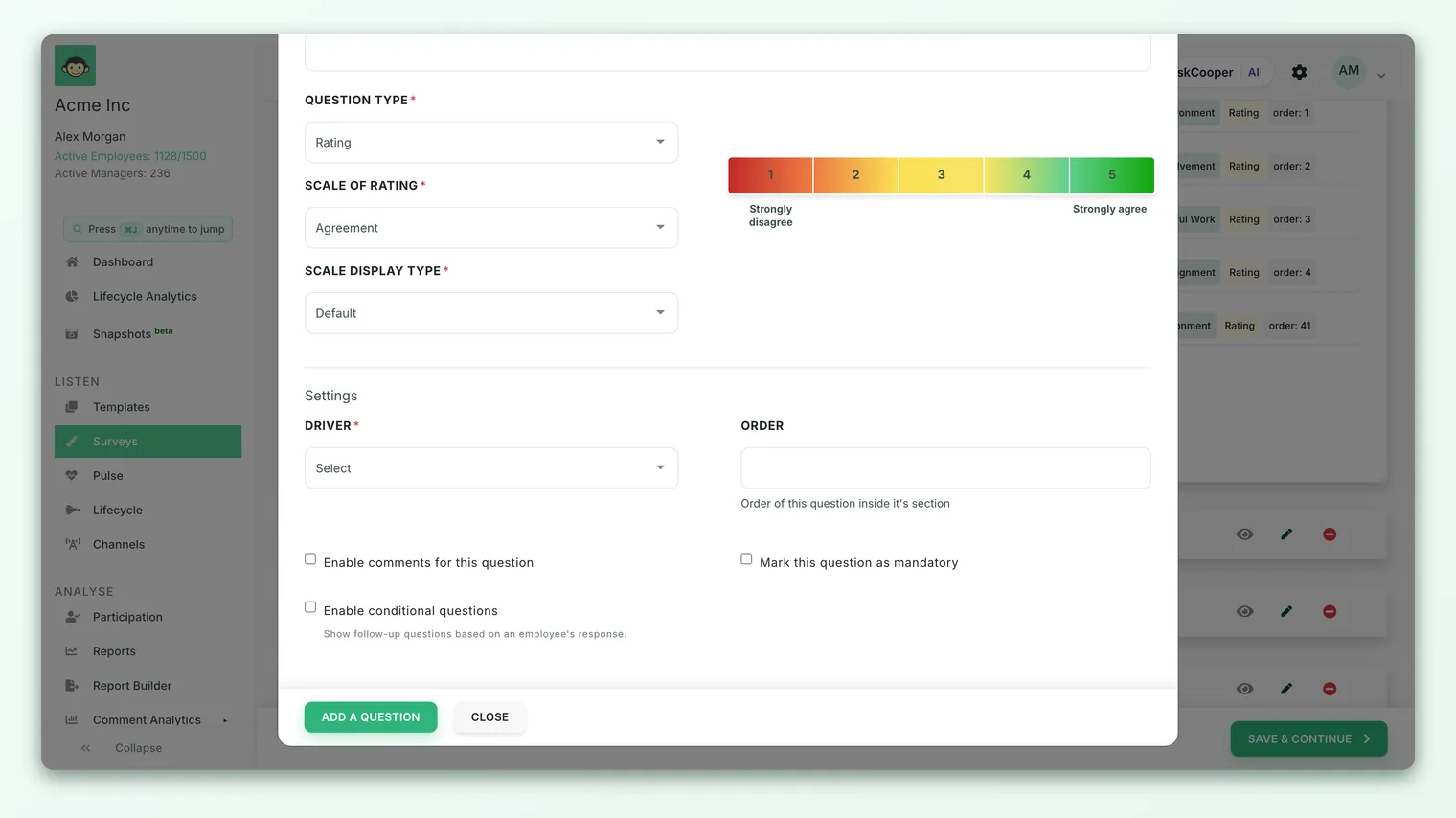
- 1Open the question. In your survey, add a new question or click an existing Rating, Single Select, or Multiple Select question to open its editor.
- 2Find the settings area. Scroll past the answer options to the settings block, where you'll also see options like This is a required question.
- 3Tick "Enable comments for this question." The comment box will now appear under this question on the live survey form.
- 4(Optional) Set a placeholder. In the Comments Placeholder Text field that appears, type the prompt you want respondents to see. Leave it blank to use the default.
- 5Save the question. Save, and repeat for any other questions where you want a comment box.
That's the whole setup. There's no account-wide switch to flip first and nothing to configure in reporting - enabling the checkbox is all it takes for comments to start flowing into your Feedback view.
Customizing the placeholder prompt
The greyed-out text inside the empty comment box is the placeholder, and it does real work: it tells the respondent what you're hoping they'll write.
By default, every comment box reads:
> "Do you have any comments about this question? (optional)"
That's a sensible, neutral prompt - but you can tailor it per question. In the Comments Placeholder Text field, enter something more pointed, such as "What would have made this a higher score?" or "Tell us more about your choice." A specific prompt tends to produce more specific, more useful comments.
The placeholder field is optional. If you clear it or never touch it, CultureMonkey falls back to "Do you have any comments about this question? (optional)" - so an empty field is perfectly fine, not a mistake.
If your survey is multilingual, the placeholder is translatable along with the rest of the question, so respondents see the prompt in their chosen language when a translation exists, and the default in their language otherwise.
Is the comment optional?
Yes - always. A per-question comment is never mandatory, even if the question it's attached to is marked as required.
This is an important distinction. The required setting governs the answer (the rating or the selected option); a respondent can't skip that if it's required. The comment box is separate and stays optional regardless. Someone can give you a rating and leave the comment blank, and their submission is still complete and valid.
That's by design. Forcing everyone to justify every answer creates friction and survey fatigue, and it tends to produce throwaway text ("n/a", "no comment") rather than genuine insight. Keeping comments optional means the ones you do receive are from people who had something they actually wanted to say.
A comment is context, not data that moves a metric. The question's rating or selection is what feeds your scores; the comment simply rides alongside it. Adding or reading comments never changes an eNPS, driver, or engagement number.
Where comments appear in reporting
Once responses arrive, per-question comments live in Analyse → Feedback. CultureMonkey deliberately keeps written responses organized by where they came from, so the Feedback view splits them into three categories in the sidebar:
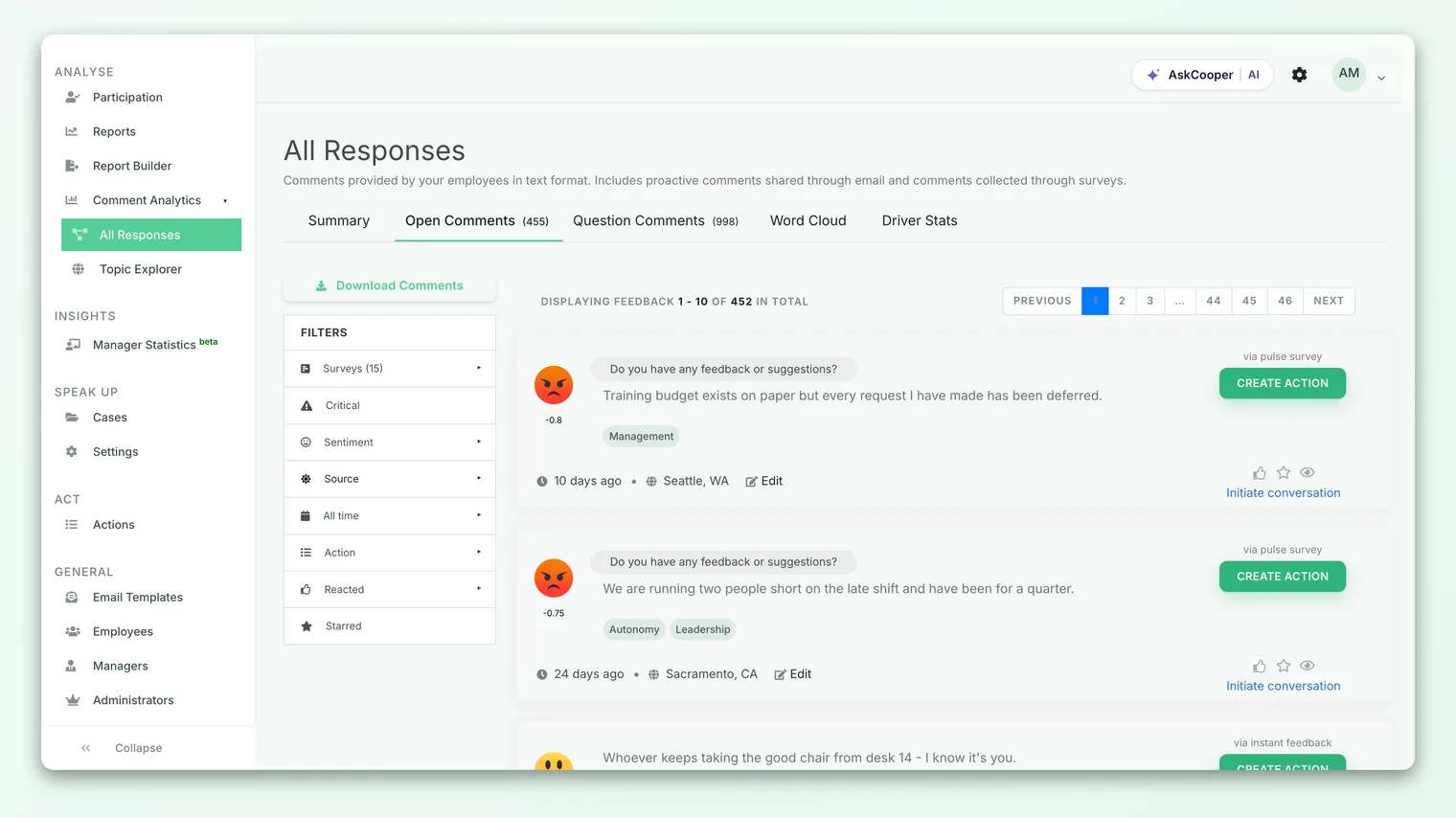
| Category | What it contains |
|---|---|
| Open Feedback | Responses to the standard closing "Do you have any feedback or suggestions?" box that appears at the end of the survey. |
| Free Text Responses | Answers to any dedicated free text questions in the survey. |
| Question Comments | The optional comments people added to your rating, single-select, and multiple-select questions - the ones this article is about. |
Select Question Comments to read every comment across the survey, and use the question filter to narrow to a single question. Because each comment stays linked to its original answer, you can read the explanations for one particular rating together - for example, every comment left on "How supported do you feel by your manager?" - which is exactly the focused, actionable view a general feedback box can't give you.
Comment counts also appear elsewhere: the survey's word cloud draws its keywords from open feedback, free-text answers, and question comments together, and you can export all comments for a survey as a Question Comments Report from the Feedback view.
Comments and anonymity
Written comments are among the most identifying data a survey collects - the way someone phrases a sentence can hint at who they are - so CultureMonkey protects them with the same anonymity threshold that governs the rest of your results.
If the group you're looking at is too small to meet the threshold, comments (like every other result) are withheld rather than shown, so no individual response can be traced back to a person. This is expected, protective behavior, not a bug. If a comments view looks empty when you're expecting responses, the group is likely below the threshold - see the response threshold for a survey and how anonymity keeps your feedback safe.
The same principle applies to managers viewing their own team's feedback: comments only appear once enough people have responded to keep individuals anonymous.
In an anonymous survey, comments are submitted anonymously. It's still worth reminding employees not to include their own name or another person's name in a comment, since identifying details in the text itself can undermine the anonymity the threshold is designed to protect.
Best practices
- Enable comments selectively. A comment box on every question turns your survey into a wall of text and dilutes the responses you get. Add them to the handful of questions where the "why" genuinely matters.
- Write a specific placeholder. "Tell us more about your choice" or "What would raise this score?" earns better comments than the generic default.
- Keep them optional (they already are). Resist the urge to work around the optional nature of comments - the friction isn't worth it.
- Read comments next to the scores. The power of a per-question comment is the link to its answer. Read them together to understand what's driving a rating, not as a standalone feed.
- Prefer a free text question for a true open-ended prompt. If a question is really "tell us anything," make it a free text question rather than bolting a comment onto an unrelated rating.
Frequently asked questions
Do respondents have to fill in the comment?
No. The comment box is always optional, even when the question itself is marked required. People can answer and leave the comment blank, and CultureMonkey still counts their submission as complete.
Can I add comments to a free text question?
No. Free text questions are already open-ended, so the Enable comments option doesn't appear for them. CultureMonkey offers comments on Rating, Single Select, and Multiple Select questions.
What's the difference between a comment and the feedback box at the end of the survey?
The closing feedback box ("Do you have any feedback or suggestions?") is one general prompt for the whole survey; its responses appear under Open Feedback. A comment is tied to a specific question, so its responses appear under Question Comments and stay linked to that question's answer.
Where do I read the comments people leave?
In Analyse → Feedback, open the Question Comments category. You can filter to a single question to read every comment left on it.
Do comments affect my scores?
No. Comments are context only. The question's rating or selection feeds your scores; the comment simply accompanies it and never changes a number.
Can I change the prompt shown in the comment box?
Yes. Use the Comments Placeholder Text field on the question to set your own prompt. Leave it blank and respondents see the default, "Do you have any comments about this question? (optional)"
Where to go next
- Need a full open-ended question instead? Add a free text question
- Want to branch based on the answer? Add conditional (follow-up) questions
- Worried about who can see written responses? The response threshold for a survey
Your feedback helps us improve the Help Center.