

Updates on Org Hierarchy The new org chart is now the default view
The org chart you open from the sidebar is now the new view: your reporting lines on one canvas, with each manager's results one click away.
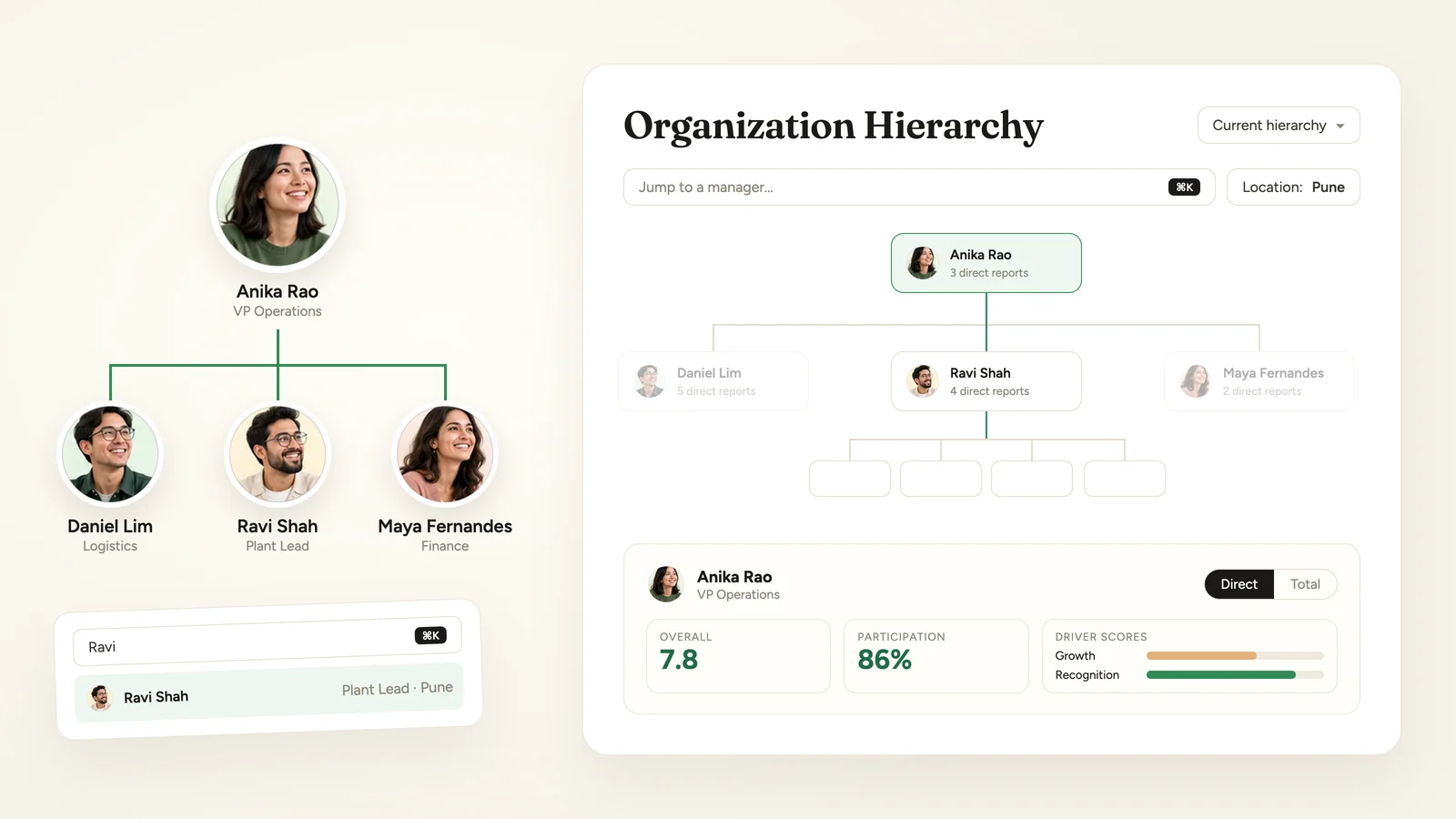
Org Hierarchy now opens on the new org chart. Your organisation's reporting lines are drawn as one chart you can pan and zoom. Each card shows a manager's headcounts, and clicking a card opens that manager's results.
Org Hierarchy is available on request through your Success Manager.
Where to find it
Open Org Hierarchy in the Analyse section of the sidebar. The page opens on the new view, titled Organization Hierarchy.
Find a manager
- Jump to a manager, or press ⌘K, searches your managers by name. Type at least two characters and pick a result: the chart opens the levels down to that manager, however deep they sit.
- Collapse all folds the chart back to the top.
- The zoom controls zoom in and out, and Fit sizes the chart to your screen.
Choose what the chart covers
The Survey picker in the header sets which results sit behind the chart:
| Option | What it shows |
|---|---|
| Current hierarchy | Every survey summed, against your organisation as it stands today |
| Choose survey | One survey. Surveys are listed newest first; a survey still running is tagged Running, and the others show the month they closed |
Filter without losing the reporting lines
Pick values in the filter bar and choose Apply. Cards with no match at or below them are dimmed rather than removed, so you can still follow a reporting line through a manager who doesn't match to the people below who do. A dot marks each card that matches, and the bar shows how many people match.
- Several values in one filter match anyone with any of them. Across filters, people must match every filter.
- Each filter has its own search box and shows how many people carry each value.
- Clear filters resets the chart.
Headcounts on every card
Each card shows two headcounts, not scores: the manager's direct reports, and the people further down their reporting line at all levels below. A card for someone with no reports reads No direct reports. Scores open in the manager panel.
Open a manager's results
Click a card to open the manager panel. Two tabs set whose results you see:
| Tab | Who it covers |
|---|---|
| Direct | The manager's direct reports |
| Total | Everyone below the manager, at all levels |
For the tab you pick, the panel shows:
- Overall: the overall score.
- Participation: the participation rate, with how many of the group responded.
- Driver scores: a score and bar for each driver. A score held back for anonymity shows a dash.
When a tab's group is too small to report on under your anonymity threshold, the panel says its scores are hidden and lists the manager's direct reports, with Show reports in chart to open them on the canvas. If the other tab's group is large enough, it offers View Total scores instead or View Direct scores instead.
Go deeper in the Lineage Explorer
From the panel, Open lineage explorer opens the Lineage Explorer for that manager: a grid of the managers who report to them, with Participation, Overall and each driver on Direct and Total rows. View Org Chart takes you back to the chart.
The classic view
Switch to classic view, at the end of the filter bar, opens the earlier Org Hierarchy page. Your choice is remembered, so the sidebar keeps opening the classic view until you choose Switch to the new view in the banner at the top of it.
Who can use it
| Role | Access |
|---|---|
| Super Admin | Yes |
| Sub Admin | Yes, for the part of the organisation they can see, when your account also gives Sub Admins access to Org Hierarchy |
| Manager, Report View Only | No |
The August release covers the Lineage Explorer's driver drill-down and eNPS columns.
See what a warmer engagement platform looks like
Book a walkthrough and we will show you the features on this page, live in your workspace.