

Frequently asked questions
Quick, grounded answers to the questions admins ask most across CultureMonkey - anonymity and thresholds, roles and access, survey setup, reports and exports, distribution channels, actions, and account basics - each linked to the deep-dive article.
On this page
This is the fast lane. If you have a single, specific question about CultureMonkey and want a short, accurate answer without reading a whole guide, start here. The questions below are the ones admins ask most often, grouped by theme, and each one points to the deeper article when you want the full story.
Every answer here is deliberately brief. The linked articles carry the worked examples, screenshots, and edge cases. Think of this page as an index you can read.
Anonymity is a floor you cannot switch off (three responses on an anonymous survey, five on the aggregate dashboard). Roles decide who sees what in CultureMonkey, from the all-seeing Super Admin down to a scoped Report Viewer. Surveys are built in a four-step guided builder, reports appear once enough people respond, and every export respects the same anonymity rules the screen does. When a specific answer isn't here, follow the link to its full article.
Anonymity and thresholds
Are employee responses really anonymous?
Yes, on an anonymous survey. No role in CultureMonkey - not a manager, not a sub-admin, not an account admin, not even a super admin - can link a response to a person, read a comment tied to an identity, or drill from a score down to "who said that." The protection is enforced inside the queries that build every report, not bolted on at the surface, so it applies to the dashboard, reports, the eNPS breakdown, heatmaps, trends, and exports alike. See How anonymity works.
What is the smallest group CultureMonkey will show?
Three responses, in the default configuration. Every anonymous survey carries a minimum-response threshold that is floored at three and can be raised higher but never lower. Any group below the threshold has its score, eNPS, comments, and participation withheld together. See Set the response threshold.
Why is my filtered report suddenly blank?
Because every filter you add narrows the population toward the threshold, not away from it. "Berlin office" might show fine at 60 responses, but add "tenure under one year" and then "Design team" and you can drop below three, at which point that specific cell disappears. This is anonymity doing its job. Roll a filter back up (a team into its parent, a city into a region) to pool more responses and cross the threshold again. See Why can't I see results yet?.
Does anonymity apply to comments and exports too?
Both. Scores, eNPS, participation, and open-text comments for a below-threshold group are all suppressed together, and PDF, Excel, and PowerPoint exports apply the exact same threshold as the on-screen reports. An export renders the same suppressed data, never a raw dump beneath it. There is no way to export around the protection.
Can I make a survey non-anonymous?
Yes, some surveys are meant to be identified - onboarding check-ins, exit interviews, direct follow-ups. On an identified survey the floor can be as low as one, because knowing who responded is the point. Switching a survey between anonymous and identified automatically resets the threshold (up to at least three for anonymous, down to the account floor for identified), so you never end up with an anonymous survey that could expose an individual. See Survey anonymity.
Roles and access
What are the roles, and who sees what?
There is one all-powerful Super Admin, plus three scoped login roles - Sub Admin, Manager, and Report Viewer - and everyone else is an Employee. A Super Admin sees the whole org; a Sub Admin sees the teams, locations, and attributes you assign; a Manager sees their own reporting line; a Report Viewer sees a scoped, read-only view; and an Employee just answers surveys with no admin login. See Understanding roles in CultureMonkey.
Do I need to give someone a login so they can answer surveys?
No. Every person you upload is an Employee and can answer surveys through email, Slack, Teams, SMS, or a shared link without ever logging in to the admin app. A role is access layered on top of the employee record; it only governs the dashboards, reports, and actions in the admin app, and it never changes anyone's ability to answer surveys.
Why can't I enable Manager access for someone?
Manager access requires a minimum of three people reporting to that person in your employee data. If fewer than three report to them, the manager option stays disabled until the reporting structure meets the threshold. A manager's scope is derived automatically from those reporting relationships, so keeping the reporting manager field accurate is what keeps manager dashboards correct.
I scoped a Sub Admin but they can see everyone. Why?
Because an empty scope means everyone. If you don't select at least one business group, team, location, business unit, or custom attribute for a Sub Admin, the system treats that as "access to all employees." Always confirm at least one segment is selected before saving when you intend to limit someone. See Understanding roles in CultureMonkey.
Can I see the product the way a manager or sub-admin sees it?
Yes. As a Super Admin, use View as Manager or View as Sub Admin to temporarily re-scope the whole app to that person's view, then revert back to your own. It is non-destructive - it changes only your view, never their data or permissions. See Switching between views.
Setting up surveys
How do I create a survey?
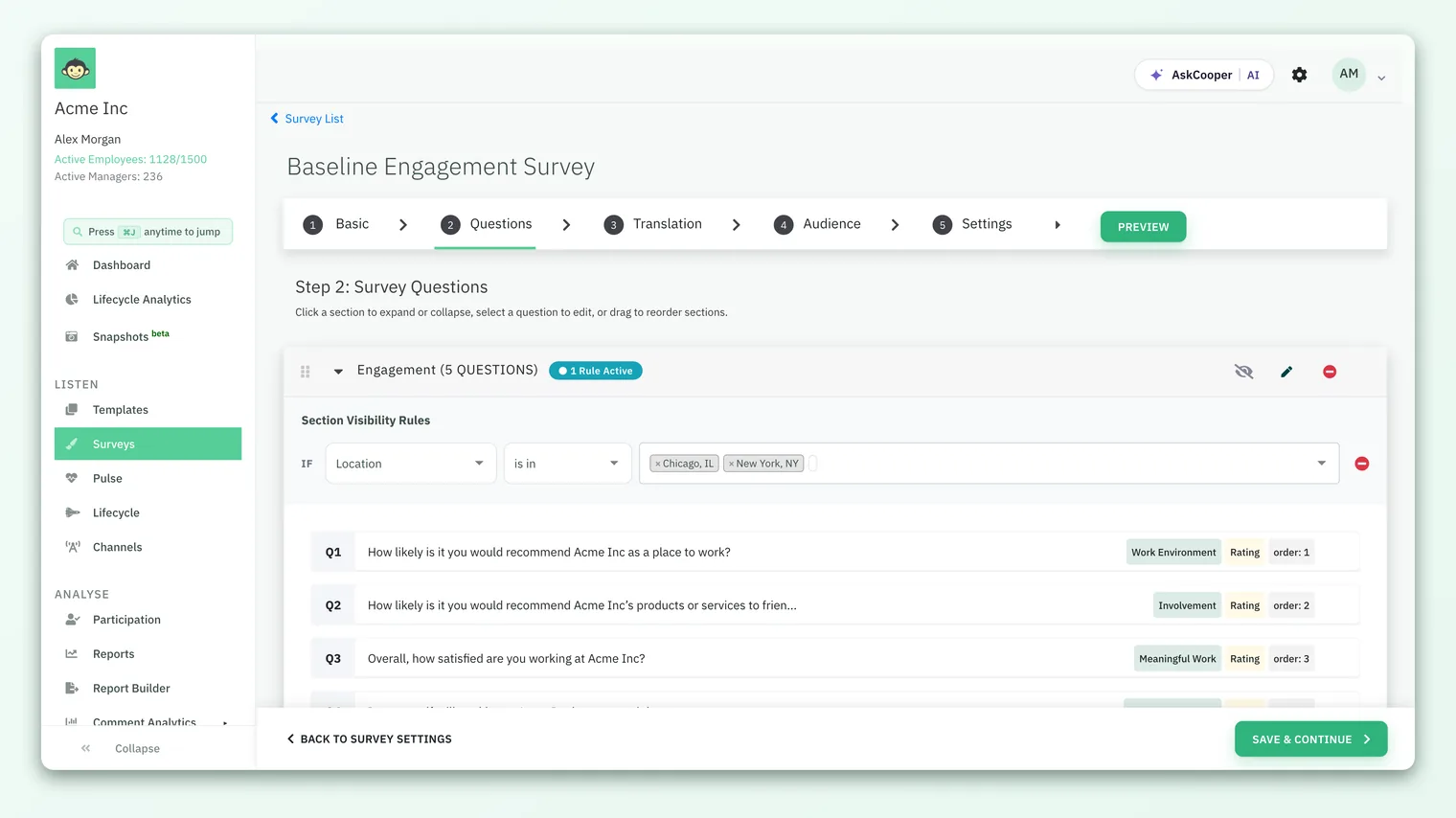
Go to Listen › Surveys and click Create a survey. You work through a four-step guided builder - Basic (name, look, identity), Questions (your content), Audience (who receives it), and Settings (channel, schedule, reminders) - saving with Save & Continue as you go. You can start from a research-backed template instead of a blank survey to get a head start on the Questions step. See Create a survey from scratch.
Who is allowed to create surveys?
Creating and launching surveys is a Super Admin and Sub Admin capability. Managers can create surveys only if survey creation for managers is enabled on your account, and survey creation can be disabled for sub-admins independently. If you don't see Create a survey, ask an administrator to grant access or check the account setting.
Can I preview a survey before it goes out?
Yes. The builder lets you preview the whole experience exactly as a participant would see it, so you can test wording, branding, and flow before a single invitation is sent. See Preview a survey.
What can I change after a survey is live?
Most settings lock once a survey is published, so get the questions, audience, and anonymity right first. You can still do things like extend the end date or send reminders. Because launching locks so much, previewing carefully beforehand is time well spent. See Extend a survey.
What's the difference between a survey, a pulse, and a lifecycle survey?
A survey is a one-time questionnaire you build and send. A pulse is a short, recurring check-in that runs on a cadence to track sentiment between big surveys. A lifecycle survey fires automatically at moments in the employee journey (onboarding, exit, and other autopilot journeys) rather than being sent manually. See What is a pulse survey? and What are lifecycle surveys?.
Reports and exports
Where do I find a survey's report?
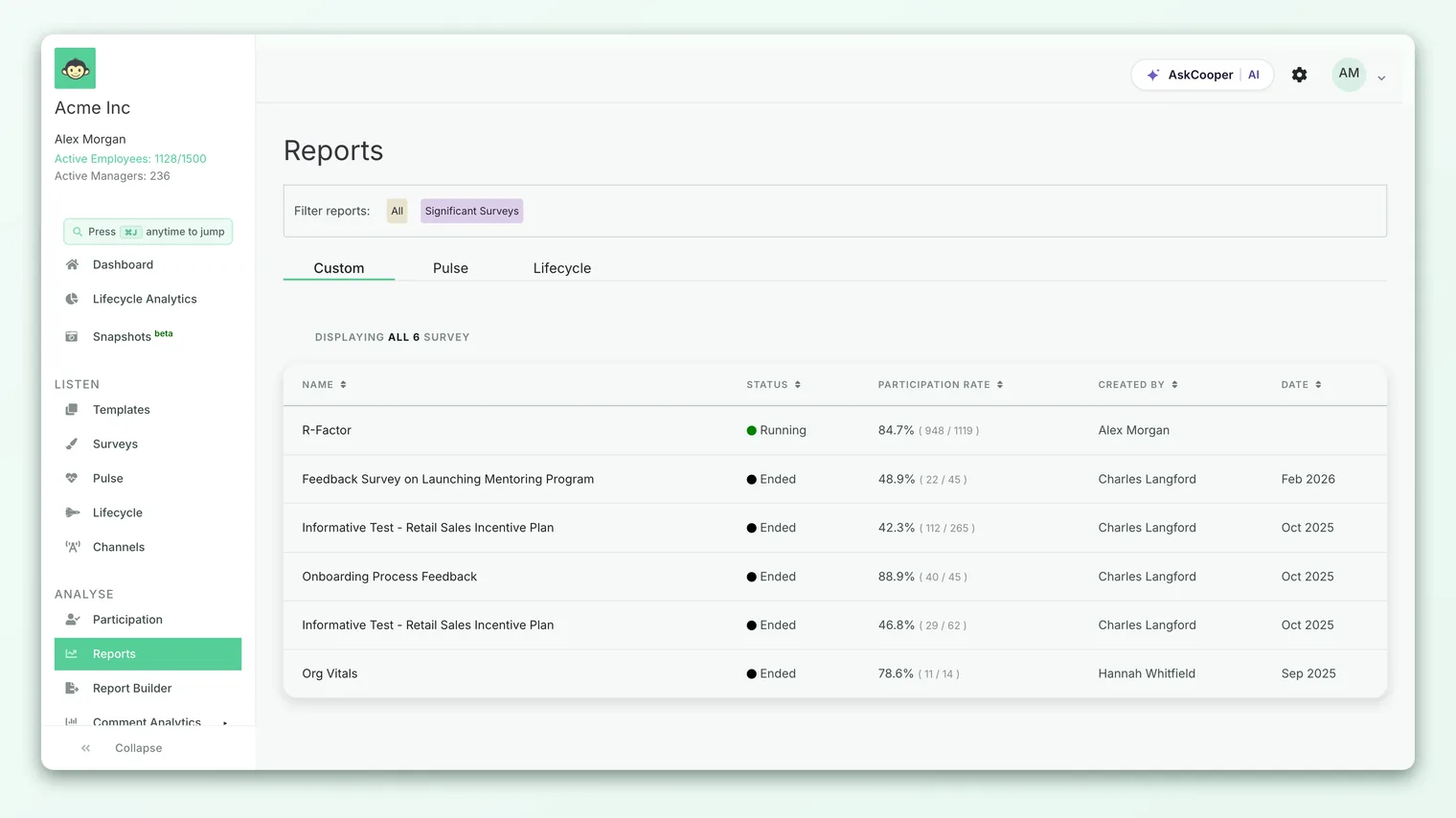
Reports live under Analyse › Reports. Each row in the list is one survey's report; click a row to open it. The main Reports list covers your engagement and custom surveys; lifecycle surveys (onboarding, exit) have their own view. See Open a survey report.
Why doesn't my survey have a report yet?
A report only appears once the survey has collected enough responses to meet its threshold (the minimum-answers setting, three by default on an anonymous survey). A survey you launched five minutes ago, or one only a couple of people have answered, won't have a card yet. It appears automatically the moment the count crosses the threshold. That's expected, not a bug. See Why can't I see results yet?.
Can I export a report to PDF or PowerPoint?
Yes, once the export formats are enabled for your account. PDF and PowerPoint (PPTX) exports are turned on at the account level and controlled separately for admins, sub-admins, and managers, so you decide exactly who can generate a file. Once enabled, the export options appear under the report's Share menu. See Enable PDF and PowerPoint report exports.
Do exports contain more than what's on screen?
No. Every export - PDF, Excel, PowerPoint, or CSV - applies the same anonymity threshold as the on-screen report. A below-threshold group is suppressed in the export just as it is on screen, and no comment ever carries an author's identity. An export is a snapshot of the safe-to-show data, not a route around the rules.
What is eNPS, and where do I see it?
eNPS (Employee Net Promoter Score) is a single number, from −100 to +100, that captures whether employees are, on balance, advocates for your workplace or critics of it. It appears on the Dashboard for an at-a-glance view and inside each survey report for detail. Like every result, it is protected by the anonymity threshold, so a group too small to show simply won't have an eNPS. See What is eNPS and how is it calculated?.
Sending and channels
What channels can I send surveys through?
CultureMonkey supports five push channels - email, SMS, WhatsApp, Slack, and Microsoft Teams - plus a QR code / link option for people you can't message directly. Email is always available and is the default; the other four each need a setting enabled and, for Slack and Teams, a completed integration. See Distribution channels overview.
Which channel should I choose?
Pick the one your audience actually checks, not the one that's easiest to set up. Email suits desk-based teams and longer surveys; SMS and WhatsApp reach deskless and frontline staff who have no company inbox; Slack and Teams fit companies that live in chat; and a QR code or link covers shared devices and shop floors. Anonymity is preserved on every channel, because the delivery method is separate from whether responses are tied to a person.
Does the channel affect anonymity?
No. How a survey is delivered has nothing to do with whether responses are attributed. Every channel, including email and SMS where an address or number is used to send the invitation, keeps responses anonymous under the same threshold rules. Delivery and results are separate systems.
How do reminders work?
Reminders nudge people who haven't responded yet. You can send them on the same channel as the original survey or a different one, so you can, for example, follow up an email survey with a Slack reminder. See Recurring vs one-time reminders.
Actions and follow-through
What are actions, and who can create them?
Actions are the follow-through plans you build from what a survey tells you - a concrete step, an owner, a deadline. A Super Admin can create and manage actions across the account; a Manager creates and views actions for their team; a Sub Admin manages the actions assigned to or created by them. See Create an action.
Can I turn a piece of feedback into an action?
Yes. You can create an action directly from a comment in the feedback inbox, which keeps the insight and the plan connected. See Create an action from feedback.
How do I track whether actions are getting done?
Actions carry a status you update as work progresses, and there's a summary view that rolls up how your action plans are tracking across owners and drivers. See Update action status and Action summary report.
Account and access basics
How do I add people to CultureMonkey?
Add employees under General › Employees, either individually or by importing a CSV, and connect an HRIS if you want the list to stay in sync automatically. A well-maintained employee list, with accurate teams, locations, and reporting managers, is what makes targeting and manager dashboards work. See Add employees and Import employees from a CSV.
How do I invite another admin?
A Super Admin grants a role from a person's profile, or invites a brand-new admin who isn't yet in your data from the Administrators page. CultureMonkey sends an invitation email; access activates once the person accepts it and sets a password. See Invite admins.
I can't log in. What should I check?
Confirm you accepted your invitation and set a password, that you're using the right email, and that your account uses password login rather than single sign-on (if your organization uses SSO, you sign in through your identity provider, not a CultureMonkey password). See Logging in.
Where do I go if my question isn't here?
Start with the linked article closest to your question, then check the glossary for any term you're unsure about. If you still need a hand, getting help explains how to reach the CultureMonkey team.
Where to go next
- The anonymity mechanics in full: How anonymity works
- Who can see and do what: Understanding roles in CultureMonkey
- Build your first survey: Create a survey from scratch
- Read your results: Open a survey report
- Any unfamiliar term: Glossary
Your feedback helps us improve the Help Center.